
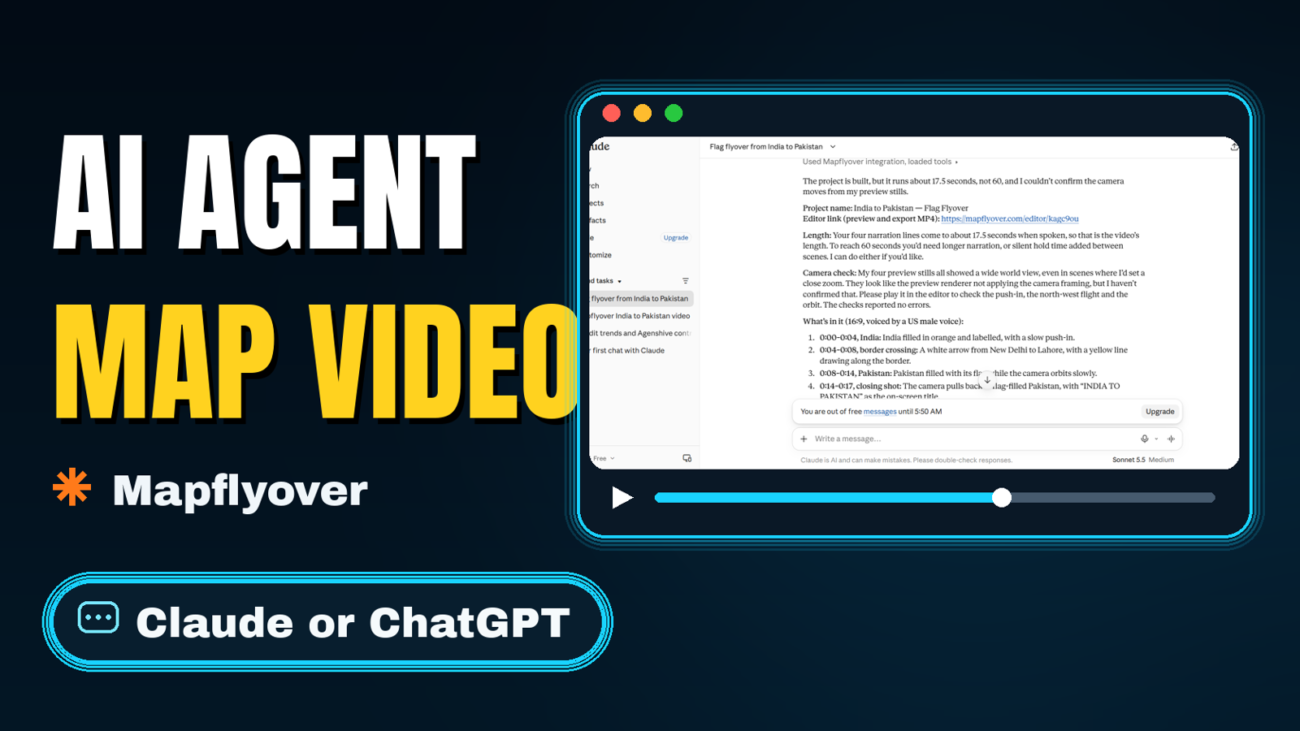
Quick answer: You can let Claude, ChatGPT, Cursor or Claude Code build a map video for you in Mapflyover. Connect the agent once through Mapflyover’s MCP server, ask for the video in plain words, and the agent writes the script, creates the narration, times the captions, finds the real place outlines and hands you a preview link. You review it and export the MP4 yourself — the agent cannot export, so the finished video is always your call.
This is different from typing a prompt into a built-in AI button. Here your own AI assistant drives the whole studio, and you keep the project as a normal, editable Mapflyover project afterwards. This guide walks through the connection for Claude and ChatGPT, what to ask for, and what to check before you export.
What you need before you start
- A free Mapflyover account. Building, previewing, narrating and captioning are free — you only pay if you want to export beyond the free limits (see Step 6).
- Claude or ChatGPT (website or desktop app), or a code tool such as Claude Code or Cursor.
- No token or API key is needed for the easy path. Signing in is the recommended way to connect; a personal access token is only needed for tools where you set a header yourself.
- About five minutes for the one-time connection. After that, each video starts with a single sentence.
Step 1: Create your free Mapflyover account
If you do not have one yet, go to mapflyover.com and sign up. The free plan lets you build and preview as much as you like, with 3 projects and 2 short MP4 exports a month (720p, up to 90 seconds each, with a small Mapflyover mark). Connecting your AI agent is included on the free plan — you do not need a paid plan for the agent to build your videos. The agent can build as many videos as you like; the export limits of your plan are what still apply at the end.
Step 2: Connect your agent to Mapflyover
Mapflyover’s agent guide is at mapflyover.com/agents, and the server address is the same for every app: https://mapflyover.com/api/mcp. There are two ways to connect. Sign-in is the easiest and needs no token. Use a token only for tools where you set a header yourself.
Claude (website or desktop app)
- Open Settings, then Connectors.
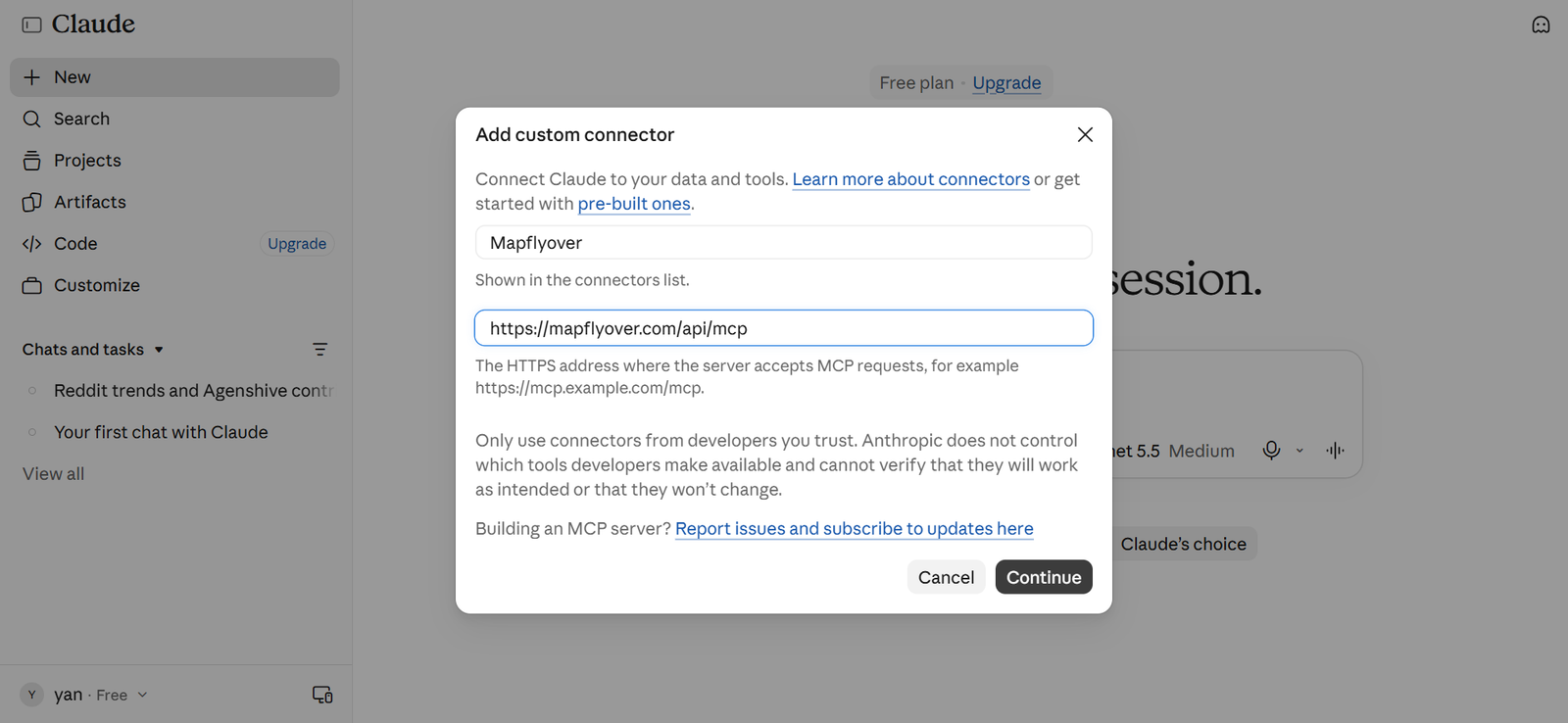
- Choose Add custom connector. Name it Mapflyover and paste https://mapflyover.com/api/mcp as the server address.
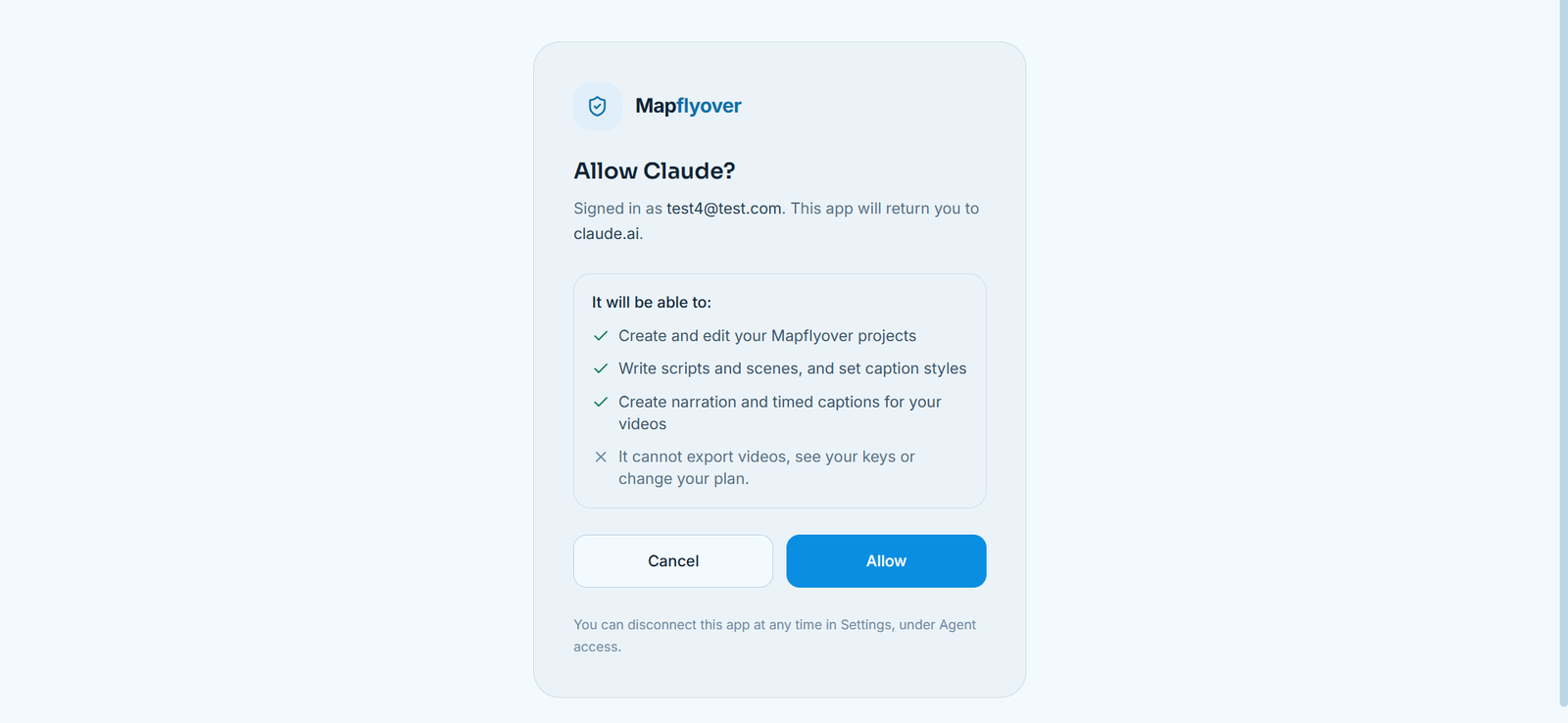
- Add it, then choose Connect. Mapflyover opens in your browser — sign in if you are not already, check the app name, and tap Allow.
- Start a new chat, switch the Mapflyover connector on, and ask for a video.
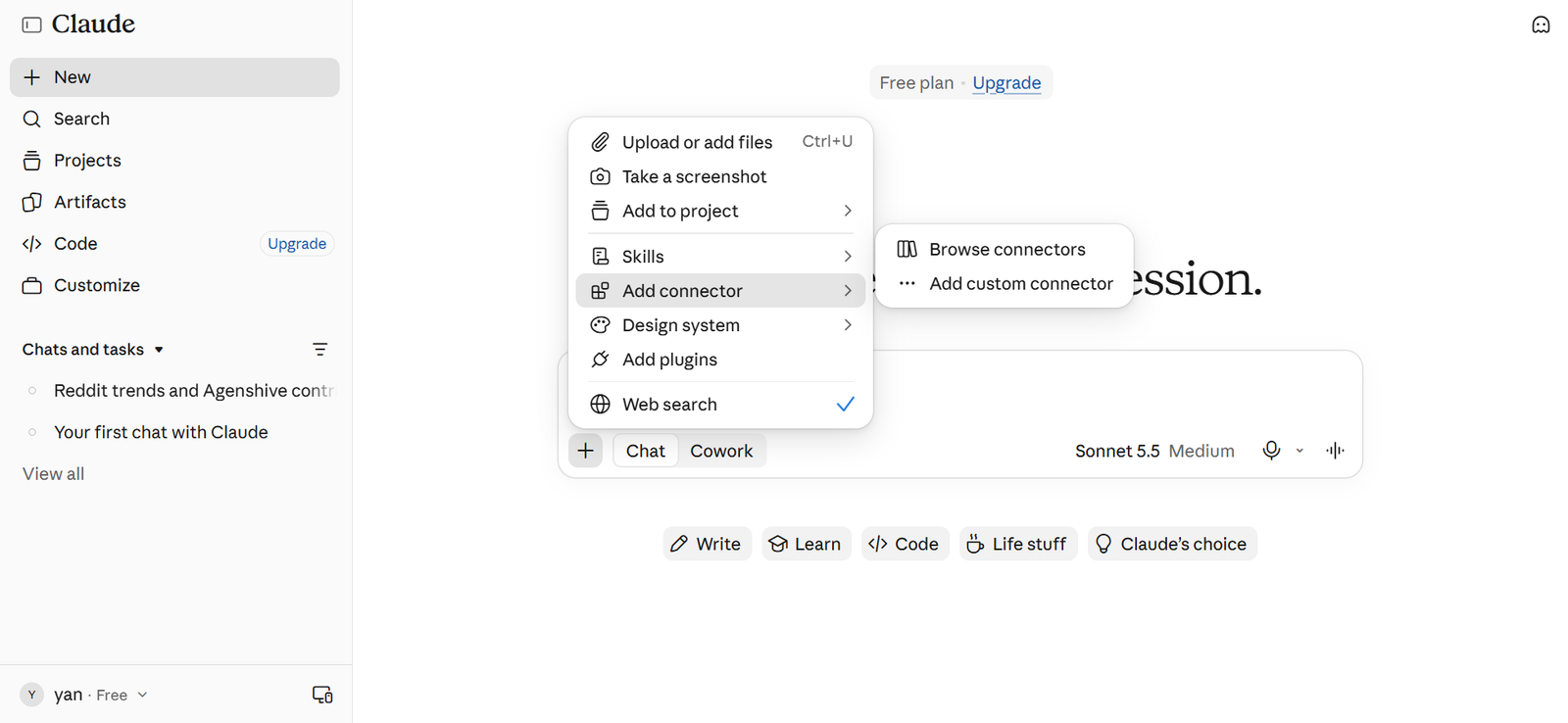
One honest note: whether custom connectors are available can depend on your Claude plan or workspace settings, so if you do not see the option, that is a plan limit rather than a Mapflyover problem.
ChatGPT
- Open Settings and find Connectors. Depending on your plan it may sit under Apps or Developer mode.
- Add a custom connector or remote MCP server, paste https://mapflyover.com/api/mcp, and choose OAuth if it asks how to sign in.
- Choose Connect, sign in to Mapflyover in the window that opens, and tap Allow.
- Enable the connector in a chat and ask for a video.
As with Claude, whether custom connectors are available depends on your ChatGPT plan and settings. Menu names can also change as these apps are updated — if the labels above have moved, look for Connectors, Integrations or MCP servers in the app’s settings.
Claude Code and Cursor (token)
If your tool has no sign-in screen and expects you to set a header yourself, use a personal access token instead. In Mapflyover, open Settings, then Agent access, name the token (for example “Claude Code on my laptop”) and tap Create token. Copy it now — it is shown only once. Then add the server to your tool with the header Authorization: Bearer YOUR_TOKEN. For Claude Code the command is:
claude mcp add --transport http mapflyover https://mapflyover.com/api/mcp --header "Authorization: Bearer YOUR_TOKEN"
Cursor and Claude Desktop use the same address through a config file, with a small helper that launches the remote server. If your app can add a remote server by address and supports sign-in, use the sign-in option above instead and skip the token entirely.
What the agent is allowed to do
The consent screen you tap Allow on spells it out. The agent can create and edit your Mapflyover projects, write scripts and scenes, set caption styles, and create narration and timed captions. It cannot export videos, see your keys, or change your plan. Sign-in access lasts an hour and renews by itself for up to 60 days, and you can disconnect any app or revoke any token at any time in Settings, then Agent access. Access only ever reaches your own projects.
Step 3: Ask for a video in plain words
Once the connector is on, just describe the video you want. You do not need special commands. These three prompts work as starting points — copy one and change the topic:
- “Make a 60-second vertical video about the five largest countries in Africa, with a stat card for each country’s area.”
- “Make a travel video about a week in Japan, one scene for each city we visit.”
- “Make a top 5 video of the highest mountains in Australia, with a stat card for each height.”
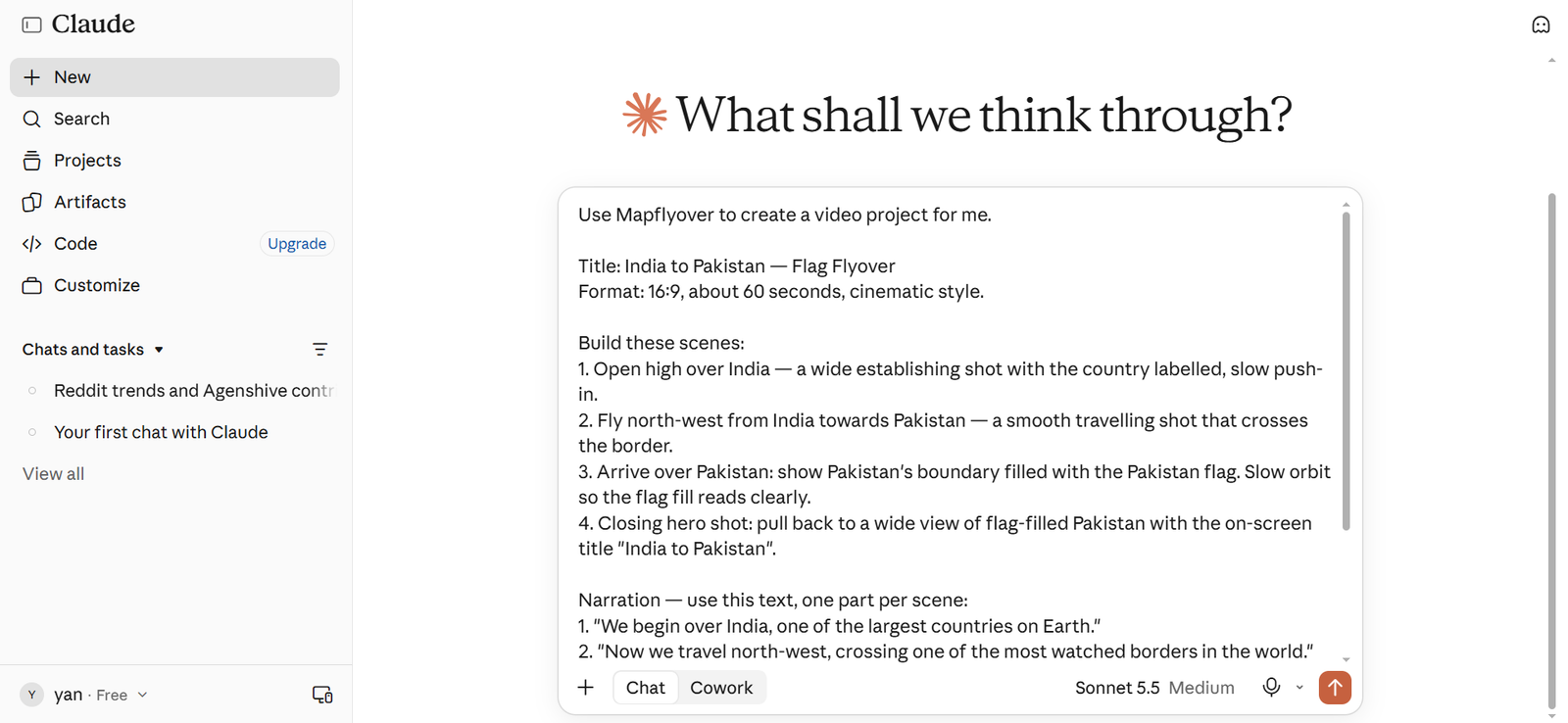
A few things that make the result better:
- Name the format. Say vertical (9:16) for Shorts and TikTok, or landscape (16:9) for YouTube. One project exports in one orientation, so pick it up front.
- Name the length. A number of seconds or a rough word count keeps the narration and the scenes in step — about 140 words of script makes roughly a minute of video.
- Name the places exactly. “The five largest countries in Africa” is clearer than “some big countries”, and it helps the agent find the right outlines.
- Say what should appear on screen. Ask for a stat card, a flag fill or a title where you want one, rather than assuming it.
Step 4: What the agent does while you wait
The agent reads Mapflyover’s built-in guide, then works through the same steps the editor would: it creates the project, writes the script, generates the narration, times the captions word by word, finds the real outline for each place, saves the scenes and gives you a link. Before anything is saved, the scenes are checked against a schema — gaps, overlaps, missing outlines, or a scene that runs past the narration all come back in plain language so the agent can fix them and save again. Nothing half-finished reaches your project.
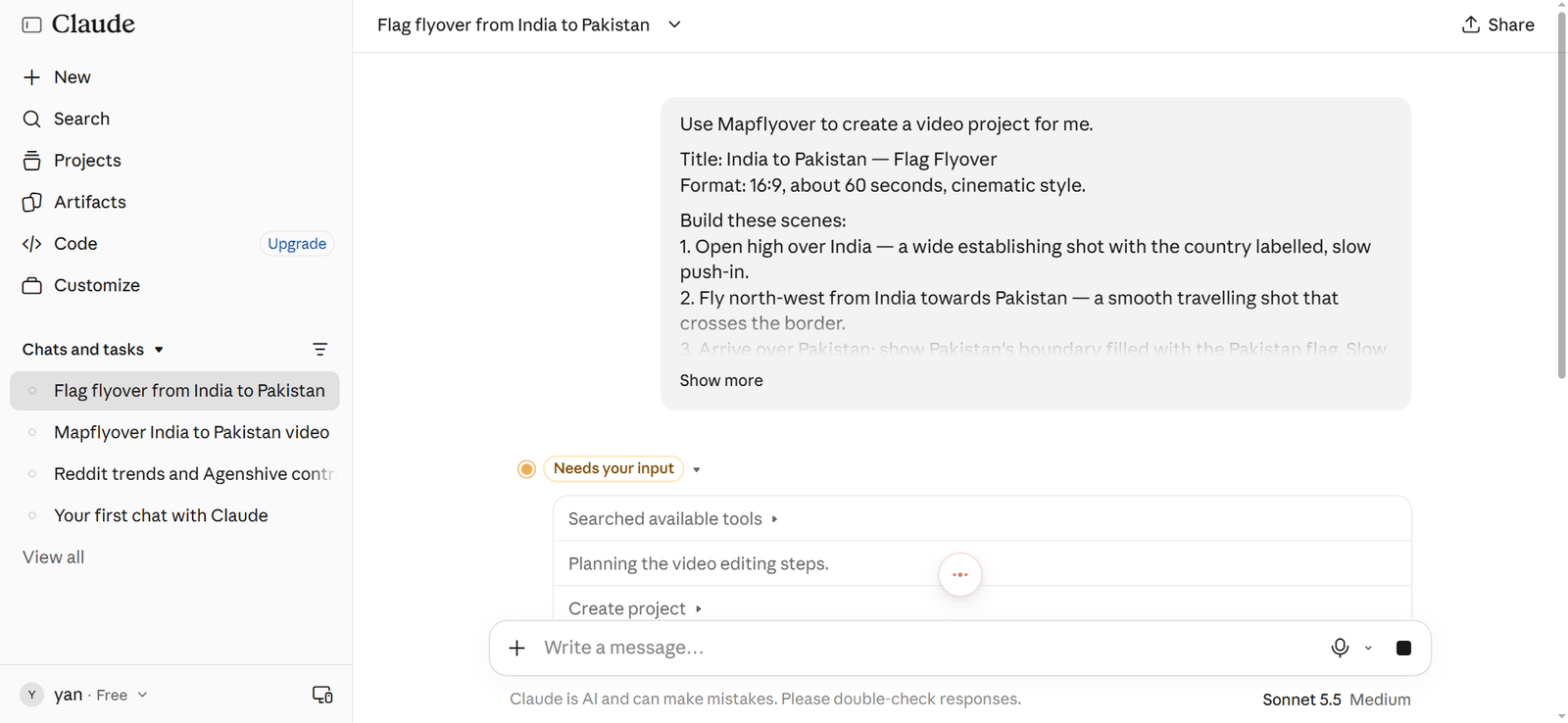
Place outlines come from OpenStreetMap, so they are the real current boundaries, not drawn approximations. Narration is free and needs no key, and the captions are timed from that narration. If the agent ever says narration or captions need a key, it is mistaken — a key is only needed for captions on a recording you made yourself, in which case you add a Groq key under Settings, then Your AI keys. If narration briefly fails, try again in a minute.
Step 5: Review the preview link
When the agent is done, it gives you a preview link. Open it and check three things before you do anything else:
- Is each outline the place you meant? Place names can be ambiguous, so check the map is showing the country, city or region you actually asked for.
- Does the framing look right? Watch the camera on each scene. The preview is a fast renderer and can frame a scene wider than the final video will, so if a close-up matters to you, judge it from a short test export rather than the preview alone — see our guide on why a Mapflyover preview can look different from the export.
- Do the captions and stat cards read well? Check the timing against the voice and that cards are not covering the place they describe.
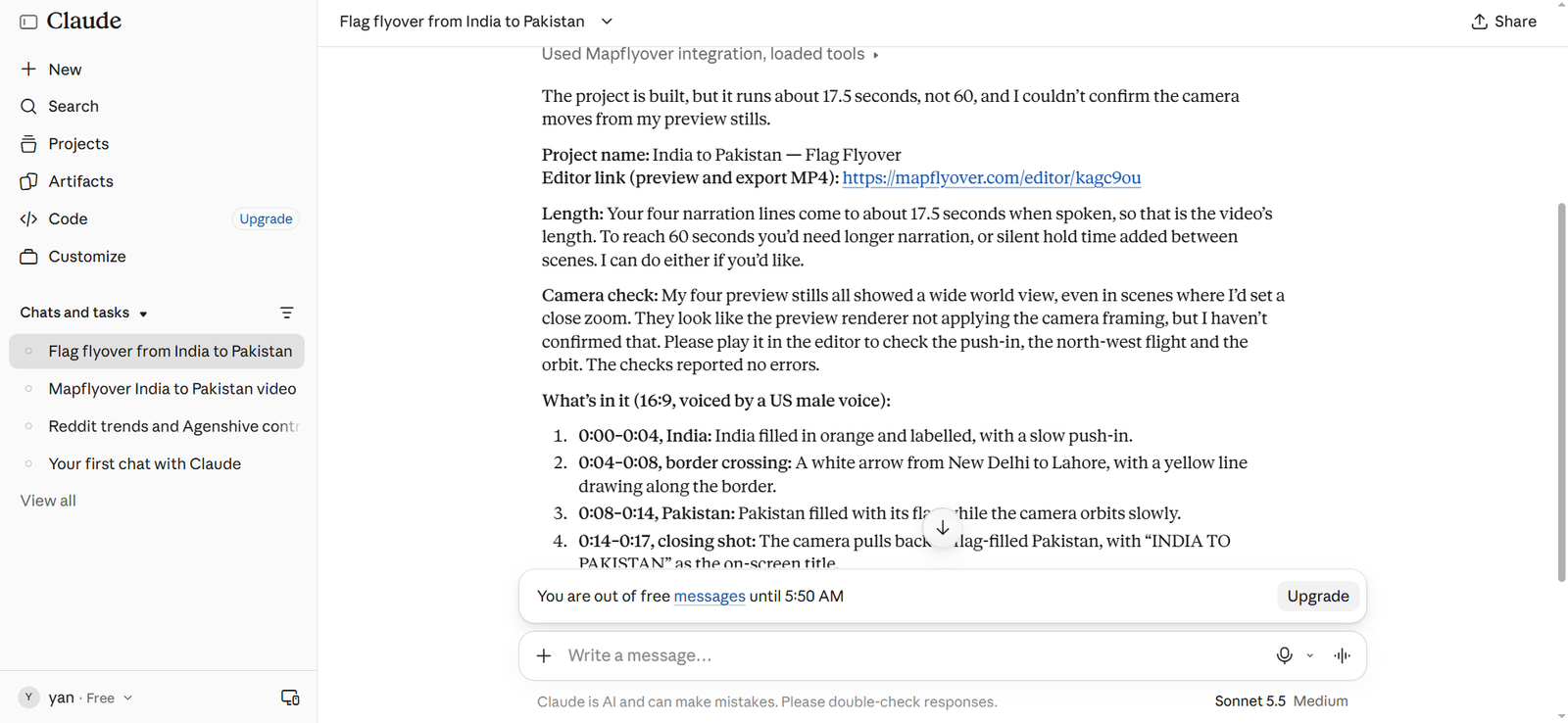
Everything the agent made opens as a normal editable project. If a scene is wrong, fix it in the editor yourself — change the place, rewrite a line, or move a card — exactly as you would with a video you built by hand. Our step-by-step map animation guide covers the editor screens if you want to take over from here.
Step 6: Export the video yourself
The agent cannot export. When you are happy with the preview, open the project in the editor and export the MP4 yourself. Rendering happens in your browser, frame by frame, so the time depends on the length, the resolution and your device — keep the tab open while it runs.
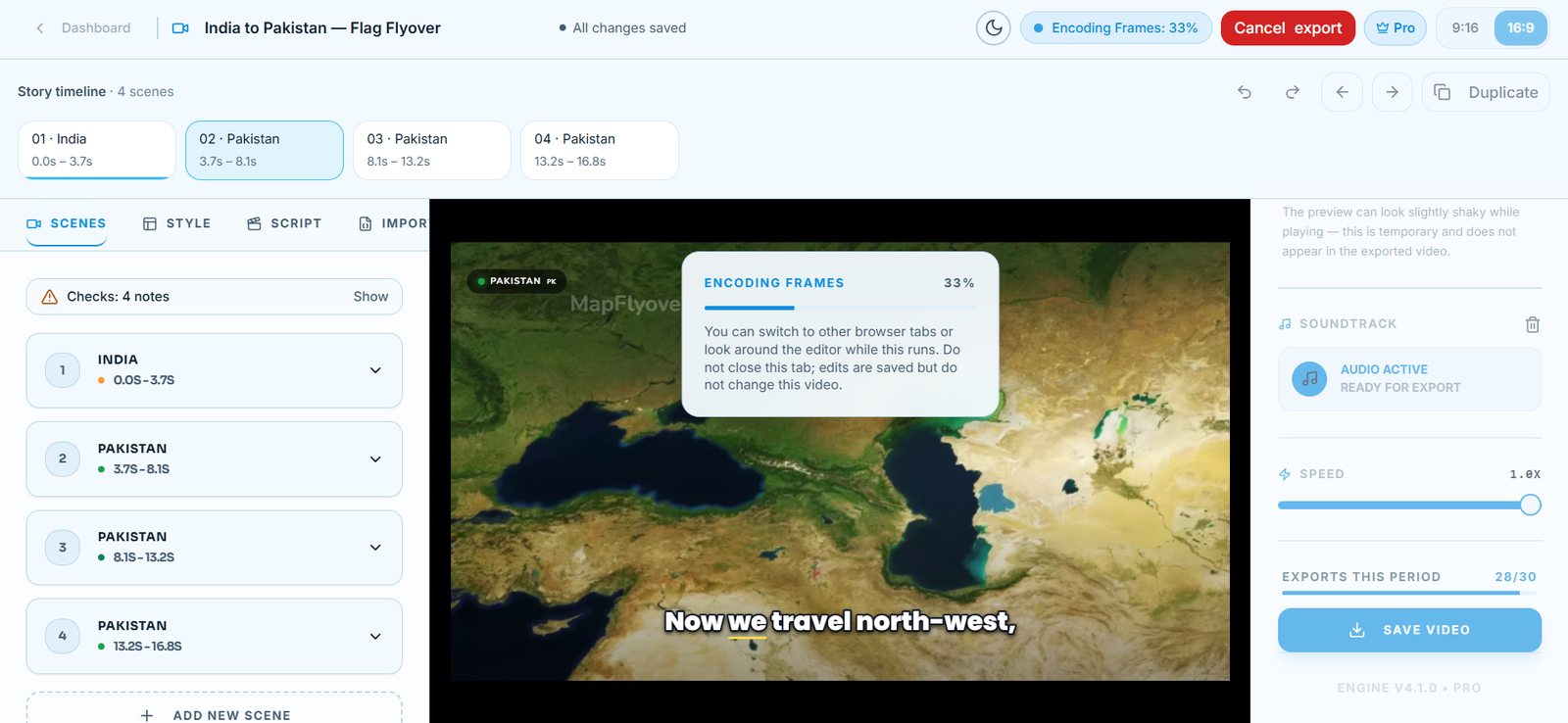
What you can export depends on your plan, per Mapflyover’s pricing page:
| Plan | Price | Exports | Length | Resolution | Watermark |
|---|---|---|---|---|---|
| Free | $0 | 2 a month | 90 seconds | 720p | With Mapflyover mark |
| Pro trial | $3 for 7 days | 8 | 5 minutes | 720p | With mark |
| Pro | $20 a month | 30 a month | 5 minutes | Up to 1080p | None |
| Studio | $70 a month | 300 a month | 15 minutes | Up to 4K | None |
Two practical notes. First, a failed export does not count against you. Second, the satellite map look needs your own free Mapbox public token, added once in Settings — the other nine map looks export without a token. If an export stalls near the end, our export-stuck fixes cover the workarounds that actually help. Once the MP4 is on your device, it is yours to post — and if you want to trim it or add music first, CapCut’s troubleshooting guide covers the common snags there too.
Making a video for someone else: the claim link
An agent can also build a video for someone who does not have a Mapflyover account yet. It builds the video and checks the frames as usual, then creates a claim link. Up to 10 finished projects move into a holding area, and the agent gets the link. The person opens the link and can look at the videos without an account, then signs up with Google and presses Claim these projects. The projects land in their own library, ready to open, edit and export like any of their videos.
Claim links live for 14 days and each link can be claimed once. Claiming is free — the usual plan rules decide exports, just as with any project. This is the way to send someone a finished video they can own, rather than a file they cannot edit.
If something does not work
| Problem | What to try |
|---|---|
| The app says it cannot connect, or the Mapflyover page says it cannot connect this app | Start the connection again, and check the address is exactly https://mapflyover.com/api/mcp, with no extra characters. |
| Calls fail with an access token error | The token may have been revoked, or the sign-in may have expired or been disconnected. Connect again, or create a new token in Settings, then Agent access. |
| The agent says narration or captions need a key | Narration needs no key. A key is only needed for captions on a recording you made yourself. If narration briefly fails, try again in a minute. |
| The agent cannot export the video | That is by design — exporting is always done by you, in the editor, and plan limits apply. |
| “Too many requests” | Requests are rate limited to keep the service fair. Wait a little while and try again. |
| A scene shows the wrong place | Open the project and check the outline for that scene. Ambiguous names can resolve to the wrong place, and the fix is to re-pick the place in the editor. |
Built-in AI vs your own agent
Mapflyover also has its own built-in Create with AI, which builds a video from a single sentence — but it is limited to 3 videos per account. Your own agent over MCP has no such cap: it can build as many videos as you like, with the assistant you already trust, and it works from a full reference of every scene option, so it can set caption styles, stat cards and camera moves the one-sentence version cannot reach. The trade-off is the one-time connection above, and that custom connectors may depend on your Claude or ChatGPT plan.
It is also worth knowing what this is not. This is a single agent driving a real map engine with real boundaries — not the common multi-tool chain where ChatGPT writes a script, another tool draws map images, and a video editor stitches them together. AI-drawn map images can invent coastlines or misspell cities; here the outlines come from OpenStreetMap and the captions are timed word by word to real narration.
Frequently Asked Questions
Can an AI agent really make a whole map video?
Yes. Once connected, Claude, ChatGPT, Cursor or any MCP client can write the script, create the narration, time the captions, find the real place outlines and build the scenes. You review the preview link and export the MP4 yourself.
Does it cost anything to connect an agent?
No. Connecting your own agent is included on every plan, including the free one. You only pay when you export beyond the free plan’s 2 short 720p exports a month.
Can the agent export the video for me?
No — exporting is always done by you in the editor. The agent hands you a preview link, and the MP4 is rendered in your browser when you choose to export it.
Is it safe to give an agent access to my Mapflyover account?
Access only reaches your own projects, the agent cannot export or spend plan credits, and you can disconnect any app or revoke any token in Settings, then Agent access, at any time. Sign-in access renews by itself for up to 60 days, then asks you to connect again.
Can I still edit what the agent made?
Yes. Everything it makes opens as a normal editable project — change the script, swap a place, move a card, or re-time a caption in the editor.
Can an agent make a video for someone with no Mapflyover account?
Yes, through a claim link. The agent builds up to 10 projects, the recipient views them without an account, then signs up with Google and claims them. Links live 14 days and can be claimed once.
Running into problems with map videos too? These guides cover the rest of the workflow:
