
Quick answer: A flag fill in Mapflyover is a picture from your own picture library, clipped to a country’s real outline. If the fill is not showing, the picture is usually no longer attached to the scene — most often because the project was claimed from an AI agent and the agent’s picture never entered your library. Mapflyover says so plainly with a banner: the fill picture is not in your picture library. Open the scene, re-pick the picture from your own library, save, and the fill comes back. The steps below walk through that fix, plus the other, rarer causes.
The first things to check
- Look for the banner. If Mapflyover shows a banner saying a fill picture is not in your picture library, the fix is the re-pick in Step 2 — nothing else needs diagnosing first.
- Check you are in the right account. A project claimed into one account will not show its pictures in another. Confirm you signed in with the same Google account you claimed the project with.
- Check the right scene. A fill belongs to one scene. If the flag is missing on the Pakistan scene, the picture needs re-picking on that scene, not on the India scene before it.
- Do not judge by the preview alone. The editor preview is a fast renderer and can frame wider than the final render. A fill that looks faint or cropped in the preview may be fine in the export — confirm with a short test export before changing anything else.
Why the fill picture goes missing
A fill picture is not embedded in the project. It is a reference to a picture in your own picture library: the scene says “fill this outline with that picture”, and Mapflyover looks the picture up in your library each time it draws the scene.
That works fine when you build the video yourself, because the picture you picked was already in your library. It breaks in one specific flow: when an AI agent builds the project for you. The agent plans the scenes and sets the fills, and when you claim the project into your account, the scenes and the script travel with it — but the agent’s pictures do not always travel with them. The scene still asks for a fill picture, your library does not have it, and Mapflyover shows the banner instead of a flag-filled country. The claim flow is covered in the guide to letting an AI agent make your map video, and the connection itself runs through Mapflyover’s agent page.
This is a known gap in the claim flow, not a broken project. The scenes, narration and camera work are all intact; only the picture reference is pointing at something your library does not hold. Re-picking the picture from your own library restores the fill, and it is the only fix that addresses the actual cause.
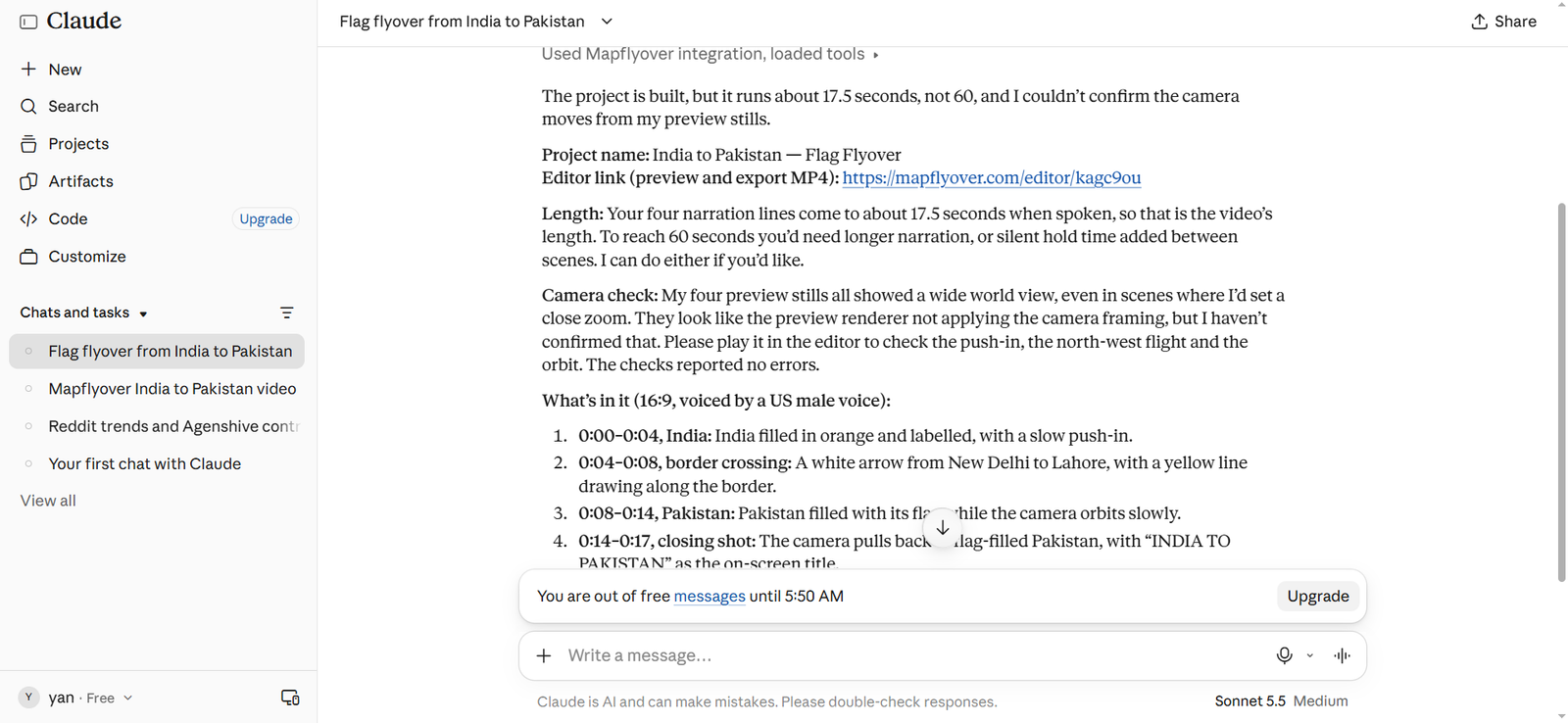
The agent’s own summary of a build is a useful check here: it lists the flag fill scene by scene, so you can see which scenes were meant to be filled even when the picture itself is missing. If the summary says a scene should be flag-filled and the banner says the picture is not in your library, you have found the problem — the fill was planned, the picture simply did not come with the claim.
Step 1: Open the scene with the missing fill
Open the project and find the scene whose fill is missing. The banner usually appears when that scene is open, and the scenes list shows each country in order, so work through them one at a time if more than one fill is missing. Open the scene before changing anything: the fill setting lives on the scene itself, and re-picking from the project view will not reach it.
If you are not sure which scene is affected, play the preview and note where the country appears as a plain outline instead of a flag. That is the scene to open.
Step 2: Re-pick the fill picture from your picture library
With the scene open, set its fill picture again — this time choosing the picture from your own library. If the flag is not in your library yet, upload it first, then pick it. This is the step that does the work: the fill is the picture, so a scene with no picture attached has nothing to fill the country with. The full flag-fill workflow explains how the picture, the scene and the camera fit together.
Use the same picture the agent used if you have it, or any flag image for the country. The fill is a picture, so any image in your library can fill a shape — a flag is simply the most common choice because viewers recognise it instantly. Keep the picture square-ish and high resolution where you can, so it stays sharp when it is stretched across a large country shape.
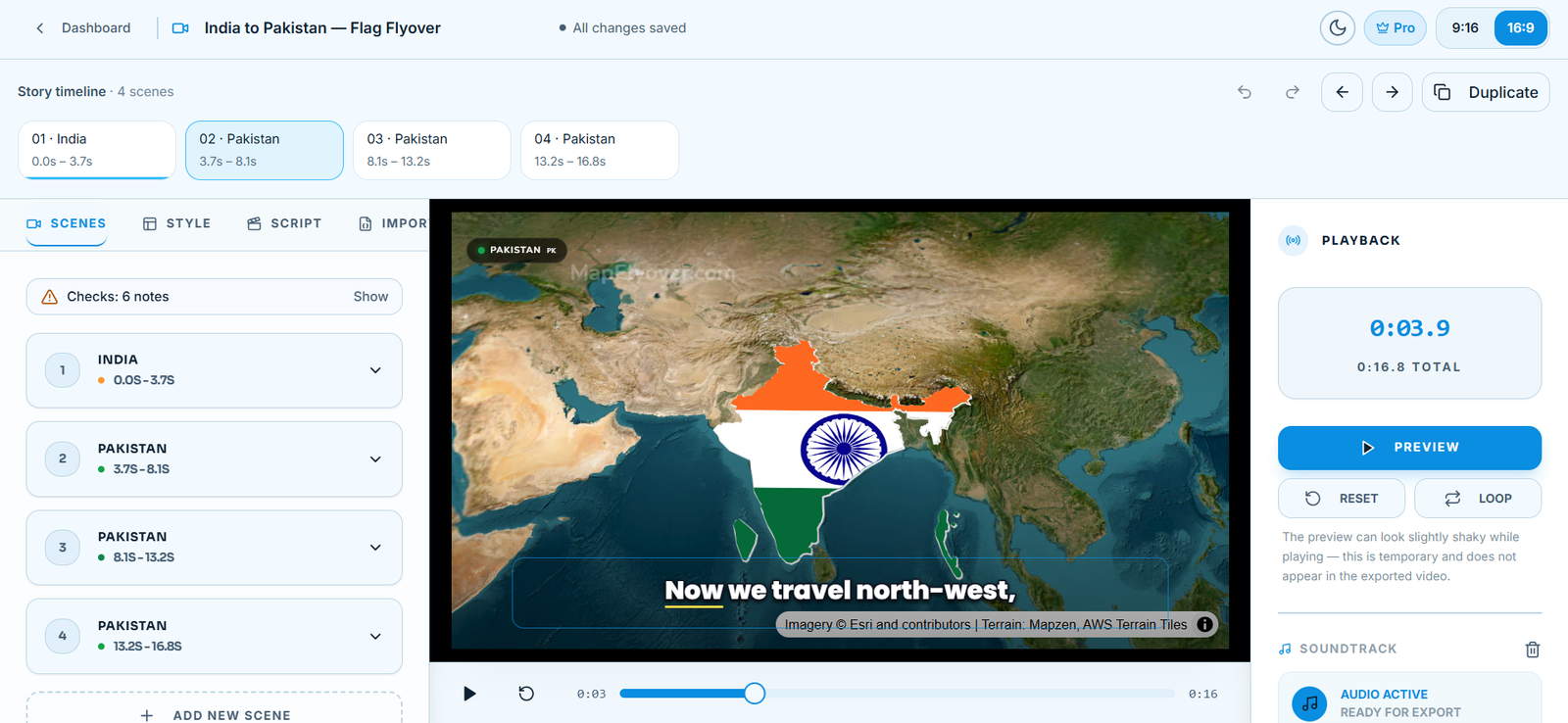
Save the scene after re-picking. Until you save, the new picture is only a selection in the editor, and closing the project without saving will leave the banner exactly where it was.
Step 3: Save, then check the preview
After saving, watch the scene in the preview. The flag should now fill the country’s whole shape, edge to edge, with no unfilled gaps and the flag recognisable at video size. If the flag looks stretched or squashed, that usually means the camera framing needs adjusting, not the picture itself — zoom in until the country is big in the frame and the flag’s main elements are clearly visible.
If the fill still does not appear after re-picking and saving, check the next section before repeating the same step: the problem is then something other than the picture reference, and re-picking the same picture again will not change it.
Step 4: Confirm with a short test export
Once the fill looks right in the preview, confirm it with a short test export rather than a full one. The editor preview is a fast renderer and can frame wider than the final render, which follows the saved camera — so the export is the only place the finished framing is certain. A short test export costs one export from your monthly allowance, and on the Free plan that allowance is two 720p exports a month, so keep the test short and check the filled scene specifically.
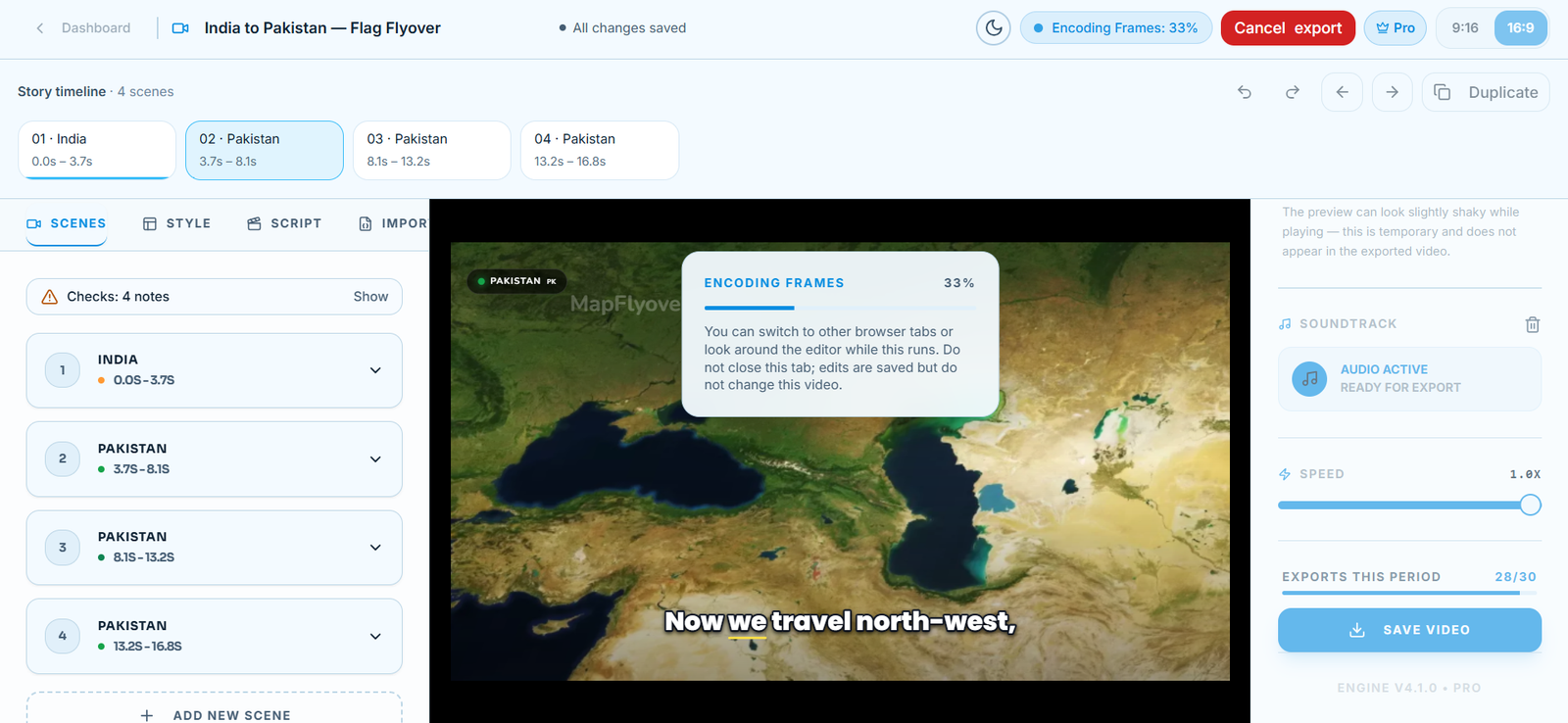
If the test export shows the flag filling the country correctly, the fix is done and the full export will match. If the export itself stalls, the fixes for a stuck Mapflyover export cover the workarounds that have actually worked. If the export still shows a plain outline, work through the other causes below before exporting again.
Other reasons the fill is not showing
- The fill is set on the wrong scene. Fills belong to one scene each. If the flag appears on the wrong country, the picture was picked on the wrong scene — open the correct scene and set it there.
- Two countries share one scene. If two neighbouring countries share a scene, their fills can collide at the border. Give each country its own scene, one fill per scene, and the fills stay clean.
- The picture was deleted from your library. A fill points at a picture in your library, so deleting that picture removes the fill from every scene that used it. Re-upload the picture and re-pick it on each affected scene.
- You are signed into a different account. Pictures live in the library of the account that holds them. If you claimed the project with one Google account and opened it with another, the library will not have the picture. Sign in with the claiming account and check again.
- The scene was built by an agent and never claimed. Until a project is claimed into your account, its scenes are the agent’s copy, not yours. Claim the project first — a claim link works once and stays open for 14 days — then re-pick any missing pictures.
What will not fix it
- Re-claiming the project. A claim link can only be used once, so there is no second claim to fix the pictures with. The fix is re-picking, not re-claiming.
- Re-exporting without re-picking. An export renders what the scenes say. If a scene has no picture attached, every export of it will show the same plain outline, however many times you export.
- Upgrading your plan. Fills are part of the free editor on every plan — building, previewing and setting fills cost nothing extra, and only exports are limited by plan. The Free plan exports 720p MP4s up to 90 seconds, two per month; Pro raises that to 1080p without the mark and Studio to 4K. Check the Mapflyover pricing page before a long video, since a video over the Free plan’s 90-second limit will need a higher plan or a shorter cut.
Frequently asked questions
Can I fill a country with something other than its flag?
Yes — the fill is a picture, so any image in your picture library can fill a shape. Flags are simply the most common choice because viewers recognise them instantly.
Does re-picking the fill picture cost anything?
No. Building, previewing and setting fills are part of the free editor; only exports are limited by plan. The Free plan exports 720p MP4s up to 90 seconds, two per month.
Why does the fill picture go missing after I claim a project?
The fill is a reference to a picture in your own library, and the agent’s pictures do not always travel with a claimed project. The scene still asks for the picture, your library does not have it, and Mapflyover shows the banner. Re-picking the picture from your own library restores it.
Why does my flag fill look different in the export from the preview?
The editor preview is a fast renderer and can frame wider than the final render, which follows the saved camera. Judge framing by a short test export, not the preview alone.
What if I never had the flag picture in my library?
Upload it first, then pick it as the scene’s fill picture and save. Any flag image for the country works — it does not have to be the exact file the agent used.
Running into problems with other tools too? These guides cover similar troubleshooting:
