
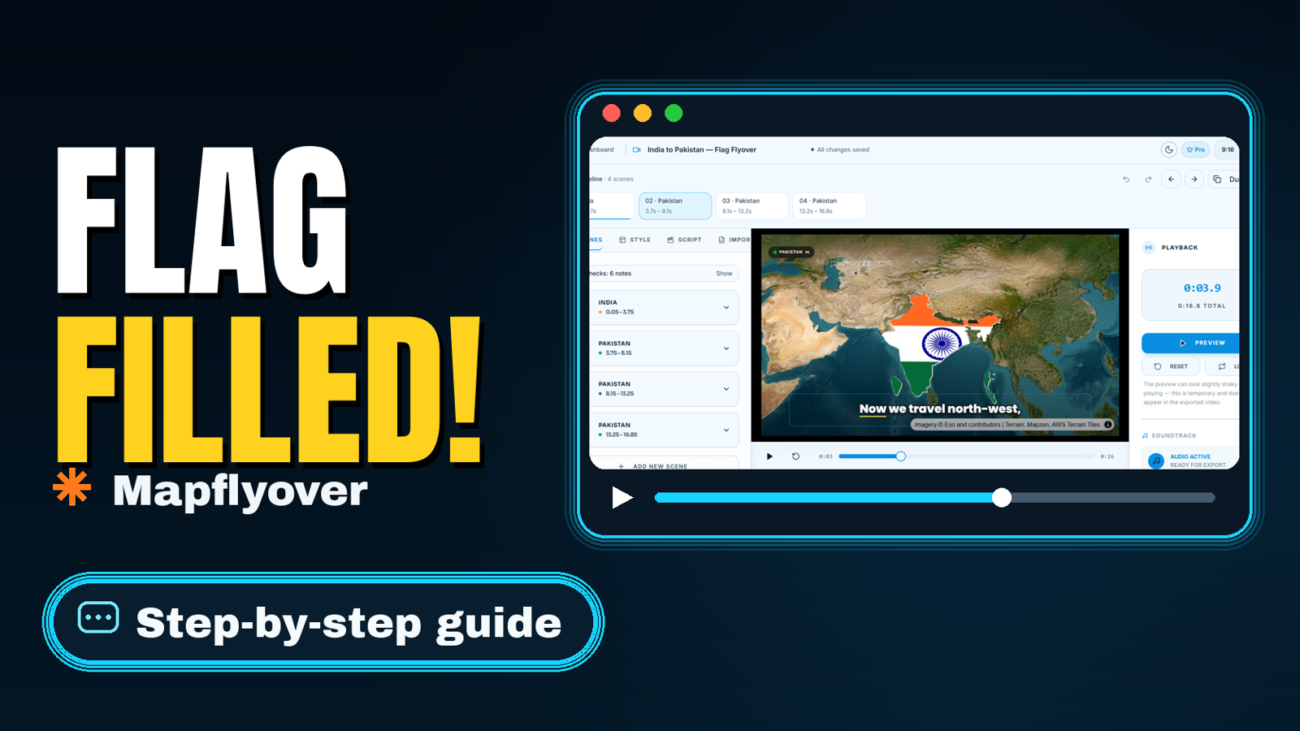
A flag-filled country is one of the most recognisable shots in a map video: the whole shape of the country becomes its flag, so viewers know instantly which place the story has reached. You do not need a desktop editor or keyframes to get it. In Mapflyover, a country scene can carry a fill picture — set that picture to the country’s flag and the flag is clipped to the country’s real outline.
This guide walks through the flag-fill workflow step by step, using the India-to-Pakistan flyover as the worked example: India filled with its flag, then Pakistan filled with its flag as the camera crosses the border. The same steps work for any country.
What you need
- A web browser — Mapflyover runs entirely in the browser, with nothing to install.
- A free Mapflyover account. Building, previewing, narration and captions are free; the Free plan includes 3 projects and unlimited previews, and it never expires.
- A flag image for the country you want to fill, saved in your picture library.
Step 1: Make the country a scene
Start a new project and give the country its own scene. Mapflyover finds the real outline of the place you name — its outlines come from OpenStreetMap — and frames the camera on it. One country per scene keeps the fill clean: if two neighbouring countries share one scene, their fills can collide at the border, which is exactly what happened in an early cut of the India-to-Pakistan video, where the India and Pakistan fills met awkwardly mid-scene.
If you are starting from the general workflow rather than a single shot, the step-by-step guide to making a map animation video covers projects, scripts and scenes from the beginning.
Step 2: Set the scene’s fill picture to the flag
Open the country’s scene and set its fill picture to the flag image from your picture library. This is the step that does the work: the flag is not a sticker placed on top of the map, it fills the country’s shape, edge to edge.
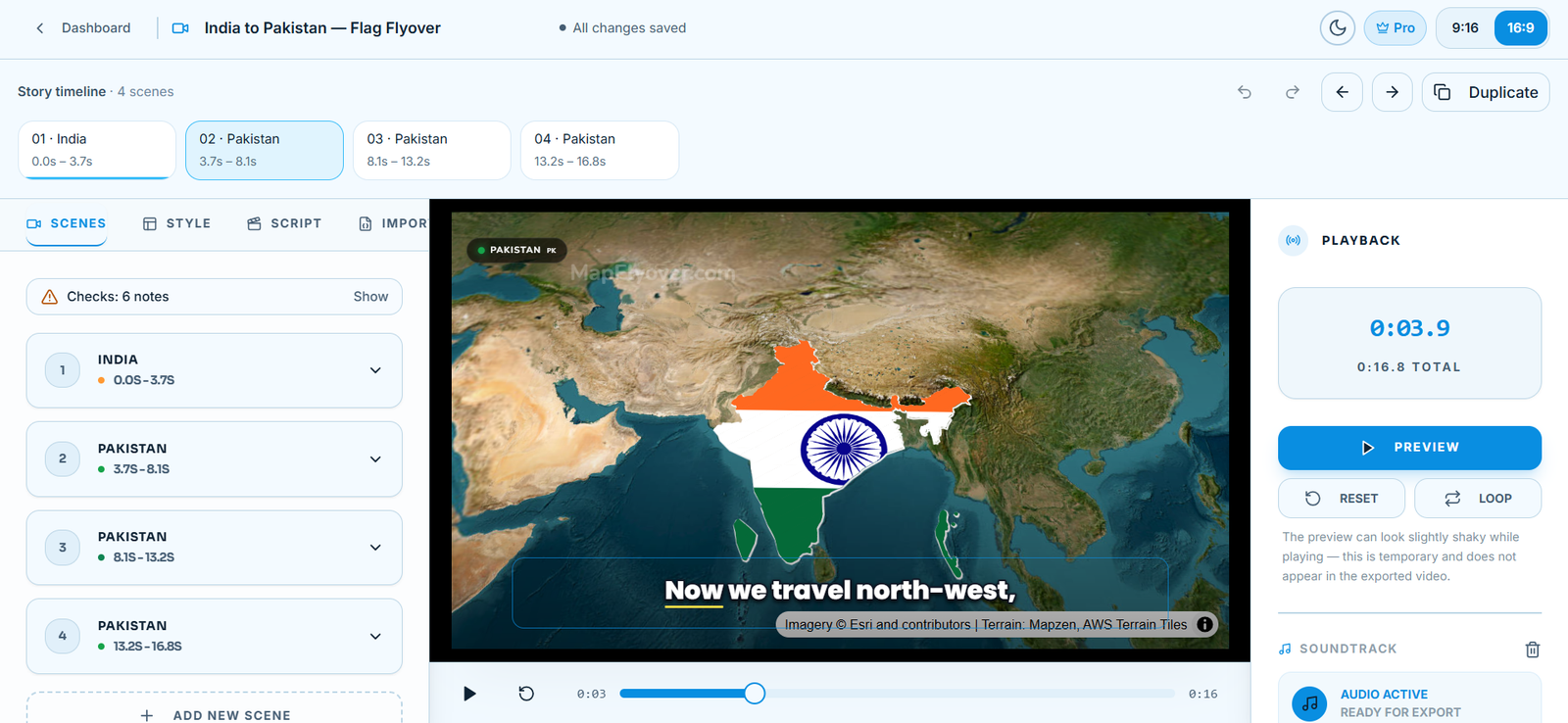
In the India-to-Pakistan example, the first scene fills India with its flag — saffron, white and green with the wheel in the centre — and a later scene fills Pakistan with its flag as the camera orbits. The screenshot below shows the editor with India flag-filled in the preview.
Step 3: Ask for it in plain words if an agent is building it
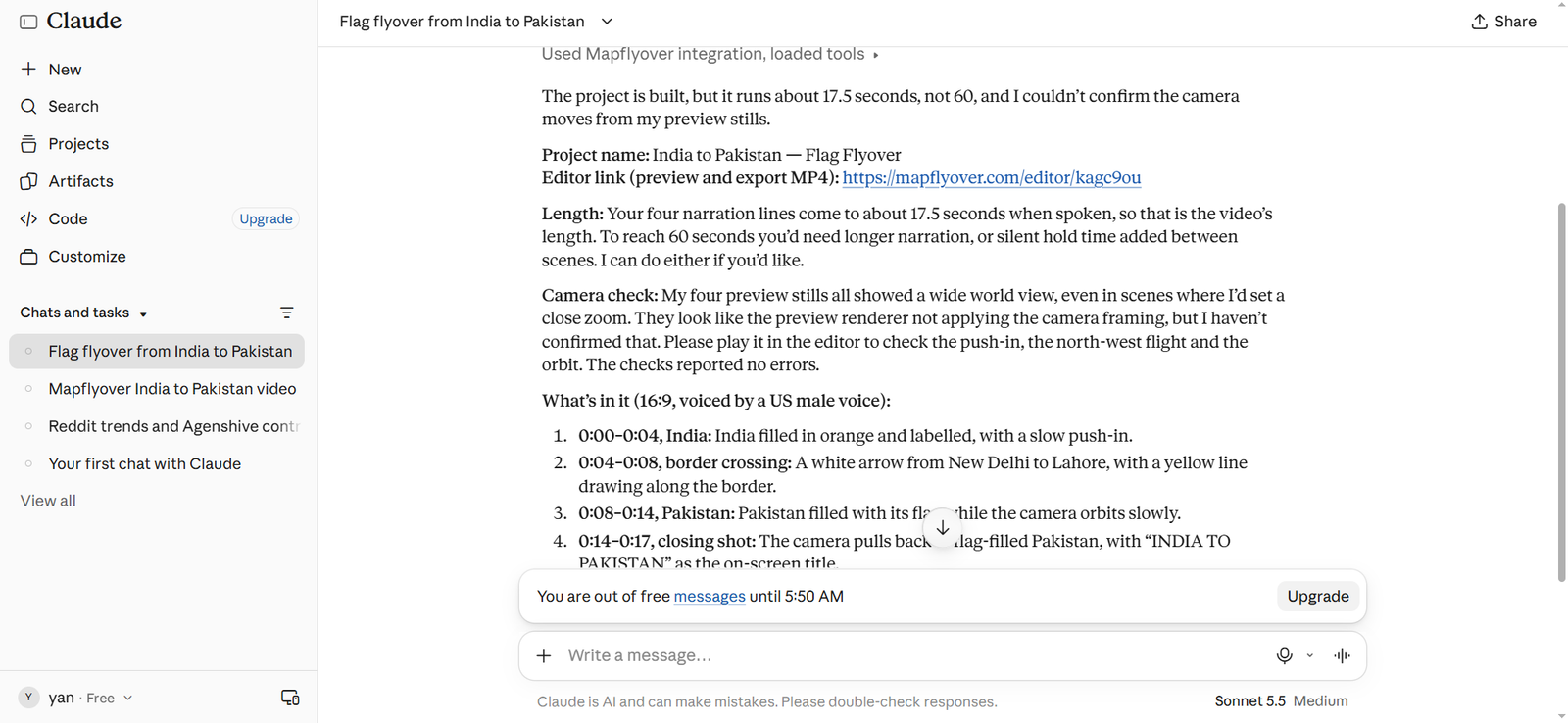
If you are letting an AI agent build the video through Mapflyover’s agent connection, say the fill in the prompt itself — for example, ‘Fly from India to Pakistan, fill Pakistan with its flag, narrate the journey.’ The agent plans the scenes, sets the fill and writes the narration, and you review the result as an ordinary editable project before exporting.
The agent’s own summary of that build listed the flag fill scene by scene — India orange-filled first, then Pakistan flag-filled while the camera orbited — which is a useful check that the fill actually landed where you asked for it.
Step 4: Frame the camera tight on the country
A flag fill only reads if the country is big in the frame. Zoom in until the country’s shape and the flag’s main elements are clearly visible at video size — for a small country, that means a noticeably tighter frame than you would use for a continent overview. Add a place label or chip if the flag alone might not be recognised at a glance, and keep the scene long enough for viewers to take the fill in before the camera moves on.
Watch the preview, but do not judge the framing by the preview alone: the editor preview is a fast renderer and can frame wider than the final render. A short test export shows the framing the exported video will actually use.
Step 5: Check the fill before you export
Before the full export, check three things in the preview or a short test export:
- The flag fills the whole country shape, with no unfilled gaps at the edges.
- The flag is the right way up and recognisable — a stretched or squashed flag usually means the camera framing needs adjusting, not the picture itself.
- Neighbouring countries stay quiet. If a neighbouring fill is creeping into the shot, tighten the camera or shorten the scene.
If a fill picture is missing after a project has been claimed from an agent — Mapflyover shows a banner saying the fill picture is not in your picture library — open the scene and re-pick the fill picture from your own library, then save. That is a known gap in the claim flow, not a broken project, and re-picking the picture fixes it.
Step 6: Export the video
When the fill looks right, export the MP4. On the Free plan, exports are 720p, up to 90 seconds each, two per month, with a Mapflyover mark; Pro raises that to 1080p without the mark and Studio to 4K. The exact limits are on the Mapflyover pricing page, and they are worth checking before a long video, since a video over the Free plan’s 90-second limit will need a higher plan or a shorter cut.
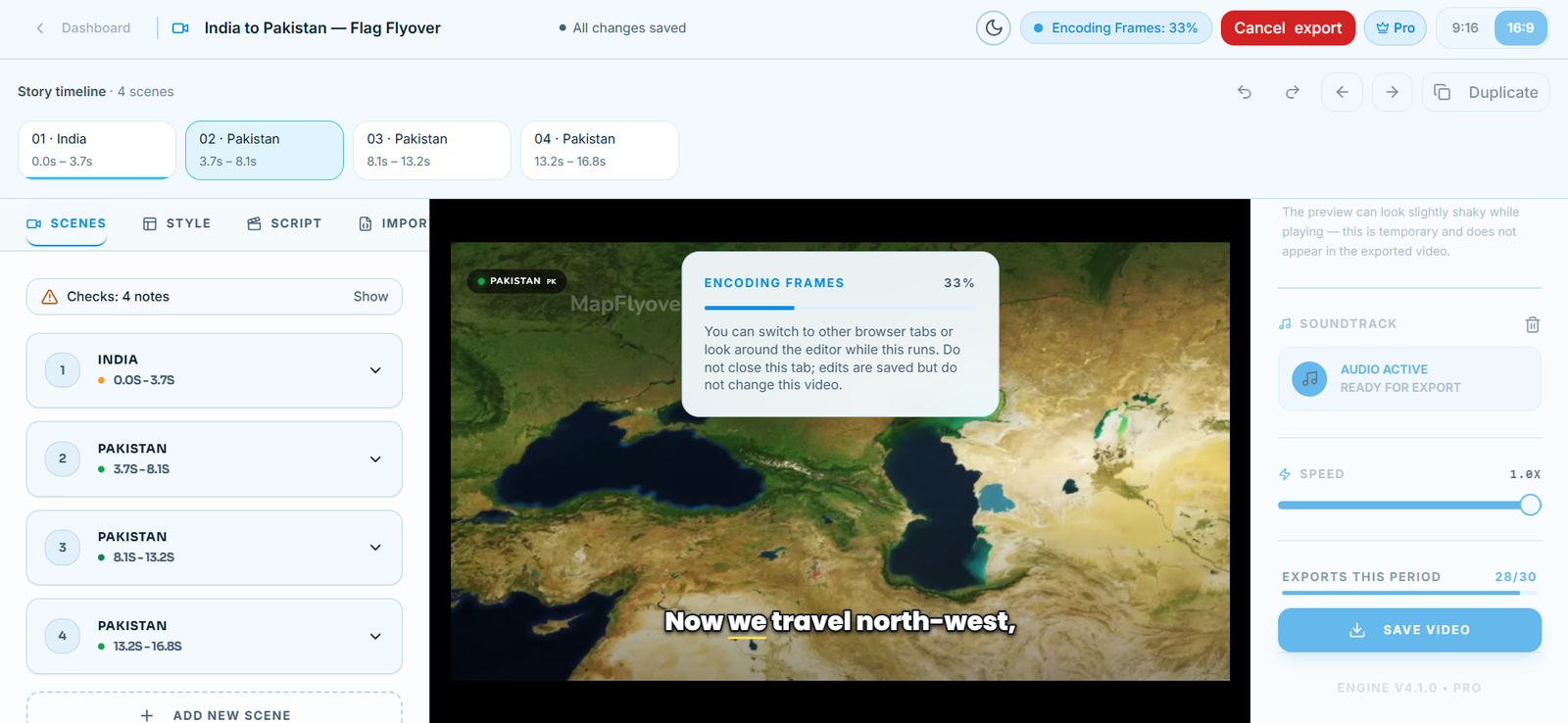
If the export itself stalls, the fixes for a stuck Mapflyover export cover the workarounds that have actually worked: keeping the tab open, resuming from kept progress, lowering the quality and duplicating the project.
Tips for a clean flag fill
- Fill one country at a time. A single filled country against quiet neighbours reads far better than three flags competing in one shot.
- Use neighbouring countries for flyovers. The border crossing is the drama, and a short flight keeps the video tight.
- Match the scene length to the narration. A fill that appears and vanishes in a second will not register; give it time on screen.
- Keep the flag picture square-ish and high resolution where you can, so it stays sharp when it is stretched across a large country shape.
Frequently asked questions
Can I fill a country with something other than its flag? Yes — the fill is a picture, so any image in your picture library can fill a shape. Flags are simply the most common choice because viewers recognise them instantly.
Does flag fill cost anything extra? No. Building, previewing and setting fills are part of the free editor; only exports are limited by plan. The Free plan exports 720p MP4s up to 90 seconds, two per month.
Why does my flag fill look different in the export from the preview? The editor preview is a fast renderer and can frame wider than the final render, which follows the saved camera. Judge framing by a short test export, not the preview alone.
What if the fill picture is missing after I claim a project? Open the scene and re-pick the fill picture from your own picture library, then save. The picture does not always travel with a claimed project, but re-picking it restores the fill.
