
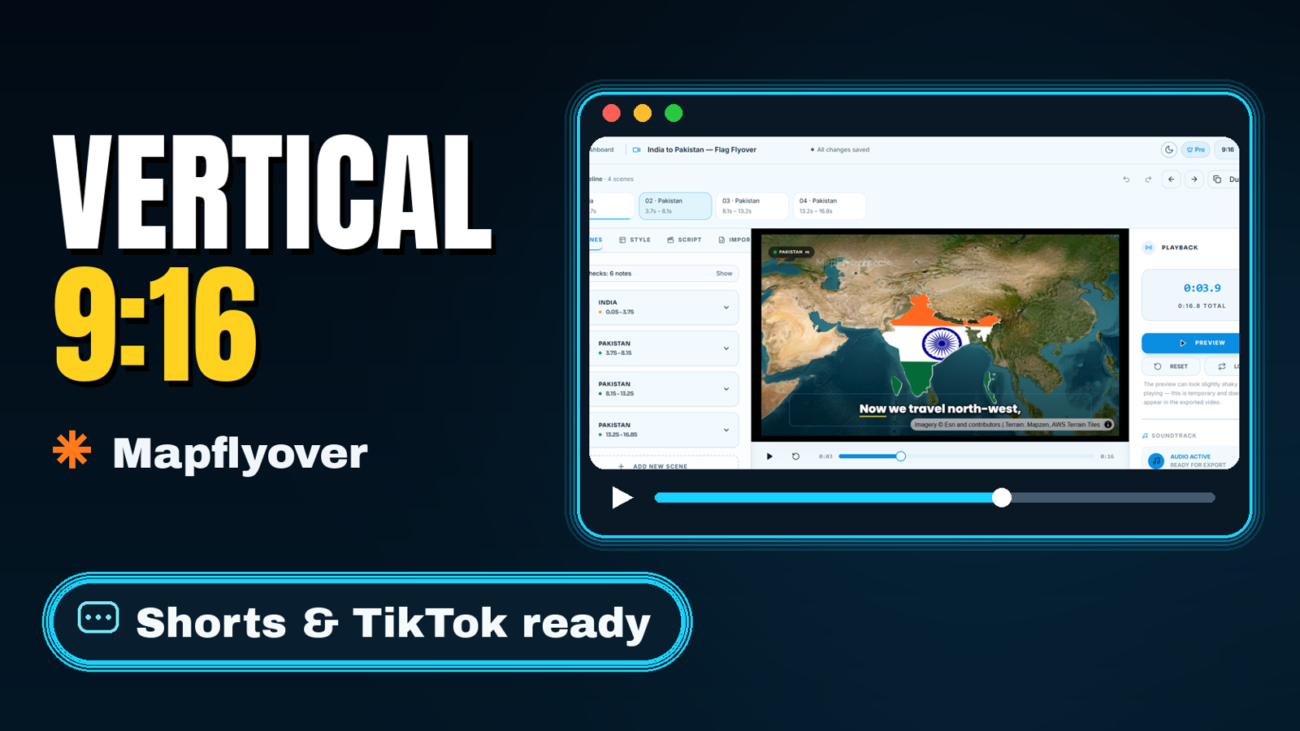
A vertical map video is a map animation shaped 9:16, the shape of a phone held upright — the shape TikTok, Instagram Reels and YouTube Shorts all use. In Mapflyover you build the project once and export it as a 9:16 MP4: choose the vertical shape before you start framing scenes, keep each clip to one idea and about 15 to 30 seconds, keep labels in the middle of the frame where the apps will not cover them, and export. The free plan exports vertical video at 720p; Pro goes up to 1080p and Studio to 4K.
A 16:9 map video and a 9:16 map video are not the same video with different edges. A wide frame shows a lot of width and very little height; a tall frame shows a lot of height and very little width. A country that fills a landscape shot looks small in a vertical one, a route that runs east to west runs straight out of the frame, and labels that sit neatly in the corners of a wide video end up underneath the like button or the caption on a phone. So a vertical map video needs its own plan, from the first scene to the export. This guide walks through that plan in Mapflyover, step by step.
Step 1: Choose 9:16 before you build anything
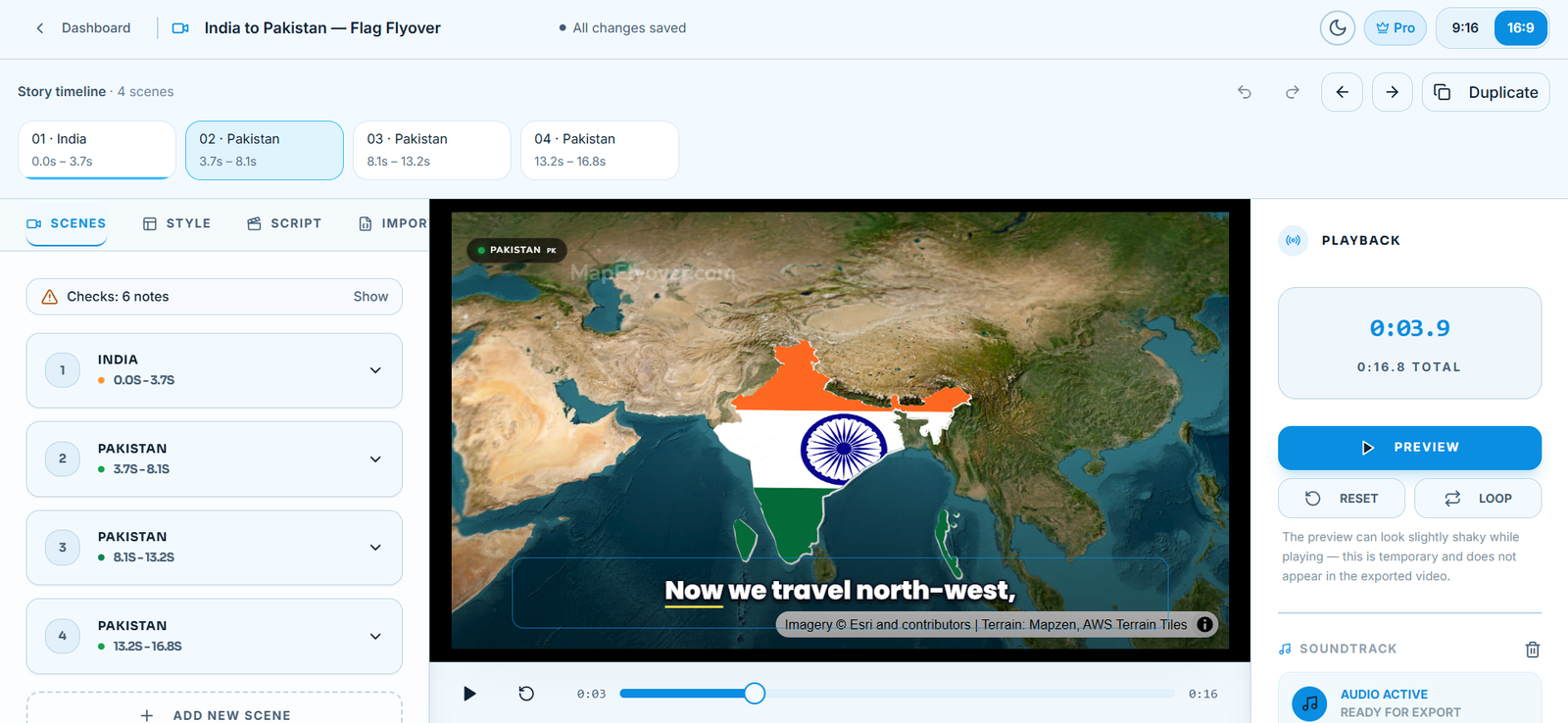
Open Mapflyover and start a new project, then set the shape to vertical before you add a single scene. That matters because the shape changes what the camera can show: a scene framed for a wide screen will not reframe itself when you switch shape later. Set it first, and every scene you build is framed for the phone from the start.
If you have never built a map video before, our step-by-step guide to making a map animation video covers the whole workflow — writing a script or prompt, building scenes, and exporting — and everything in it works the same way in vertical. The only difference is the shape you pick at the start.
One project can be exported as 9:16 or as 16:9, so you do not need two projects for a Short and a long YouTube video. Build it once in the shape you care about most, and export the other shape from the same project when you need it. If you already have a 16:9 project and want a vertical version, switch the shape and then check every scene again: you will usually need to zoom in closer or move a label, because the frame is narrower. Do not just crop the finished 16:9 export to make a Short. Cropping throws away the sides of every frame, and any label or place that sat near the edge is gone.
Step 2: Plan one idea per clip
Phone viewers decide in about a second whether to keep watching, so a vertical map video works best when it starts moving straight away and shows one thing. The ranking guides for vertical map video all land on the same rule: one clip, one idea. One route, one country, one reveal.
That means a road trip with ten stops becomes several clips, not one long one, and a history story with five dates becomes a series. Keep the same map style, colours and label shape in every clip so viewers recognise the series at a glance.
Aim for 15 to 30 seconds per clip. That is long enough for a route to draw or a country to fill, and short enough to hold a scrolling viewer. Start with the hook in the first second — the globe turning, a route starting to draw, a country filling with colour — never a still map. Then give the body of the clip one camera move per idea, about 2 to 4 seconds each, and hold the final place with its name on screen for the last 2 to 3 seconds, because viewers need about 2 seconds to read a short label.
Write the script first, then build the scenes from it. If you are working from a written script, our guide to turning a script into a map video shows how Mapflyover splits a script into one scene per place and times the captions to the voice. A 140-word script makes roughly a minute of narration, so a 15 to 30 second Short needs only about 35 to 70 words — two or three short sentences.
Step 3: Frame for the tall screen
A tall frame rewards a different kind of camera work. Zoom in a little closer than you would in a 16:9 video: a country that fills a wide shot looks small in a tall one, and a place name that is readable on a laptop can be unreadable on a phone. Centre the place you are talking about, and let the camera rise before it travels and then land, rather than panning flat across the ground — Mapflyover’s camera does this by default, with orbit, push-in, drift and sweep moves while it holds.
Some shapes suit the tall frame better than others. A globe fills a 9:16 frame well, because a sphere has no wide edges to lose, so a spinning globe is a strong opening shot. A north-to-south route runs naturally up the screen; an east-to-west route, like a flight from India to Pakistan, needs the camera to follow the line as it draws, or the route runs out of the frame. If you are flying between two countries, our guide to making a video flying from one country to another covers the two-stop setup in detail.
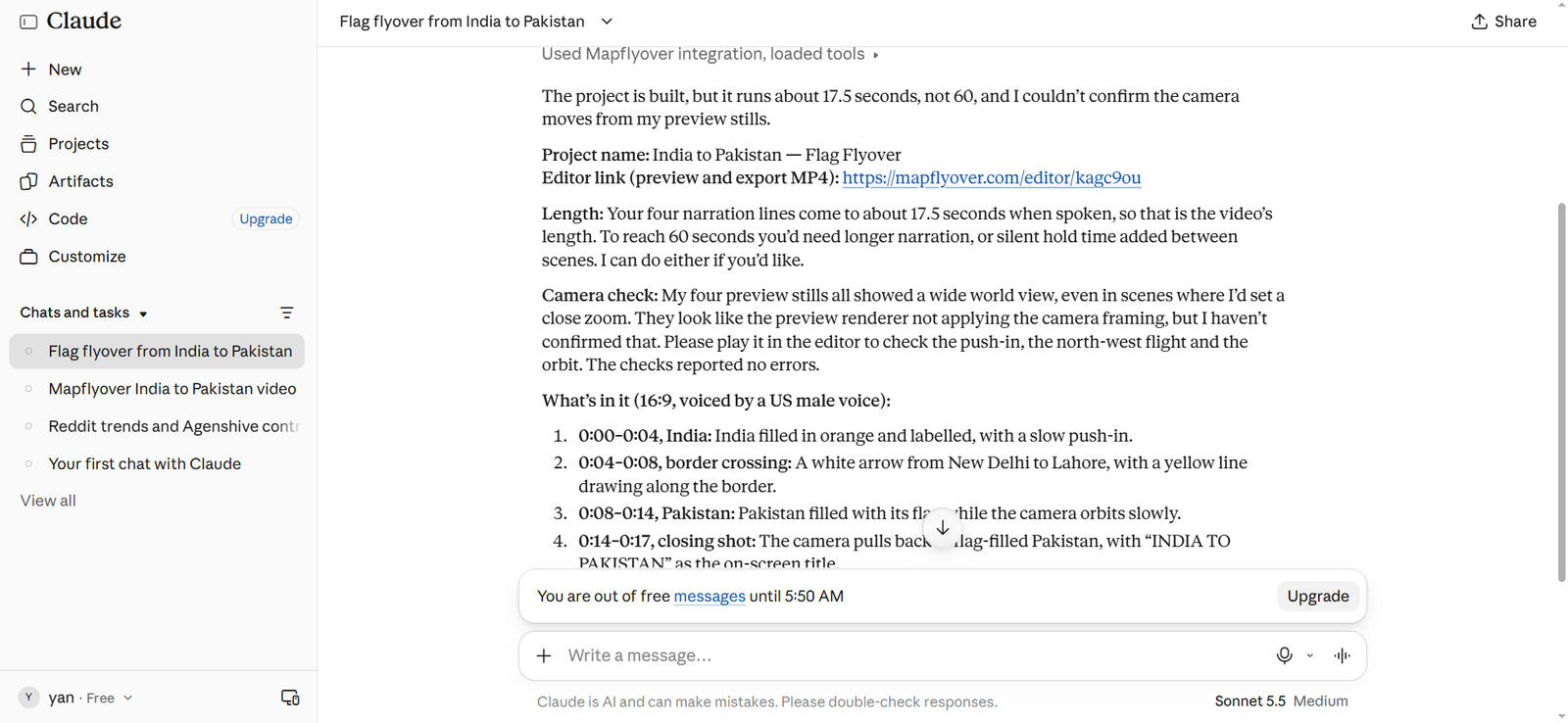
One warning from experience: the editor preview is a fast renderer and can frame a scene wider than the final export. Judge your vertical framing by a short test export, not by the preview alone. Our guide to why the Mapflyover preview looks different from the export explains what to check before you spend an export on the full video.
Step 4: Add narration and captions that read on a phone
Most people watch Shorts, Reels and TikTok with the sound off at first, so captions do a lot of the work in a vertical map video. Mapflyover generates narration in English, Hindi, Urdu, Spanish and more, with no key needed, and times word-by-word captions to the voice automatically. Pick one of the seven caption looks — Karaoke, Pop box, Karaoke fill, One word, Minimal, Cinema or Neon — and keep the words short. On a phone screen, “Kyoto” reads; “the ancient capital city of Kyoto” does not.
Keep captions in the lower-middle of the frame, a little above the bottom, and keep them to a few words per line. Long sentences across a narrow frame wrap into a block that covers the map. If you add a soundtrack in the editor, keep it quieter than the voice: the narration carries the facts, and the music is only there for mood.
Narration is free on every plan, and the free plan includes 20 minutes of narration a month. A 30-second Short uses about 30 seconds of that, so the free allowance covers dozens of Shorts. Our guide to adding narration and captions to a map video in Mapflyover covers the voice picker, the caption styles and the per-scene settings in detail.
Step 5: Keep labels out of the app’s buttons
TikTok, Instagram Reels and YouTube Shorts all draw their own interface on top of your video. The right-hand side holds the like, comment and share buttons. The bottom holds the caption, the account name and the music credit. The top holds the app header. Anything you put there will be covered.
So keep the place you are talking about near the middle of the frame, put titles a little above the middle rather than at the very top or bottom, and use short names. Show at most three labels at once — a tall frame gets crowded fast — and use a stat card for the numbers instead of writing them into a long label. Stat cards are small, timed cards built for exactly this: one number and a few words, readable at a glance.
Check the safe areas on a real phone before you publish. Export the clip, open it on your phone, and look at where the buttons land. If a label sits under a button, move it in the editor and re-export. It is a two-minute check that saves a video nobody can read.
Step 6: Export the vertical MP4
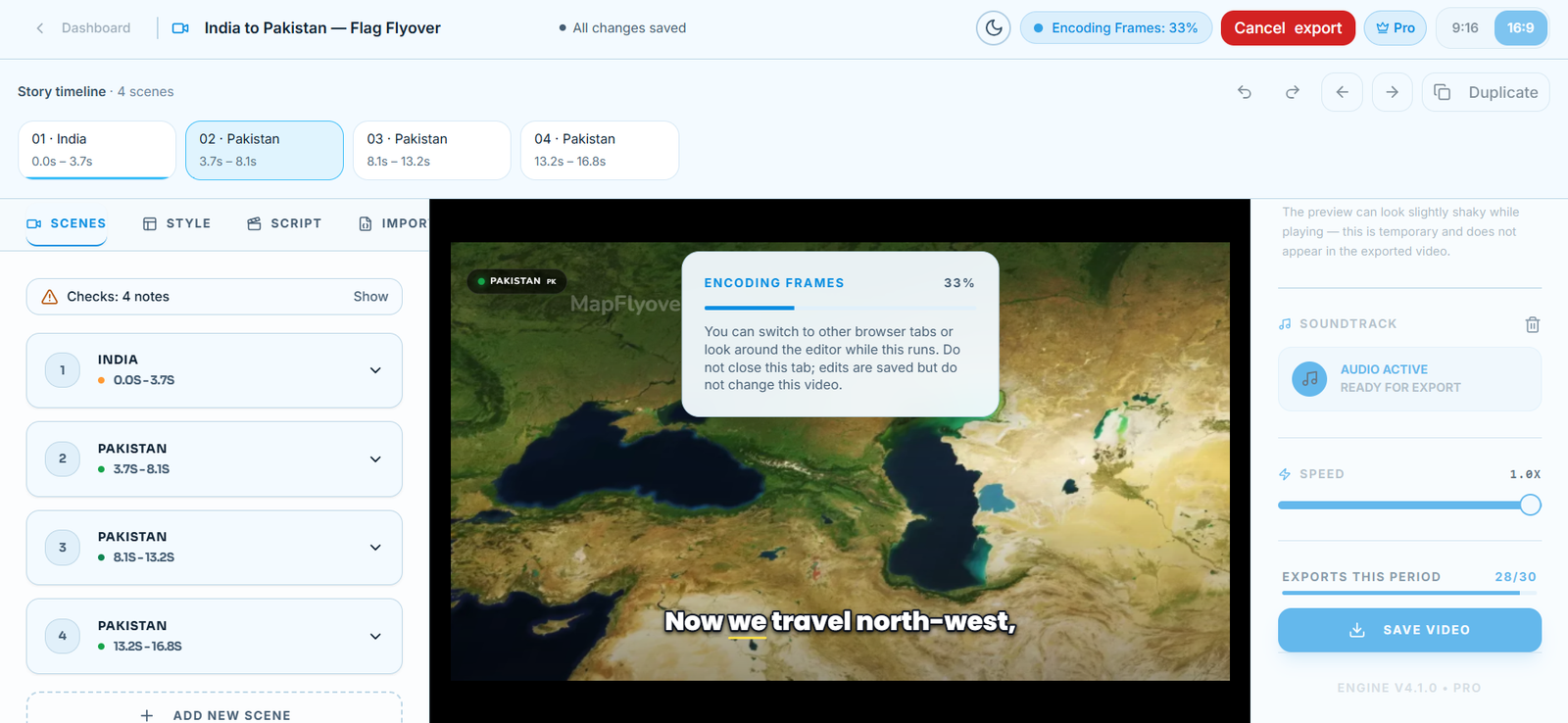
When the preview looks right, open the export dialog and check three things: the shape is 9:16, the format is MP4, and the resolution matches your plan. Then export. Rendering happens in your browser, frame by frame, so the time depends on the length, the resolution and your device — a 30-second clip at 720p is quick; a longer video at 4K takes a while. Keep the tab open while it renders.
If the export stalls, do not close the tab: our guide to fixing a stuck Mapflyover export covers the resume option, lowering the quality, and duplicating the project and re-exporting. A failed export does not count against your monthly allowance.
Once the MP4 is downloaded, upload it to YouTube Shorts, Instagram Reels or TikTok as you would any phone video. If you post on a schedule, Mapflyover can queue the finished video to your channels through Buffer, with a title and post-type options for each network.
What it costs: free vs paid for vertical video
Mapflyover’s pricing decides how sharp your vertical exports can be and how many you get each month. The editor, unlimited previews, narration and captions are free on every plan — only the exports are limited.
| Plan | Price | Vertical exports | Resolution | Longest video |
|---|---|---|---|---|
| Free | $0 | 2 MP4 exports a month | 720p (720 x 1280) | 90 seconds each |
| Pro trial | $3 for 7 days | 8 exports | 720p | Up to 5 minutes |
| Pro | $20 a month | 30 exports a month | Up to 1080p (1080 x 1920) | 5 minutes each |
| Studio | $70 a month | 300 exports a month | Up to 4K | 15 minutes each |
Free exports carry a small Mapflyover mark; Pro and Studio exports have no mark. The free plan also limits you to 3 projects and 20 minutes of narration a month, against 50 projects and 200 minutes on Pro. For Shorts, the practical difference is resolution: a 720p vertical export (720 x 1280) is watchable on a phone, but 1080p (1080 x 1920) is the standard YouTube recommends for Shorts, and it is the highest resolution YouTube accepts for a Short upload. If you post Shorts every day, the free plan’s two exports a month will run out fast — the $3 trial week is the cheap way to test whether Pro is worth it. See Mapflyover’s pricing page for the full plan comparison.
One thing to know before you plan a square version: Mapflyover exports 9:16 or 16:9 only — there is no 1:1 square export. YouTube does count square videos as Shorts, but 9:16 is the shape that fills the phone screen, so it is the better default anyway.
Mistakes that ruin a vertical map video
- Building in 16:9 and cropping the export. Crop a wide video to 9:16 and you lose two-thirds of every frame, including labels near the edges. Re-export the same project in 9:16 instead.
- Putting the subject near the edge. The apps cover the right side and the bottom of the frame. Centre the place and keep titles above the middle.
- Too many labels at once. Three short labels is the most a tall frame holds comfortably. Put the numbers in a stat card instead.
- Opening on a still map. Nothing moves in the first second and the viewer scrolls past. Start with the globe turning, a route drawing, or a country filling.
- One clip trying to tell the whole trip. Split it into a series — one idea per clip, same style throughout.
- Trusting the preview for framing. The preview can frame wider than the export. Check a short test export before the full one.
- Exporting the satellite look without a Mapbox token. The satellite look needs your own free Mapbox token; the other nine map looks export without one. Add the token once in settings and it is used for every project.
Frequently Asked Questions
What size is a vertical map video for YouTube Shorts and TikTok?
9:16, which is 1080 x 1920 pixels at 1080p. YouTube counts any square or vertical video up to three minutes long as a Short, and its maximum upload resolution for Shorts is 1080p. TikTok and Instagram Reels use the same 9:16 shape.
Can I turn my 16:9 map video into a vertical one?
Yes. One Mapflyover project exports as 9:16 or 16:9, so switch the shape and export again. Check each scene afterwards: you will usually need to zoom closer or move a label, because the frame is narrower. Do not crop the finished 16:9 file.
How long should a map Short be?
15 to 30 seconds works for most map clips — one route, one country, one reveal. YouTube allows Shorts up to three minutes, but a map clip that runs long loses the scrolling viewer. Split a longer story into a series instead.
Can I make a vertical map video for free?
Yes. The free plan exports two 720p vertical MP4s a month, up to 90 seconds each, with a small Mapflyover mark. Building, previewing, narration and captions are free on every plan.
Does Mapflyover export square 1:1 video?
No. Mapflyover exports MP4 in vertical 9:16 or landscape 16:9 only. For Shorts, Reels and TikTok, 9:16 is the shape to use anyway — it fills the phone screen.
Will the captions show in the export?
Yes. Captions are drawn with the same code in the preview and the export, so what you see is what you get. Pick a caption style that reads on a small screen — Karaoke or Minimal work well — and keep the words short.
Running into problems with other apps too? These guides cover similar fixes:
- How to Make a Map Animation Video (Step-by-Step Guide)
- How to Turn a Script Into a Map Video
- How to Add Narration and Captions to a Map Video in Mapflyover
- Mapflyover Preview Looks Different From the Export? Here’s Why
- Mapflyover Export Stuck or Video Not Downloading? Fixes That Work
- CapCut Not Exporting? Complete Troubleshooting Guide
