
Quick answer: Mapflyover uses Google to sign you in — new accounts are Google-only, so there is no Mapflyover password to reset. Most sign-in failures come down to three things: the browser blocking Google’s sign-in window, signing in with the wrong Google account, or an old account that was made with an email and password instead. Work through the checklist below first, then jump to the section that matches what you see.
The first things to check
- Open Gmail or Google Drive in the same browser. If Google itself won’t let you in, no Mapflyover fix will help — skip to the Google-account section below.
- Check which Google account is signed in to your browser. If you have more than one, Mapflyover may be opening the wrong one.
- Use a normal browser window, not incognito, for your first try — then use incognito as a test (see step 1).
- Make sure you are on the real sign-in page: mapflyover.com/login
1. Try a private or incognito window
Open a private window, go to mapflyover.com/login and click “Continue with Google”. If it works there, the problem is in your normal browser profile — an extension, a saved cookie or a cached setting — not your account. That tells you the next three steps are the ones to focus on. If it fails in private mode too, the problem is more likely your Google account or your network, so jump to steps 6 and 7.
2. Allow popups for Mapflyover and Google
When you click “Continue with Google”, Google handles the sign-in in its own window and then sends you back to Mapflyover. If your browser blocks that window, nothing happens — no error, just a button that seems dead. This is the most common cause of a sign-in button that does nothing.
In Chrome, click the icon in the address bar and allow popups for mapflyover.com, or go to Settings > Privacy and security > Site settings > Pop-ups and redirects and add both mapflyover.com and accounts.google.com. Firefox and Safari have the same setting under their privacy or website settings — Google’s own pop-up help page walks through it. While you are there, also allow third-party cookies for those two sites: Google’s sign-in needs to set a cookie on its own domain while you are on Mapflyover’s page, and blocking third-party cookies can stop the return trip.
3. Clear Mapflyover’s site data
A stale cookie from an earlier sign-in attempt can keep sending you in a circle. You don’t need to clear your whole browser — just Mapflyover’s data. In Chrome, click the padlock (or “tune”) icon left of the address bar on mapflyover.com, choose “Cookies and site data” and delete what is stored for the site. In Firefox, it’s the padlock icon > “Clear cookies and site data”. Then close the tab, open a fresh one and try signing in again.
4. Pause your ad blocker and privacy extensions
Extensions that block trackers sometimes mistake Google’s sign-in redirect for a tracker and kill it mid-flight. If you run uBlock Origin, AdGuard, Privacy Badger, Brave Shields or a VPN extension, pause it for mapflyover.com and try again. If signing in works with the extension paused, add mapflyover.com and accounts.google.com to the extension’s allowlist so you don’t have to pause it every time. This is a workaround, not a cure — but it is the fix in a surprising number of cases.
5. Finish the Google screen in one go
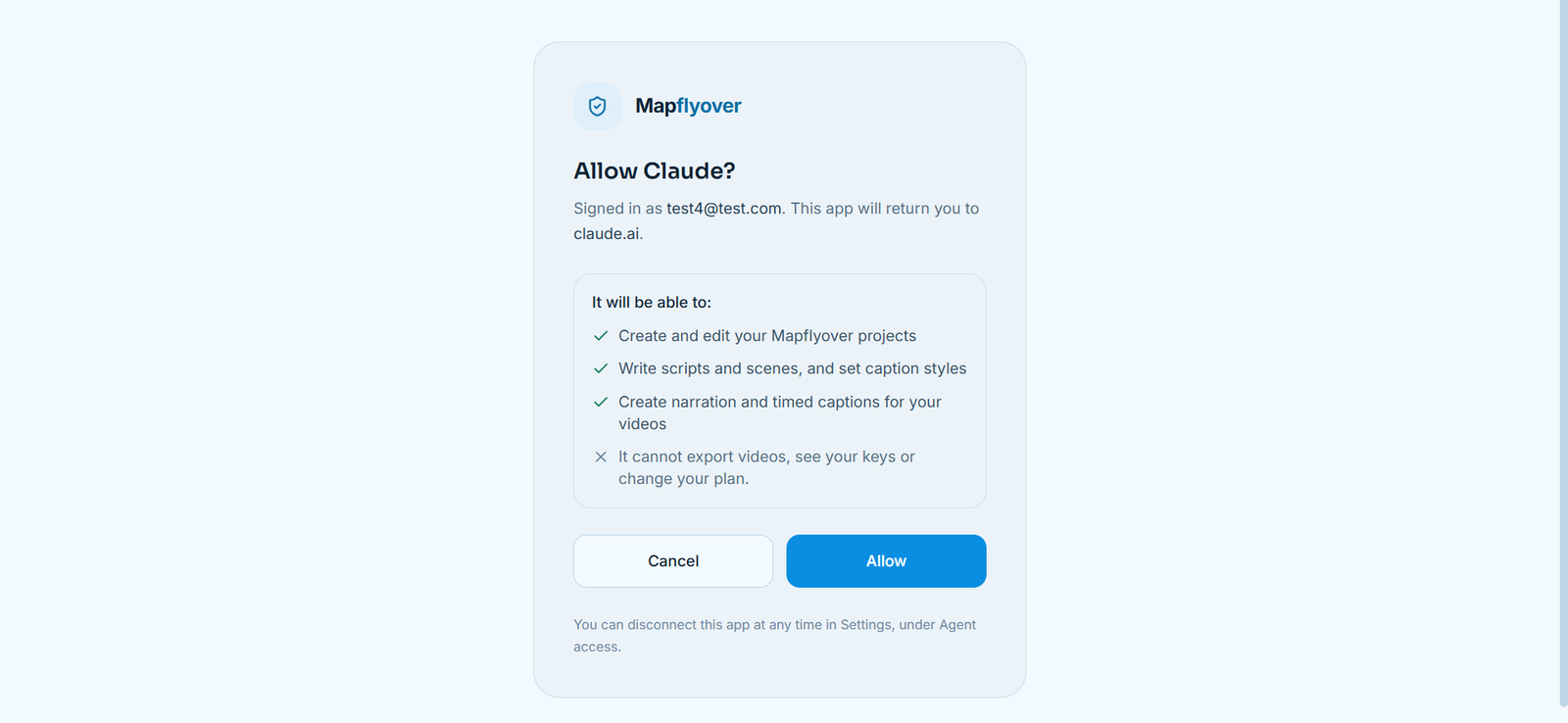
When Google’s window opens, pick the right account, accept the permissions it asks for and let it send you back — all in one go. Don’t leave the window sitting open while you do something else, and don’t close the tab in the middle: an unfinished sign-in usually means starting over from the beginning. If Google asks you to confirm permissions, approve them; refusing a permission can send you straight back to the login page with no explanation.
6. Sign out of your other Google accounts
If you are signed in to several Google accounts in the same browser, Google may return the one that is active in the tab — not the one you meant to use. The result looks like a successful sign-in, except your projects are missing, because you are in a different account. Sign out of the Google accounts you don’t use for Mapflyover, or open a separate Chrome profile for your Mapflyover account, and sign in again. This is worth checking before anything else if your projects have “disappeared”.
7. Turn off your VPN and try another network
VPNs, work or school networks and content filters can block the sign-in redirect or the connection back to Mapflyover. Turn the VPN off and try again on your normal home connection; if you are on a school or office network, try your phone’s mobile data instead. If it works on a different network, the first network is blocking something — allowlisting mapflyover.com and accounts.google.com on that network is a job for whoever runs it.
8. Reset Mapflyover’s connection to your Google account
If you signed in fine before and it broke after a password change or a security prompt, the saved connection between Google and Mapflyover may be stale. Go to your Google account’s third-party access page, find Mapflyover in the list and remove its access, then sign in to Mapflyover again from scratch. You are not deleting your Mapflyover account by doing this — just the saved link between the two, which gets recreated when you sign in again.
9. Signing in on your phone
Mapflyover runs entirely in the browser, including on phones — but how you open it matters. If you tapped a Mapflyover link inside Facebook, Instagram or another app, you are in that app’s built-in browser, and those in-app browsers often break Google sign-in. Open the link in Chrome or Safari instead (usually via the three-dot menu > “Open in browser”). Then check the same two things as on desktop: popups allowed for mapflyover.com, and the right Google account selected.
10. If your Google account itself won’t let you in
Sometimes the problem has nothing to do with Mapflyover. If Google says it can’t verify it’s you, asks for a code you don’t have, or keeps sending you back to recovery, use Google’s account recovery at g.co/recover from a device and Wi-Fi network Google recognises — your usual phone, at home, with any VPN off. Answer every question, even if you have to guess, and use “Try another way” to see backup options such as a passkey, authenticator app or backup codes. Don’t hammer the recovery form repeatedly: several failed attempts in a row can lock you out for longer. And remember Google never charges for recovery and never phones you about it — anyone who does is running a scam. Google’s account recovery tips explain the same steps in Google’s own words. If you are not sure where the failure is, Google’s troubleshooter walks you through it.
Still stuck?
If you have worked through the list and still can’t get in, contact Mapflyover support — email support@mapflyover.com or use the support inbox inside the studio once you can get in. Tell them your browser and version, whether signing in worked in a private window, and which step above failed. That one detail — whether private mode worked — narrows it down more than anything else.
Frequently Asked Questions
Do I need a Google account to use Mapflyover?
Yes, for a new account. Mapflyover’s sign-in page says new accounts are made with Google only, to keep fake sign-ups out. Signing up is free — the free plan costs $0 and includes 3 projects and 2 exports a month. Accounts made earlier with an email and password keep working with that sign-in.
Why does it keep asking me to choose an account?
That is Google asking which account to sign in with, and it usually means you are signed in to more than one Google account in the browser. Pick the one you used for Mapflyover. If your projects are missing afterwards, you picked the wrong one — see step 6.
Is it safe to allow third-party cookies just for Mapflyover?
Allowing them for mapflyover.com and accounts.google.com only affects those two sites, and only so Google can complete the sign-in. You don’t need to allow third-party cookies everywhere — most browsers let you add exceptions for specific sites.
Can I use a work or school Google account?
You can try, but work and school accounts are controlled by an administrator who may block signing in to outside apps. If a personal Google account works and the work one doesn’t, the administrator’s policy is the cause, and only they can change it.
Related guides
- How to Make a Map Animation Video (Step-by-Step Guide)
- Mapflyover Export Stuck or Video Not Downloading? Fixes That Work
- How to Let an AI Agent Make Your Map Video (Claude or ChatGPT + Mapflyover)
- Mapflyover vs Google Earth Studio: Which Should You Use?
- CapCut Not Exporting? Fixes That Work
Sign-in details and plan limits checked against mapflyover.com on 12 November 2026. Mapflyover doesn’t publish browser requirements for signing in, so the browser steps above are the standard fixes for Google sign-in generally — worth trying, not guaranteed cures.
