
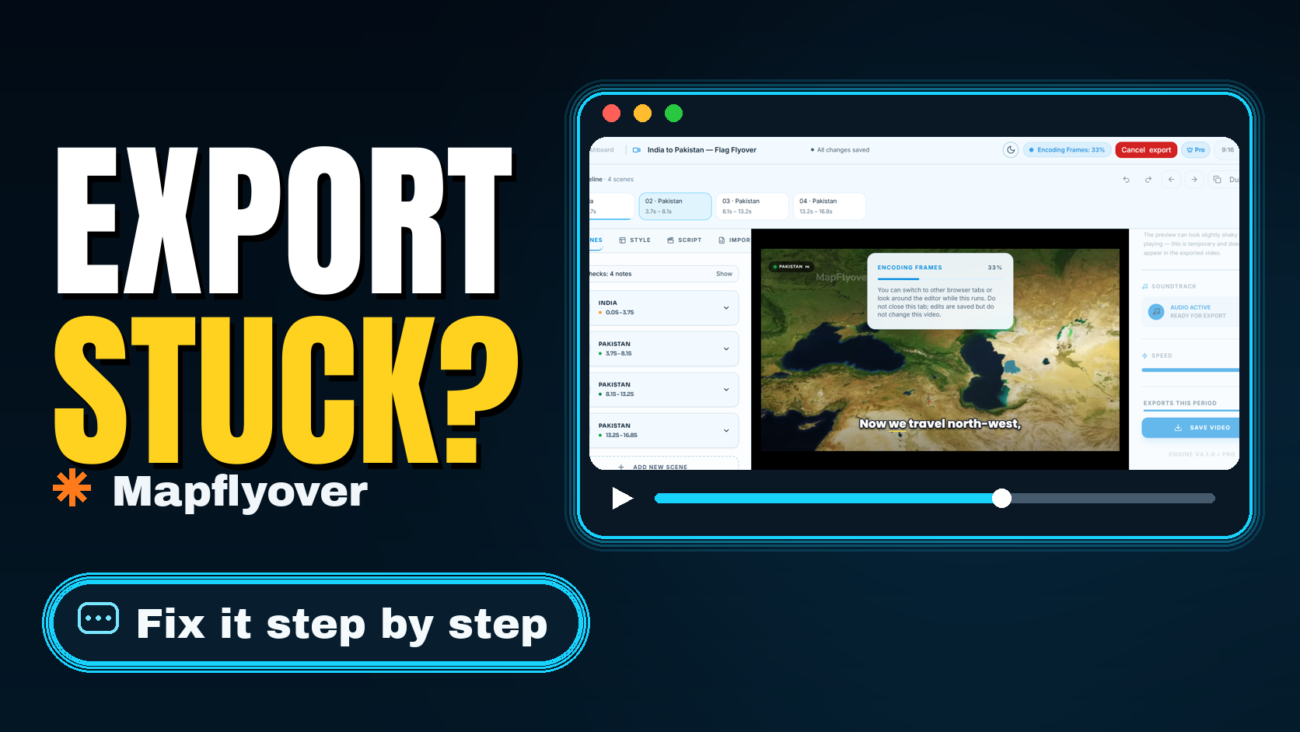
You have built your map video in Mapflyover, you press export, the progress bar climbs… and then nothing. The render stalls near the end, or it reaches 100% and the finished video never appears. It is one of the most frustrating problems Mapflyover users run into, because it strikes at the very last step. The good news: in most cases the project itself is fine, and one of the fixes below — ordered from quickest to deepest — will get your MP4 out. If you are brand new to the tool, start with our guide on how to make a map animation video first, then come back here if the export gives you trouble.
Why Mapflyover exports stall
Mapflyover renders your video in your browser rather than on a remote server. That keeps the tool fast and private, but it means the export depends on your tab staying alive and your device keeping up. Most stalls come from one of three causes: the tab losing focus or being closed mid-render, the video exceeding what your plan or device can handle, or one problem scene that blocks the final step where the scenes are stitched together. The fixes below work through all three.
Fix 1: Keep the export tab open and in front
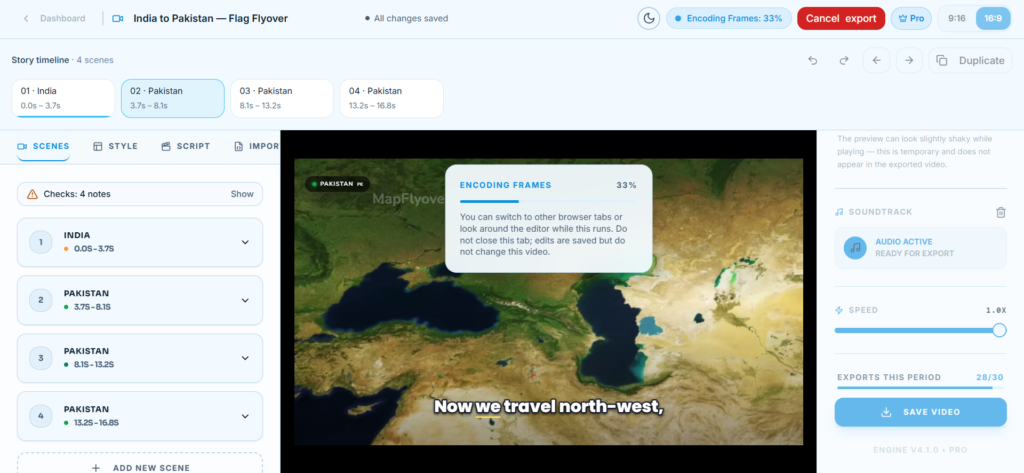
This sounds obvious, but it is the most common cause. Browsers throttle or suspend background tabs to save resources, and a render that loses its tab can hang indefinitely. While an export is running, leave the Mapflyover tab open and in the foreground, and do not refresh or navigate away. If you see a notice saying your progress was kept, use it — Mapflyover can resume from where it stopped instead of rendering again from zero, which saves several minutes on longer videos.
Fix 2: Check the video against your plan’s limits
An export that cannot finish is sometimes simply an export that is not allowed to. On the Free plan, videos export at 720p and can be at most 90 seconds long, with 2 exports a month. A three-minute video on a Free account will not export no matter how long you wait — trim it to under 90 seconds or upgrade. Pro allows up to 5 minutes at 1080p and Studio up to 15 minutes at 4K. The full limits are on Mapflyover’s pricing page. One reassurance while you experiment: a failed export does not count against your monthly allowance, so retrying costs you nothing.
Fix 3: Lower the export quality
If the render consistently dies near the end, reduce the load. Export at 720p instead of 1080p (or instead of 4K on Studio). The framing, scenes and narration stay identical — only the resolution drops — and a lighter render is far more likely to push through the finalising step. In real-world cases this single change, combined with Fix 5 below, has turned a permanently stuck export into a successful one. You can always re-export at full quality afterwards once you know the project renders cleanly.
Fix 4: If it rendered but no file arrived, check your downloads
Sometimes the video finishes and the download is what fails. Check your browser’s download list to see whether the MP4 arrived quietly. If not, allow downloads and pop-ups for mapflyover.com in your browser’s site settings, and temporarily disable download-manager or ad-blocking extensions, which can intercept the file. Then run the export again. If your browser offers the finished video inside the page, use that download button rather than starting a new render.
Fix 5: Duplicate the project and export the copy
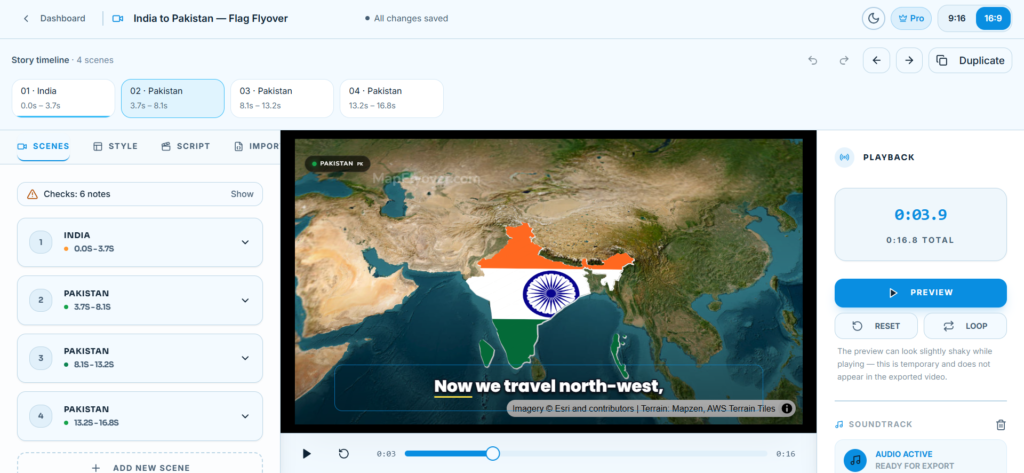
Editors accumulate state, and occasionally a project gets stuck in a way its copy does not. Duplicate the project from your dashboard, open the copy, and export that instead. This takes under a minute and is one of the most reliable fixes: users have seen the original project stall at the same point repeatedly while the identical copy exported first try. Your original stays untouched, so there is no risk in trying it.
Fix 6: Find and fix the problem scene
If a project always stalls at roughly the same percentage, the cause is usually one scene — often a heavy closing scene with a big camera move. Note where the progress stops and work out which scene plays at that point in the video. Open that scene in the editor, simplify its camera move or shorten it slightly, trim a second or two off the end of the video if the problem sits in the final scene, then export again. A small change to one scene is usually enough; you do not need to rebuild the project.
Fix 7: Rule out your browser
Try the export in a second browser, or in a clean session with extensions disabled. This test tells you where the problem lives: if the same project stalls in two different browsers, the browser is not the cause — go back to Fix 5 and Fix 6, because it is the project. If the copy exports fine elsewhere, clear the first browser’s site data for mapflyover.com and sign in again.
When to contact support
If a duplicated project, at a lower quality, with the problem scene adjusted, still will not export in two browsers, it is time to ask for help. Contact Mapflyover through its contact page and include the project name and roughly where the export stops — that detail makes the problem much faster to track down. And if your issue is with a video you already exported and are editing elsewhere, our guide to fixing CapCut not exporting covers that side of the fence.
Frequently asked questions
Does a failed export use up one of my monthly exports? No. Mapflyover states in its pricing FAQ that a failed export does not count against you, so you can retry as often as you need.
Why does my export stall at 90–100%? The last stage is where the scenes are combined into the final file. It is the heaviest step, and one problem scene can block it — that is what Fix 3, Fix 5 and Fix 6 address.
Will lowering the quality change my video? Only the resolution changes. Your scenes, camera moves, narration and captions are untouched, and you can re-export at higher quality later.
How long should an export take? It depends on the video’s length and your device, since rendering happens in your browser. A short video usually takes a few minutes; if there is no progress at all for a long stretch, work through the fixes above rather than waiting longer.
