
If LinkedIn shows a “no internet connection” error while everything else on your device loads fine, your internet isn’t the problem — something is specifically blocking LinkedIn. This guide walks you through finding the exact cause in under 5 minutes and fixing it, on the mobile app and in a web browser.
Quick Diagnosis: Find Your Cause in 60 Seconds
Run these three checks first — they pinpoint the cause for most people:
| Test | What it tells you |
|---|---|
| Open any other app or website on the same Wi-Fi | If everything else loads, your connection is fine — the problem is LinkedIn-specific. Continue below. |
| Switch networks — turn off Wi-Fi and try mobile data (or vice versa) | If LinkedIn works on the other network, your Wi-Fi network or ISP is blocking/restricting LinkedIn. |
| Turn off your VPN (if you use one) and reload LinkedIn | If LinkedIn loads, your VPN server is the culprit. |
If all three tests still show the error, work through the fixes below in order — sorted from most to least common.
Why LinkedIn Shows This Error When You’re Online
LinkedIn’s app shows one generic “no internet connection” message for every kind of loading failure. It doesn’t distinguish between “your Wi-Fi dropped” and “your office firewall blocked us” — so the message is misleading by design. The real causes, ranked by frequency:
1. Corrupted app cache (most common on mobile)
LinkedIn stores feed data, images, and session tokens locally. When that cache corrupts — after a failed update, a forced app close, or just over time — the app can’t parse its own stored data, fails silently, and falls back to the generic connection error.
2. VPN or proxy interference
VPNs route traffic through shared servers. LinkedIn rate-limits and sometimes blocks IPs associated with high volumes of automated traffic — common on free or heavily-shared VPN servers.
3. Network-level blocking (work, school, or public Wi-Fi)
Corporate networks, universities, and some public hotspots filter social and professional-networking domains. LinkedIn gets blocked while everything else works normally.
4. DNS resolution failure
If your device’s DNS server fails to resolve LinkedIn’s servers specifically (common with custom, ISP-provided, or parental-control DNS), the app can’t reach LinkedIn at all.
5. Outdated app or browser data
Old app versions can lose compatibility after LinkedIn updates its backend. In browsers, stale cookies and cached files cause the same symptom.
6. LinkedIn server outage (least common)
Rare, but when LinkedIn’s own servers have problems, the app shows “no internet connection” instead of a proper “service unavailable” message.
Fix It on the LinkedIn App (Android & iPhone)
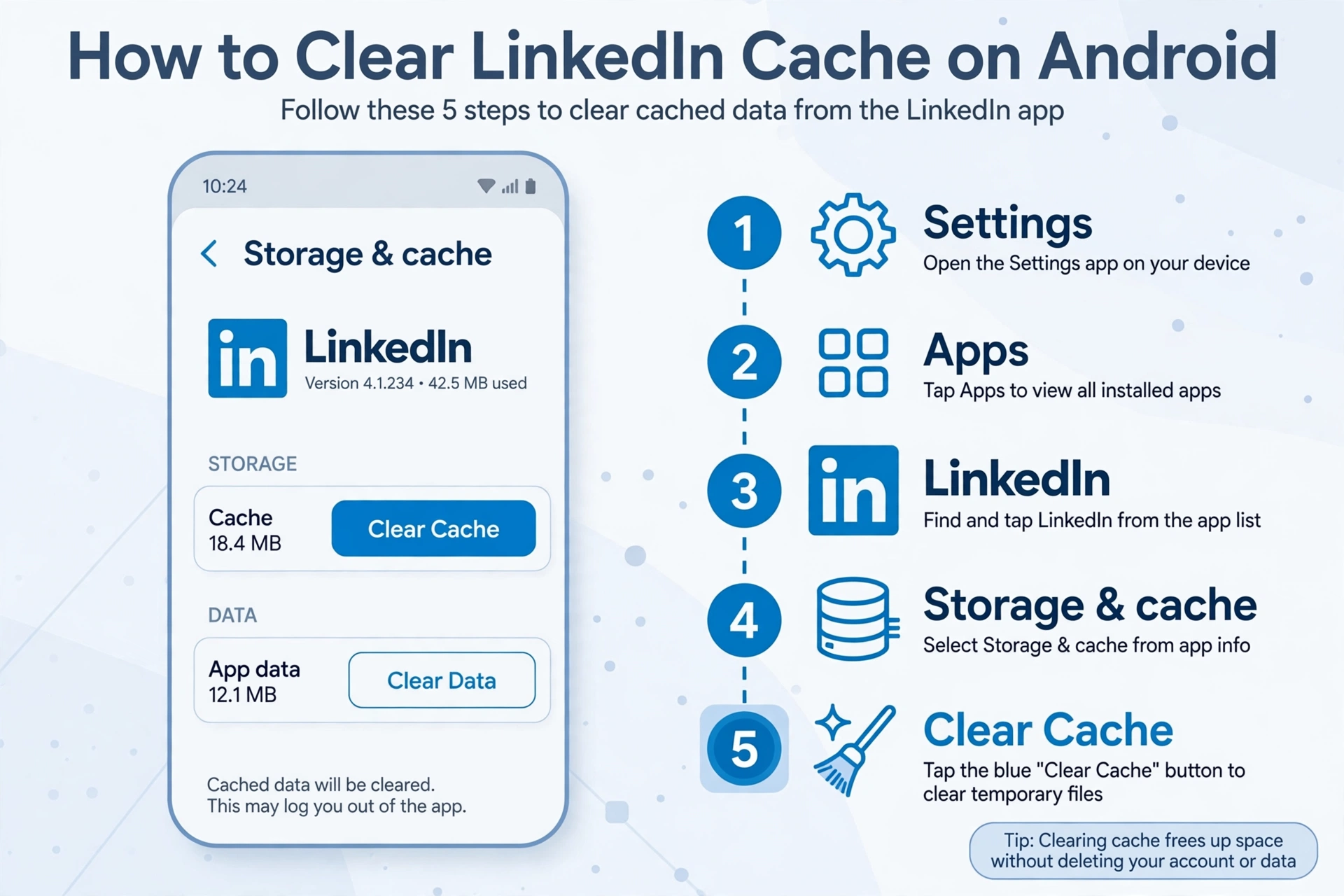
Fix 1: Clear the app cache (Android)
- Open Settings → Apps (or “Apps & notifications”)
- Find and tap LinkedIn
- Tap Storage & cache
- Tap Clear Cache (do NOT tap Clear Storage/Data — that logs you out)
- Reopen LinkedIn and pull down to refresh the feed
This resolves the issue for most Android users by forcing the app to rebuild its local data from scratch.
Fix 2: Offload or reinstall (iPhone)
- Force-close and reopen: swipe up, swipe LinkedIn away, reopen it.
- Offload the app: Settings → General → iPhone Storage → LinkedIn → Offload App, then Reinstall App. Offloading keeps your data — it’s the iOS equivalent of clearing cache.
- Full reinstall (if offloading didn’t help): delete LinkedIn, restart your phone, reinstall from the App Store.
Fix 3: Update the app
Open the Play Store or App Store, search LinkedIn, and install any pending update.
Fix 4: Rule Out Network Blocking
If LinkedIn works on mobile data but not your Wi-Fi, the network is the problem:
- Restart your router — unplug for 30 seconds.
- Try a different DNS: in your phone’s Wi-Fi settings, change DNS to
8.8.8.8(Google) or1.1.1.1(Cloudflare). - On work/school Wi-Fi: the network may block social sites intentionally — confirm with mobile data, then ask IT or just use mobile data.
Fix 5: VPN and proxy issues
- Disconnect your VPN entirely and reload LinkedIn.
- Reconnect to a different server location, preferably in your own country.
- Check for an active proxy: Android → Wi-Fi → long-press network → Modify → Proxy “None”. iPhone → Wi-Fi → (i) → HTTP Proxy “Off”.
Fix It in a Web Browser
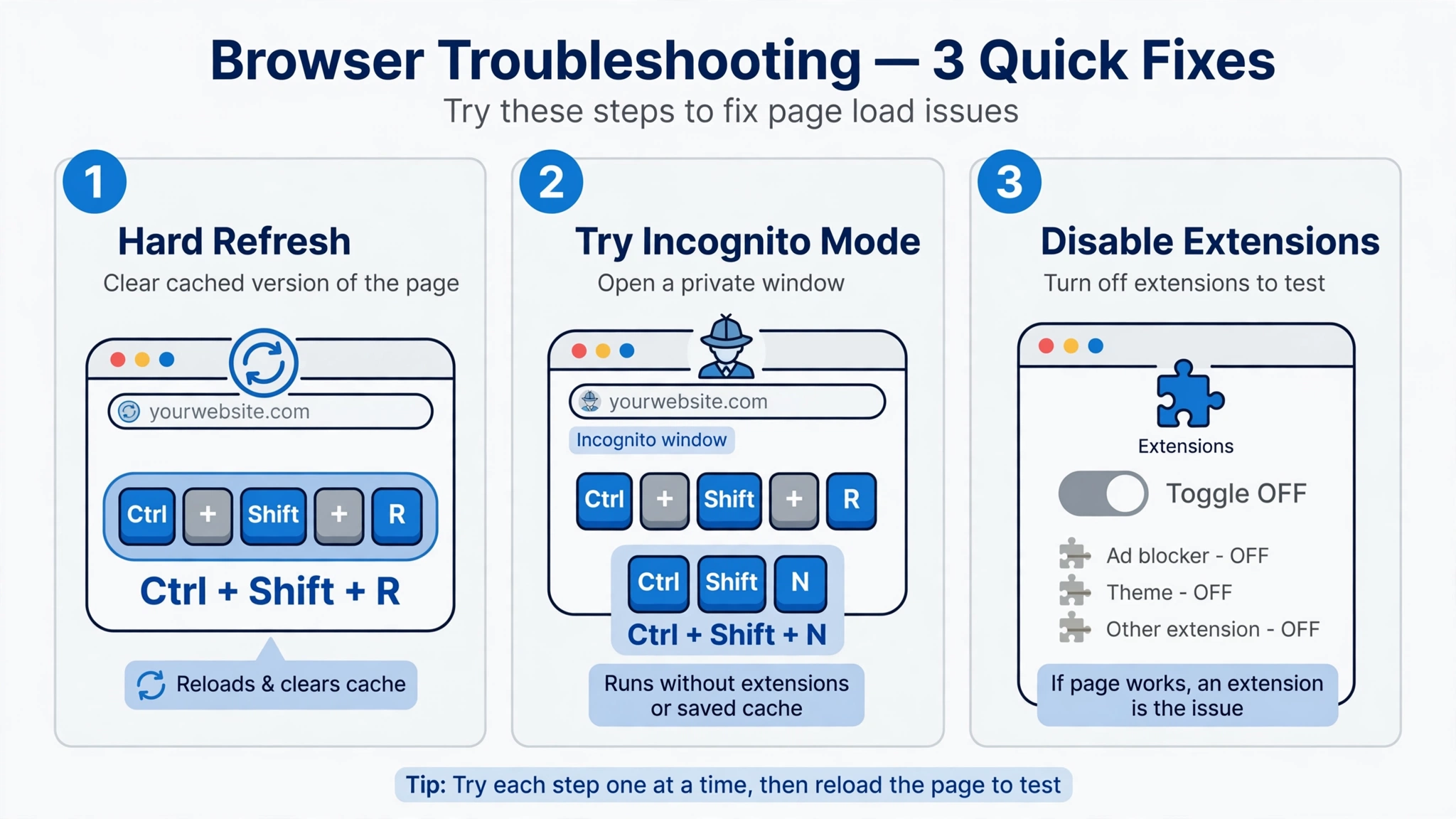
Fix 6: Hard refresh and clear site data
- Hard-refresh: Ctrl+Shift+R (Windows) or Cmd+Shift+R (Mac).
- Clear LinkedIn’s site data specifically: Chrome → Settings → Privacy and security → Third-party cookies → See all site data → search “linkedin” → delete those entries.
Fix 7: Test in incognito/private mode
If LinkedIn works in incognito, the problem is your extensions or cached data — not LinkedIn or your network.
Fix 8: Disable extensions one by one
VPN extensions, ad blockers, and privacy tools can block LinkedIn’s scripts. Disable one at a time, reloading LinkedIn after each. Whitelist linkedin.com in the culprit rather than removing it.
Fix 9: Flush DNS (desktop)
- Windows: Command Prompt as administrator →
ipconfig /flushdns - Mac: Terminal →
sudo dscacheutil -flushcache; sudo killall -HUP mDNSResponder
When It’s LinkedIn’s Own Outage
Check DownDetector’s LinkedIn page — a spike in reports means it’s platform-wide. Outages typically resolve within a few hours.
FAQ
Why does LinkedIn say “no internet connection” when my Wi-Fi works fine?
LinkedIn uses one generic error message for every loading failure — it can’t distinguish your connection failing from LinkedIn being blocked.
Why does LinkedIn work on mobile data but not Wi-Fi?
Your Wi-Fi network is blocking or interfering with LinkedIn specifically — firewall, content filter, DNS, or ISP restriction.
Will clearing cache log me out?
On Android, Clear Cache does not log you out. Clear Storage/Data does — avoid it. On iPhone, offloading keeps your login; deleting the app does not.
How do I know if it’s an outage vs. my device?
If LinkedIn fails identically on two networks and two devices, and DownDetector shows a spike, it’s an outage.
Related guides:
