
If LinkedIn isn’t updating — your feed shows old posts, notifications are stuck, or nothing refreshes no matter how many times you pull down — the cause is almost always local: a stale cache, an outdated app, or a phone setting quietly blocking background data. This guide shows you how to identify exactly which one and fix it in minutes.
First: What Exactly Isn’t Updating?
“Not updating” means different things, and each has a slightly different fix. Find yours:
| Symptom | Go to |
|---|---|
| Feed shows old posts, pull-to-refresh does nothing | Fixes 1–4 below (cache & refresh) |
| Notification badge stuck / notifications not arriving | Fixes 5–6 below (background data & notification settings) |
| Works on phone but not in browser (or vice versa) | Fixes 7–8 below (browser-specific) |
| A profile edit saved but isn’t visible to others | Separate guide: profile changes not showing |
| Job update or promotion post not appearing | Separate guide: promotion not showing |
Feed Not Refreshing? Start Here
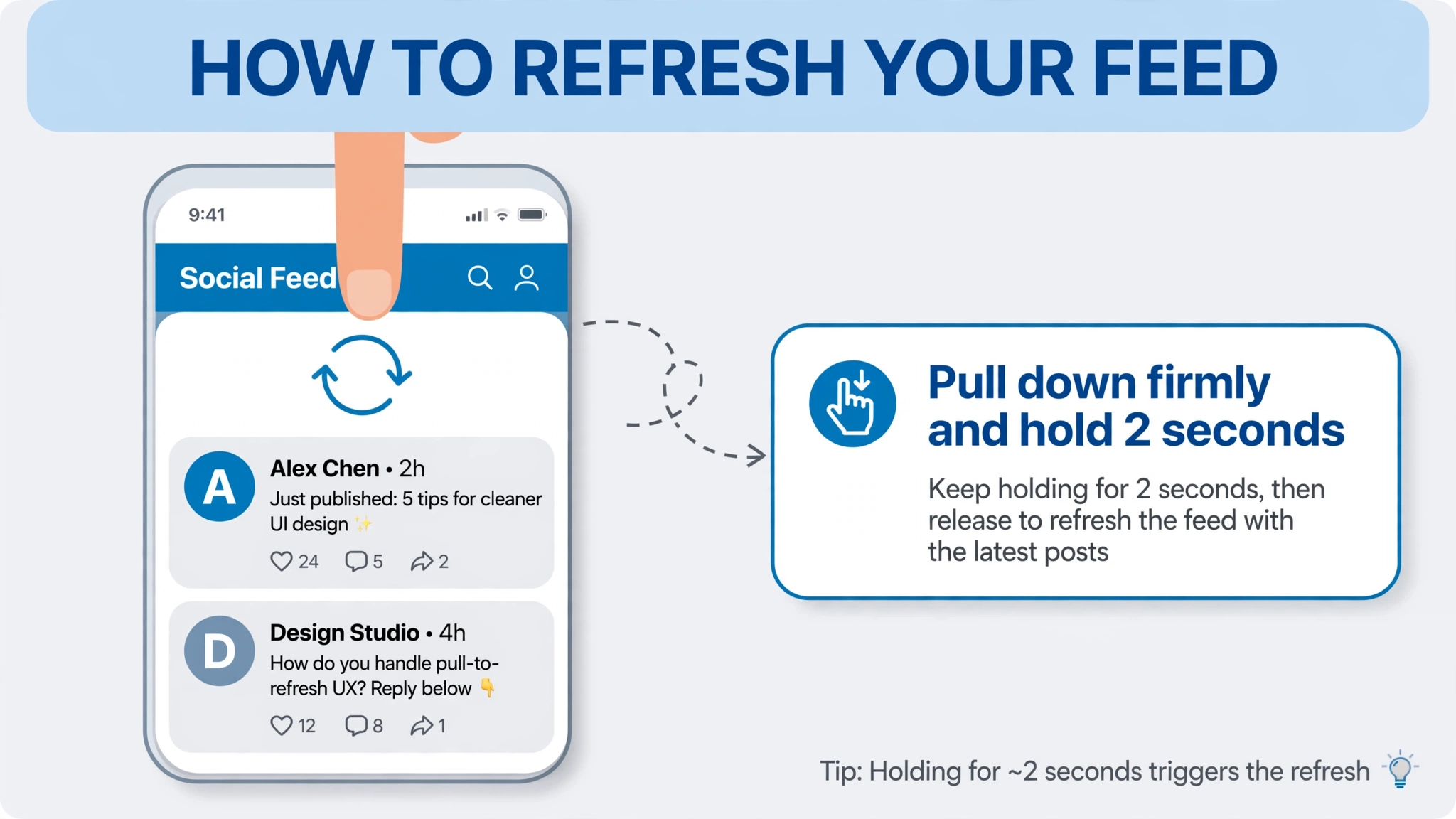
Fix 1: Force a real refresh (not just a reload)
On mobile, pull down firmly on the feed and hold for 2 seconds — a quick flick sometimes doesn’t trigger a data fetch. On desktop, use a hard refresh: Ctrl+Shift+R (Windows) or Cmd+Shift+R (Mac). A normal refresh can serve the same cached page; a hard refresh bypasses cache entirely.
Fix 2: Clear the LinkedIn app cache
- Android: Settings → Apps → LinkedIn → Storage & cache → Clear Cache (does not log you out).
- iPhone: Settings → General → iPhone Storage → LinkedIn → Offload App → Reinstall.
Fix 3: Update the app
Open your app store, search LinkedIn, install any pending update. Versions more than a couple of months old are a known cause of sync failures.
Fix 4: Log out and back in
Resets session tokens and fixes multi-device sync conflicts. Your profile, posts, and connections are stored on LinkedIn’s servers — logging out deletes nothing.
Notifications Stuck or Not Arriving
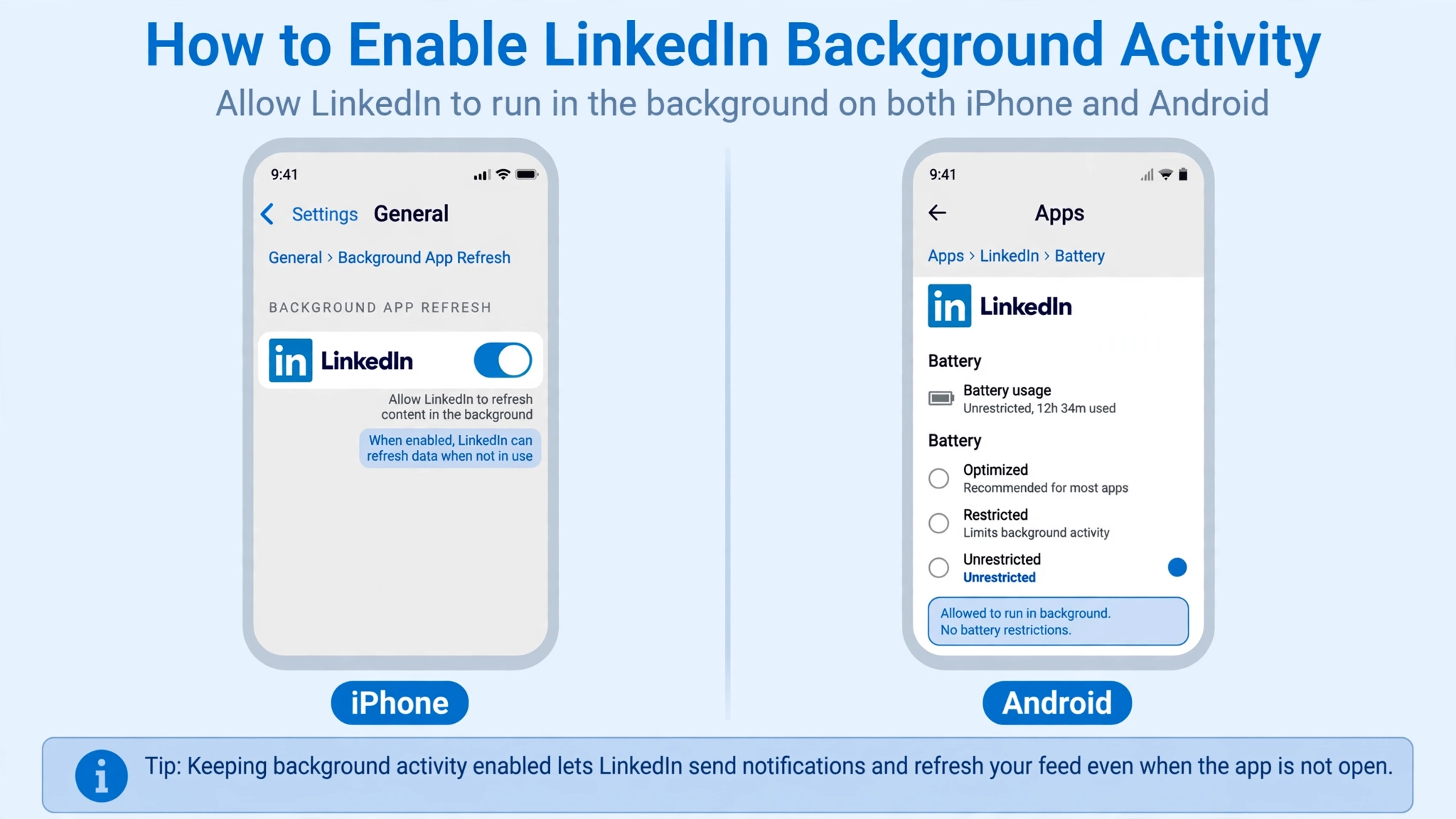
Fix 5: Turn on Background App Refresh (iPhone) / disable battery optimization (Android)
- iPhone: Settings → General → Background App Refresh → ON globally and for LinkedIn specifically.
- Android: Settings → Apps → LinkedIn → Battery → Unrestricted. Also check Battery → Background usage limits — LinkedIn must not be in “Sleeping” apps.
- Samsung/Xiaomi: check any “Memory” or “Phone Manager” app for LinkedIn restrictions — these brands kill background apps aggressively.
Fix 6: Check notification permissions at all three layers
- Phone: Settings → Apps → LinkedIn → Notifications → all categories enabled, not just the master switch.
- LinkedIn app: profile photo → Settings → Communications → push preferences for each type.
- Do Not Disturb / Focus modes: make sure your phone isn’t silencing LinkedIn during certain hours.
Works on Phone But Not Browser (or Vice Versa)
Fix 7: Browser-specific steps
- Test in incognito/private mode first.
- Disable extensions one by one — ad blockers, privacy tools, VPN extensions.
- Clear LinkedIn’s site data only (Chrome): Settings → Privacy and security → Third-party cookies → See all site data → search “linkedin” → delete.
- Try a different browser.
Fix 8: Rule out connection and VPN issues
Switch Wi-Fi to mobile data (or vice versa). See our no-internet-connection guide if the network is the culprit. Temporarily disable any VPN to test.
When It’s LinkedIn’s Problem, Not Yours
Check DownDetector — a report spike means it’s platform-wide. These lags usually resolve within a few hours.
FAQ
Why does pull-to-refresh do nothing?
Pull down firmly and hold 2 seconds — a quick flick may not trigger a fetch. If still nothing, clear the cache (Fix 2).
Will logging out delete my posts?
No. Everything lives on LinkedIn’s servers.
Why do notifications arrive hours late?
Almost always battery optimization killing background activity (Fix 5) — especially Samsung/Xiaomi.
Feed works on Wi-Fi but not mobile data?
Check your phone’s Data Saver exceptions for LinkedIn.
Related guides:
