Posted in

LinkedIn Post Analytics Not Showing? Fix Missing Impressions & Views Data

If LinkedIn isn’t showing analytics for your post, the most common explanation is simple timing — impression and view data typically takes 24 to 48 hours to fully populate, especially for posts that just went live. Beyond that delay, the other frequent causes are looking in the wrong place, checking a post you shared rather than one you created, or a minimum-viewer threshold that hasn’t been reached yet. This guide covers each cause and exactly where to look instead.

Posting something you’re genuinely proud of and then getting a blank or “0 views” analytics panel is disorienting, especially when you can see comments and reactions coming in that clearly contradict a “zero” number. In most cases, this is a data-lag or navigation issue rather than a sign that something’s actually broken.

Where LinkedIn Analytics Actually Live

Before troubleshooting, it’s worth confirming you’re checking the right place, since this alone accounts for a large share of “my analytics aren’t showing” reports:

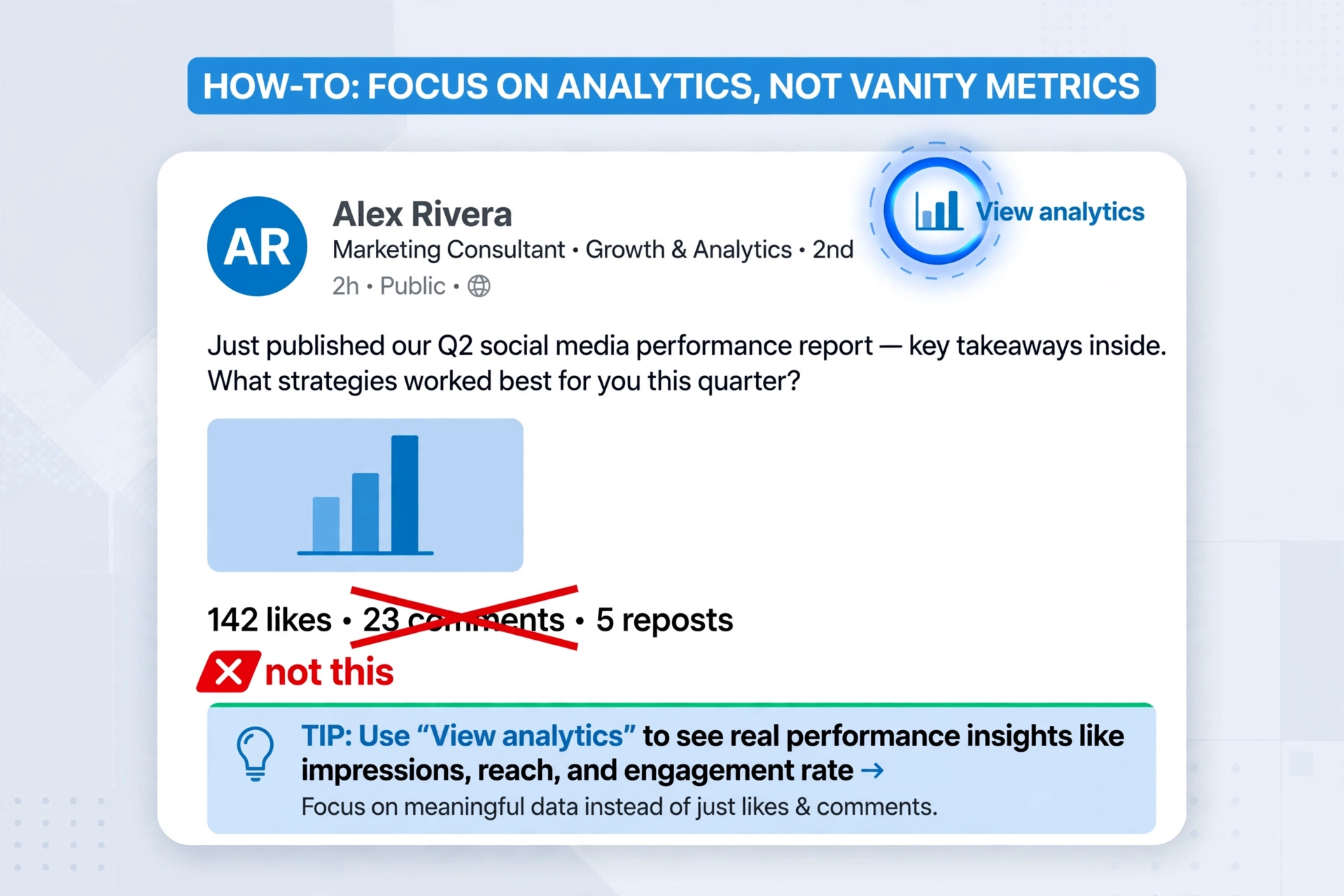
  • For your own posts: click directly on the post from your profile’s activity feed, then look for the small bar graph icon or “View analytics” link near the top of the post — not the general reactions/comments count below it, which is a different number entirely.
  • For your overall profile: LinkedIn provides a separate, broader analytics summary (profile views, post impressions, search appearances) accessible from your profile page under “Analytics,” distinct from any single post’s numbers.
  • For a Company Page: admin-level analytics live in a completely separate dashboard from personal profile analytics, accessible only to page admins — if you’re checking your personal view expecting company page data, you won’t find it there.

Why Your Analytics Aren’t Showing

1. The data simply hasn’t caught up yet

LinkedIn’s analytics dashboard is not real-time. It typically takes 24–48 hours after a post goes live for impression counts, viewer demographics, and reach data to fully populate, even though reactions and comments usually appear instantly. If your post is only a few hours old, this is almost certainly the explanation.

2. A minimum-viewer threshold hasn’t been met

LinkedIn withholds certain detailed analytics — particularly viewer demographic breakdowns (job titles, companies, locations of who viewed your post) — until a post reaches a minimum number of views, generally to protect viewer privacy on lower-reach posts. This means the overall count can show while the detailed breakdown stays empty.

3. You’re looking at a repost or share, not your own content

If you reposted or shared someone else’s post — even with your own comment added — LinkedIn generally does not provide you with impression analytics for that content, since it belongs to the original poster. Analytics are tied to original content you created, not content you amplified.

4. Mobile app and desktop can show different numbers

Analytics data doesn’t always sync identically across platforms in real time. It’s common to see a slightly different (usually lower) number on the mobile app than on desktop for the same post, particularly within the first day of posting.

5. Editing your post resets some data

If you’ve edited a post after publishing, certain analytics — particularly anything tied to viewer session tracking — can partially reset or show a temporary blank state while LinkedIn recalculates. Reactions and comments carry over normally; view analytics can lag briefly.

6. The post type has restricted or delayed analytics

Certain formats — polls, newsletter editions, and some document/carousel posts — have their own separate or delayed analytics displays rather than following the standard post-view pattern. If you’re checking a poll or newsletter expecting standard post analytics, you may be looking in the wrong dashboard.

7. A temporary account or platform-side glitch

Less commonly, this can be a broader technical issue on LinkedIn’s side rather than anything about your specific post.

How to Fix It, Step by Step

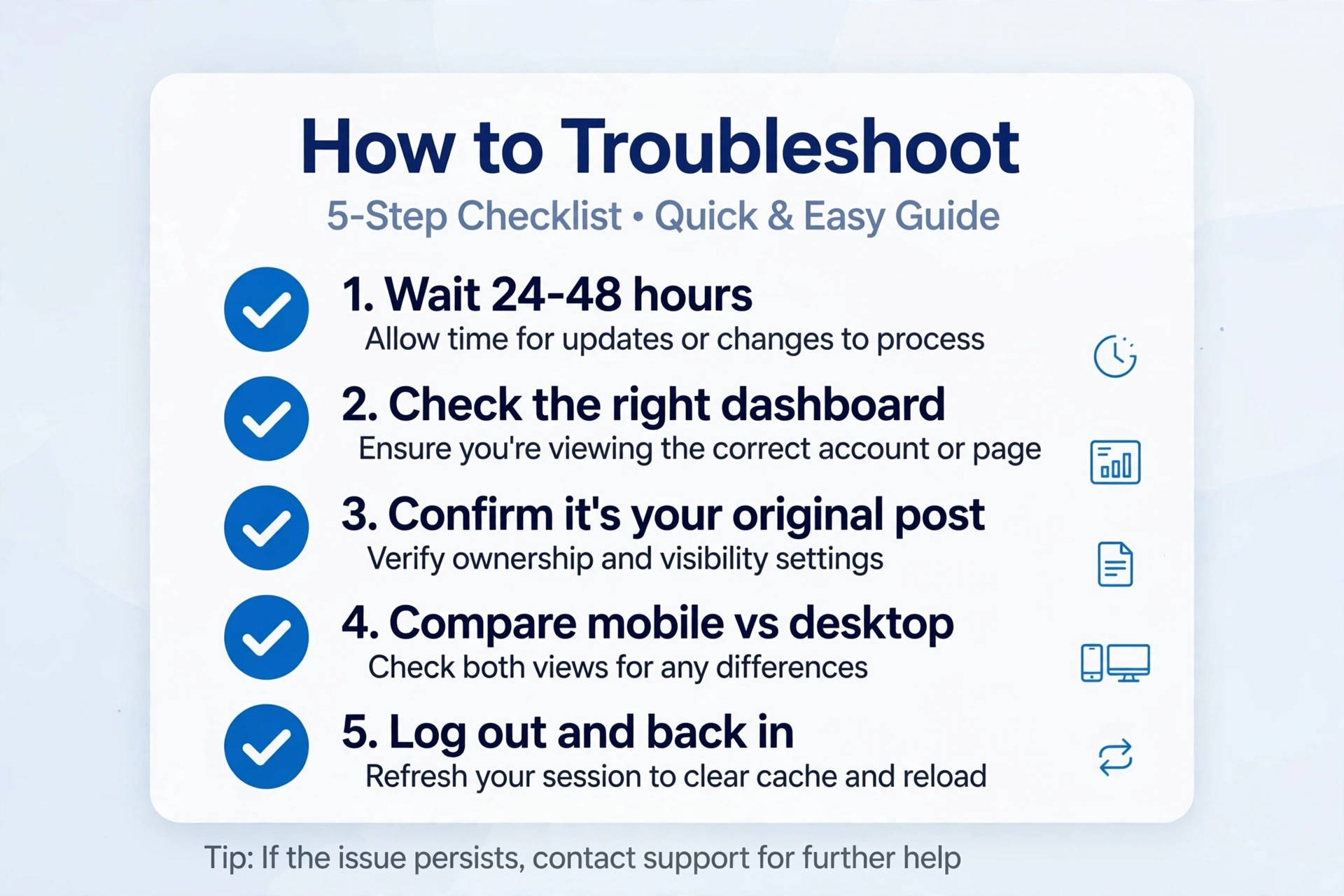
  1. Wait 24–48 hours before assuming anything is wrong, especially for posts published within the last day.
  2. Confirm you’re checking the post’s own analytics, not the general like/comment counter below it — click directly into the post and look for the analytics link near the post header.
  3. Check whether it’s a repost. If you shared someone else’s content, understand that detailed analytics belong to the original poster, not you.
  4. Compare mobile app vs. desktop. If one shows data and the other doesn’t, trust whichever platform shows the higher, more complete number, and treat the discrepancy as a sync delay rather than an error.
  5. Refresh and log out/back in to rule out a stuck session displaying cached, outdated analytics data.
  6. If you’re checking Company Page analytics, confirm you have admin access and are in the correct admin dashboard rather than your personal profile view.
  7. If it’s been well over 48 hours and numbers still show zero despite visible reactions or comments, this is worth reporting to LinkedIn Support directly, since it falls outside the normal delay window.

FAQ

Why do I have comments and likes but zero views showing? This is almost always a data-lag issue — reaction counts update instantly, while impression/view analytics update on a delay. It doesn’t mean your post genuinely had zero views.

Do LinkedIn analytics ever fully disappear for old posts? Analytics remain accessible indefinitely for your own original posts, though very old posts may show less granular demographic detail than recent ones due to changes in what LinkedIn tracks over time.

Why can’t I see who viewed my post, only a total number? Detailed viewer breakdowns (job titles, companies, locations) require a minimum view threshold to protect individual privacy on lower-reach posts. Once your post crosses that threshold, the detailed view typically becomes available.

Does deleting and reposting fix missing analytics? No — this resets your post entirely, losing existing reactions, comments, and any analytics that had already accumulated. Wait out the normal delay window instead.


Related guides:

Ali Hassan is the founder of BroadMatters and writes clear, easy-to-understand guides on technology, websites, and everyday how-to topics. His work focuses on accuracy, simplicity, and practical value, helping readers find reliable answers without unnecessary complexity.