Apps & Software
Guides and explanations for using apps, software tools, and digital services easily.
Latest Insights
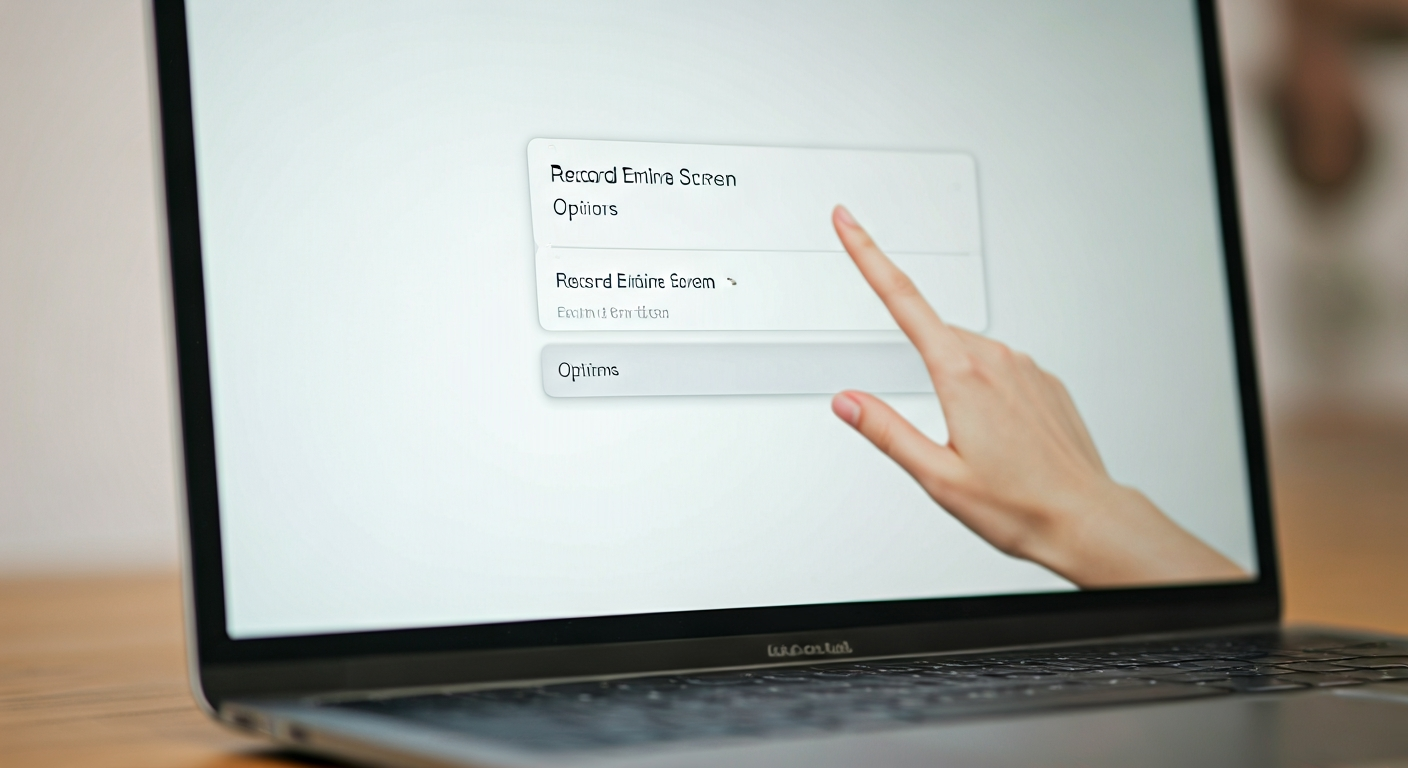
To screen record on a Mac, press Command + Shift + 5 to open the screenshot toolbar. Select your recording area (full screen, window, or custom selection), choose audio input from "Options," then click "Record." To stop, click the stop icon in the menu bar or press Command + Control + Esc. Your recording saves automatically to your desktop.

To uninstall apps on Mac, drag the application from your Applications folder to the Trash for most apps. For App Store downloads, use Launchpad to delete. Always remember to empty the Trash afterward. For a complete removal, manually delete associated support files from the Library folder (e.g., Application Support, Caches) to prevent lingering data from consuming space or causing issues.

Update a promotion on LinkedIn by navigating to your profile's Experience section, selecting the relevant company, and choosing 'Add new position.' Input your new title, updated start date for that role, and key responsibilities. Ensure the start and end dates for your previous role within the same company are adjusted to reflect the promotion timeline. This accurately displays your career progression.

Access help in Windows by using the built-in 'Get Help' app for guided solutions, searching the Start Menu for specific issues, or utilizing the 'Settings' app for troubleshooters. For comprehensive support, visit the official Microsoft Support website directly. These methods provide a range of resources from automated diagnostics to detailed knowledge bases, helping you resolve most common software and hardware challenges.
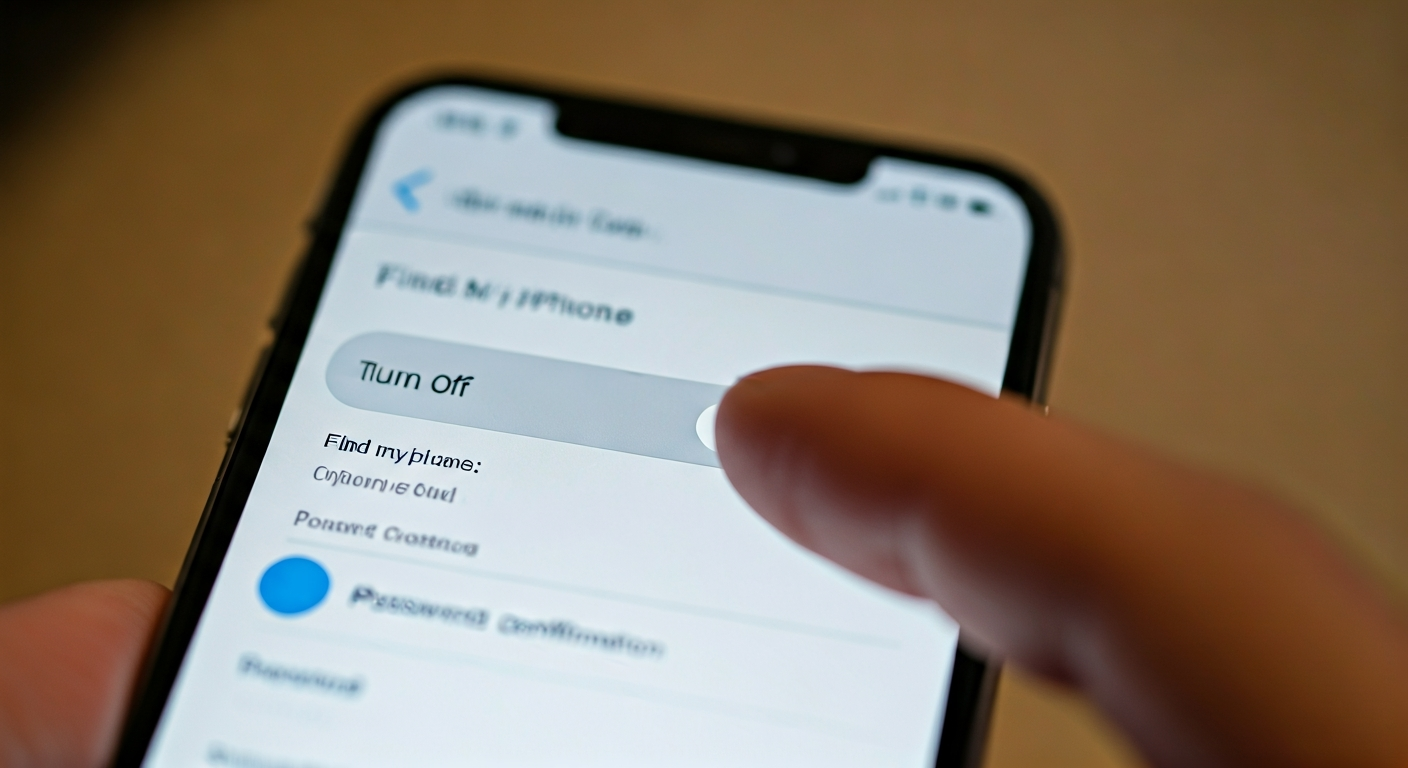
To turn off Find My iPhone, navigate to Settings, tap your Apple ID banner, select 'Find My,' then 'Find My iPhone.' Toggle the 'Find My iPhone' switch to the off position. You must enter your Apple ID password to confirm this action. Disabling this feature removes the device from your account and disables Activation Lock.

To find your private IP address, access your device's network settings: on Windows, use Command Prompt (ipconfig); on macOS, check System Settings > Network; on iOS/Android, look in Wi-Fi settings. For your public IP address, simply use a web browser and search "what is my IP" or visit a dedicated IP lookup website. These methods quickly reveal the necessary identifier for networking tasks.

To take a screenshot on your MacBook Air, press Command + Shift + 3 for a full-screen capture, Command + Shift + 4 to select a specific area, or Command + Shift + 5 to open the Screenshot toolbar for more options, including window captures. Your MacBook Air saves these images as PNG files to your desktop by default, ready for immediate use.

When printing, 'collate' means the printer organizes multiple copies of a document into complete, sequential sets. For example, if you print three copies of a three-page document with collation enabled, the output will be Page 1, Page 2, Page 3 (Set 1), followed by Page 1, Page 2, Page 3 (Set 2), and so on. This prevents you from having to manually sort stacks of individual pages.
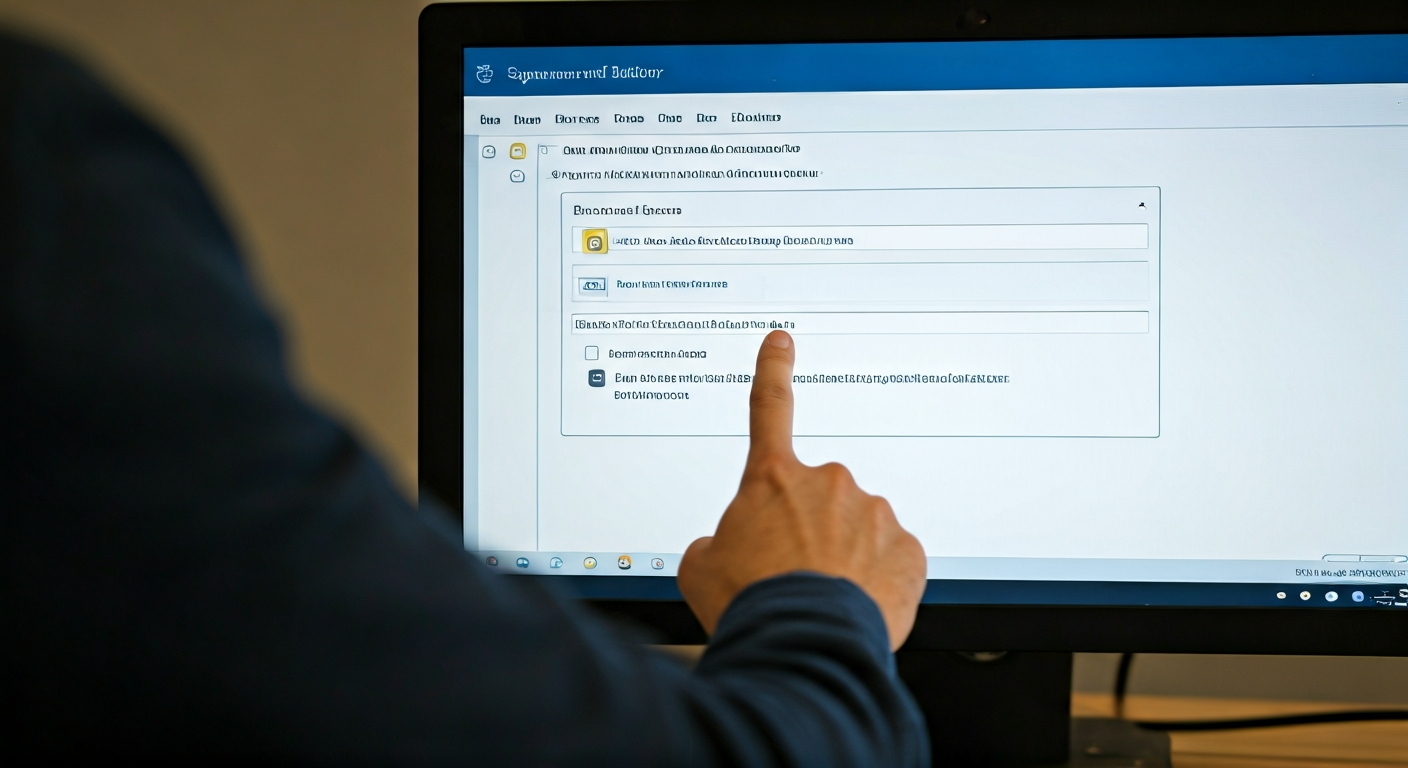
To change your email signature in Outlook, access the Signature settings via File > Options > Mail > Signatures (desktop) or Settings > Mail > Compose and reply (web). Create a new signature or select an existing one to edit. Add your desired text, images, and links, then save your changes. Finally, assign the signature to new messages and replies.

To announce a promotion on LinkedIn, draft a clear, concise post expressing gratitude, outlining your new role and responsibilities, and looking forward to future contributions. Include a professional photo or company logo, tag your employer and relevant colleagues, and update your profile immediately after posting to maximize impact and engagement.

To implement advanced LinkedIn advertising, focus on granular audience targeting, employ sophisticated bid strategies, and conduct rigorous A/B testing. Optimize your ad creatives and formats, ensure robust conversion tracking, and leverage retargeting with lookalike audiences. Continuously analyze campaign performance data to refine your approach and maximize return on investment (ROI).

To take a screenshot on your MacBook Air, use keyboard shortcuts: Command + Shift + 3 captures the entire screen. Command + Shift + 4 allows you to drag a selection box for a specific area. For a specific window, press Command + Shift + 4, then Spacebar, and click the desired window. These methods save images as PNG files to your desktop by default, providing quick and versatile screen capture options.

To find the best cloud storage alternative, first define your storage needs, budget, and privacy requirements. Research providers like pCloud, Sync.com, Mega, or Proton Drive, comparing their features, security protocols, and pricing tiers. Test free versions or trials to evaluate user experience before committing. Always prioritize providers with strong encryption and clear privacy policies.