
What You’ll Learn
Do you need to sell your iPhone, transfer ownership, or simply want to boost your privacy? Knowing how to turn off Find My iPhone is an essential skill. This guide will walk you through the simple steps to disable this feature, ensuring your device is no longer trackable through your Apple ID. You’ll learn the process quickly and efficiently, giving you full control over your device’s location services.
What You Need
- Your iPhone with access to Settings
- Your Apple ID password
Quick Steps Overview
- Open the Settings app.
- Tap on your Apple ID banner at the top.
- Select “Find My.”
- Tap “Find My iPhone.”
- Toggle the switch to turn off Find My iPhone and confirm with your Apple ID password.
Detailed Step-by-Step Guide
Step 1: Access Your iPhone Settings
First, unlock your iPhone and open the “Settings” app. This is where you’ll find all the configurations for your device. It usually looks like a gear icon on your home screen.
Step 2: Tap Your Apple ID
At the very top of the Settings menu, you’ll see a banner with your name and profile picture (if you have one). This is your Apple ID. Tap on it to access your Apple ID settings. This section manages all services connected to your Apple account, including Find My iPhone.
Step 3: Navigate to Find My
Within your Apple ID settings, scroll down a bit until you see the option labeled “Find My.” Tap on this to open the Find My services menu. This is the central hub for all location-related features tied to your Apple devices.
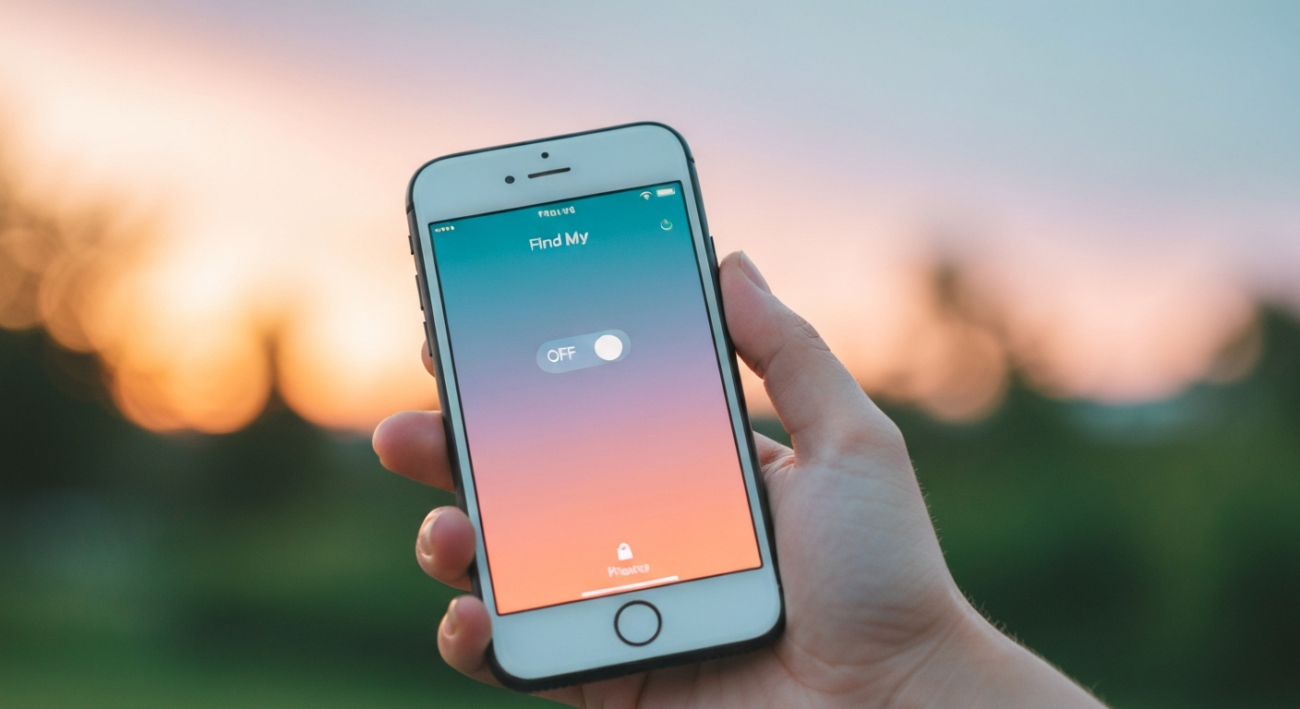
Step 4: Turn Off Find My iPhone
Inside the “Find My” menu, you’ll see a primary option titled “Find My iPhone.” Tap on it. On the next screen, you’ll see a toggle switch next to “Find My iPhone.” Tap this switch to turn it off. A prompt will appear asking for your Apple ID password to confirm the change. This security step ensures only you can disable tracking for your device.
Step 5: Enter Your Apple ID Password
After toggling off Find My iPhone, you’ll be prompted to enter your Apple ID password. This is a crucial security measure to prevent unauthorized users from disabling the feature. Type in your password and tap “Turn Off” or “Done.” Once confirmed, Find My iPhone will be successfully disabled on your device.
Common Mistakes to Avoid
- Forgetting your Apple ID password: You cannot turn off Find My iPhone without it. Make sure you have it handy or know how to reset it.
- Just removing the device from your Apple ID online: This doesn’t actually turn off Find My iPhone on the device itself. You need physical access and the password.
- Thinking ‘Offline’ means ‘Off’: If your device is offline, Find My iPhone might still be active, but simply unable to report its location. The feature itself must be toggled off.
Pro Tips
- Before selling or giving away your iPhone, always turn off Find My iPhone and then erase all content and settings to protect your data.
- If you’re disabling it for a temporary privacy concern, remember to turn it back on later for security. Find My iPhone is a powerful tool if your device is lost or stolen.
- For family sharing, ensure you understand how turning off Find My iPhone affects other family members’ ability to locate your device.
Final Result
After completing these steps, you will have successfully turned off Find My iPhone on your device. Your iPhone will no longer be trackable via your Apple ID or the Find My app, and Activation Lock will be removed if it was enabled. This is crucial for privacy and preparing your device for new ownership.
Summary
Disabling Find My iPhone is a straightforward process that gives you greater control over your device’s privacy and security. By following these simple steps, you can easily turn off Find My iPhone, ensuring your location data remains private or preparing your device for a new owner. Remember your Apple ID password is key to completing this process.
