
What You’ll Learn
Do you have a Mac that’s feeling a bit sluggish? Or maybe you just want to get rid of applications you no longer use? Learning how to properly uninstall apps on Mac is essential for maintaining a healthy and fast computer. Simply dragging an app to the Trash often leaves behind various files that can clutter your system over time. This comprehensive guide will walk you through the correct methods to completely remove applications, including all their associated data, ensuring your Mac runs smoothly and has plenty of free space. Get ready to reclaim your hard drive!
Why This Method is Recommended
While many third-party uninstallers exist, the most reliable and secure way to uninstall apps on Mac, especially for non-App Store applications, involves using macOS’s built-in tools. This method gives you full control over what’s removed and helps you understand where applications store their data. It minimizes the risk of uninstalling critical system files or introducing unwanted software. For App Store apps, macOS offers an even simpler, integrated removal process. We’ll cover both approaches to give you the best strategy for every scenario.
What You Need
- A Mac running macOS
- Administrator access to your Mac account
- Finder application open
Quick Steps Overview
- Locate the app in your Applications folder.
- Drag the app icon to the Trash.
- Empty the Trash.
- Manually find and delete leftover support files in your Library folder.
- For App Store apps, use Launchpad to delete directly.
Detailed Step-by-Step Guide
Step 1: Locate and Delete the App from Applications Folder
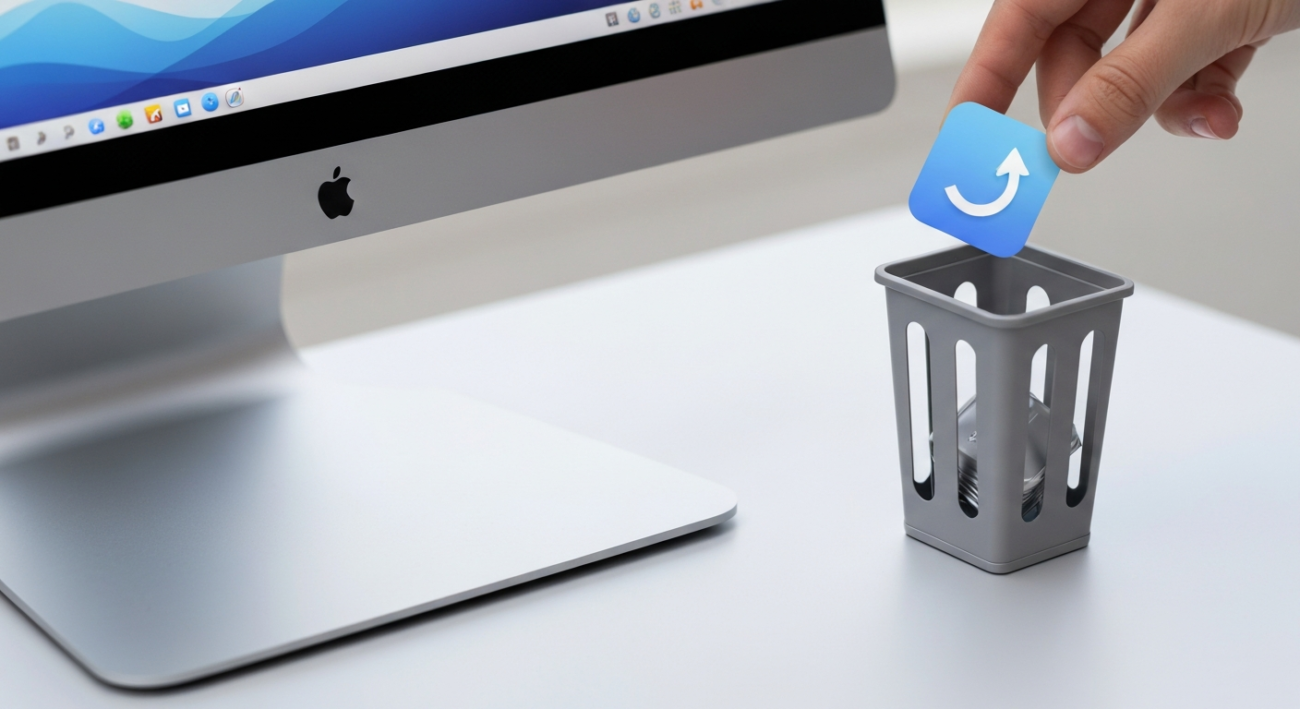
The first step to uninstall apps on Mac is to find the application itself. Open Finder from your Dock. In the Finder sidebar, click on ‘Applications’ to see all the apps installed on your system. Scroll through the list and locate the app you want to remove. Once you find it, simply drag the application’s icon directly to the Trash icon in your Dock. This moves the main application bundle to your Trash bin, but remember, this is just the beginning of the uninstallation process.
Step 2: Empty the Trash
After dragging the application to the Trash, it’s still technically on your Mac, just marked for deletion. To permanently remove the app and free up space, you need to empty the Trash. You can do this by right-clicking (or Control-clicking) on the Trash icon in your Dock and selecting ‘Empty Trash.’ A confirmation dialog will appear; click ‘Empty Trash’ again to proceed. Be sure you don’t have anything else in the Trash that you still need, as emptying it will permanently delete all its contents.
Step 3: Find and Delete Leftover Support Files
This is a critical step often overlooked when you uninstall apps on Mac. Many applications leave behind support files, caches, and preferences in your Library folder even after you drag the main app to Trash. To access your Library, open Finder, click ‘Go’ in the menu bar, then hold down the Option key. ‘Library’ will appear in the dropdown menu. Click it. Inside the Library folder, look for folders with the app’s name or the developer’s name in ‘Application Support,’ ‘Caches,’ and ‘Preferences.’ Drag these related folders or files to the Trash. Be careful not to delete system-critical files.
Step 4: Special Case: Uninstalling App Store Apps
Apps downloaded from the Mac App Store have a slightly different and often simpler uninstallation method. To uninstall apps on Mac that came from the App Store, open Launchpad (either by pinching with four fingers on your trackpad or clicking its icon in the Dock). Find the app you want to delete. Click and hold down the app icon until all icons begin to jiggle. An ‘X’ will appear in the top-left corner of the app icon. Click the ‘X’ and then ‘Delete’ when prompted. This method usually removes most associated files automatically.
Step 5: Consider Third-Party Uninstallers (Optional)
For a truly thorough cleanup, or if you find yourself frequently uninstalling apps, third-party uninstallers can be helpful. Tools like AppCleaner or CleanMyMac are designed to find and remove all associated files when you uninstall apps on Mac, saving you the manual search in the Library folder. While convenient, always download such software from trusted sources to avoid malware. These tools can automate the process, but understanding the manual steps first gives you a better grasp of what’s happening behind the scenes.
Troubleshooting Common Issues
The app won’t move to the Trash or says it’s in use.
This often happens if the app is still running in the background. First, quit the application. If it’s unresponsive, open Activity Monitor (Finder > Applications > Utilities), search for the app’s process, select it, and click the ‘X’ button in the toolbar to force quit it. Then try dragging to Trash again. Sometimes, a simple restart of your Mac can also resolve this.
I can’t find the ‘Library’ folder.
The Library folder is hidden by default to prevent accidental deletion of important files. To make it visible, open Finder, click ‘Go’ in the menu bar, and then hold down the Option (Alt) key on your keyboard. ‘Library’ will magically appear in the dropdown menu. Click it to access its contents.
I accidentally deleted something important from the Library folder.
Immediately check your Trash. If you haven’t emptied it yet, you can drag the file or folder back to its original location. If the Trash has been emptied, you might need to restore from a recent Time Machine backup or reinstall macOS if system stability is affected. Always be cautious when deleting files from the Library.
Common Mistakes to Avoid
- Only dragging the app to the Trash without emptying it. The app is still on your Mac, consuming space until the Trash is emptied.
- Forgetting to delete leftover support files. This leaves behind caches, preferences, and other data that can accumulate over time and clutter your system.
- Not quitting the app properly before attempting to delete it. An active application cannot be moved to the Trash, leading to ‘in use’ error messages.
- Deleting files from the Library folder without understanding their purpose. Always be certain a file belongs to the app you’re uninstalling to avoid damaging other software or macOS itself.
Pro Tips
- Before deleting an app, check its preferences within the app itself. Some applications have an option to ‘uninstall’ or ‘reset’ built-in, which can be more thorough.
- If an app came with a dedicated uninstaller, always use that first. These are designed by the developer to remove all associated files safely.
- Regularly review your Applications folder. Make it a habit to uninstall apps on Mac that you haven’t used in months to keep your system lean.
- For stubborn apps, you can use Terminal commands for a more forceful removal, but this is an advanced method best used by experienced users who understand command-line operations.
- After removing multiple large applications, consider restarting your Mac. This helps clear any lingering processes and refreshes the system resources.
Final Result
After following these steps, you will have successfully learned how to uninstall apps on Mac completely. Your Mac will have more free storage space, potentially run faster, and feel less cluttered. You’ll have the confidence that no lingering files from unwanted applications are taking up valuable disk space or potentially causing conflicts. Enjoy your cleaner, more efficient macOS experience!
Summary
Effectively uninstalling apps on Mac is crucial for optimal performance and storage management. This guide covered how to remove applications by dragging them to the Trash, emptying the Trash, and, most importantly, manually deleting leftover support files from the hidden Library folder. We also looked at the specific process for App Store apps and briefly discussed third-party uninstallers. By diligently following these steps, you can ensure a clean uninstallation, freeing up disk space and keeping your Mac running smoothly. Make this a regular practice to maintain a healthy and efficient system.
