
What You’ll Learn
Feeling overwhelmed by unwanted interactions or content on TikTok? Knowing how to block on TikTok is a powerful tool to take back control of your experience. This guide will walk you through the simple steps to block any user, helping you create a more positive and private space for yourself on the platform. You’ll learn exactly what blocking does and how to manage your interactions effectively.
Why This Method is Recommended
Blocking a user on TikTok is the most direct and effective way to completely prevent them from interacting with you or seeing your content. Unlike simply unfollowing or muting, blocking ensures they cannot view your profile, videos, or even send you direct messages. This method gives you total peace of mind, offering a clear boundary against harassment, spam, or just content you’d rather not see. It’s a quick, easy, and permanent solution for managing your digital well-being on the platform.
What You Need
- A TikTok account
- The TikTok app installed on your smartphone or tablet
- An internet connection
Quick Steps Overview
- Open the TikTok app and find the user’s profile.
- Tap the ‘…’ (three dots) icon in the top right corner of their profile.
- Select the ‘Block’ option from the menu.
- Confirm your decision when prompted.
Detailed Step-by-Step Guide
Step 1: Find the User You Want to Block
First, you need to locate the profile of the user you wish to block. There are several ways to do this. You might find them in your ‘For You’ page, your ‘Following’ list, in the comments section of a video, or through a direct message. If you know their username, you can also use the search bar within the TikTok app. Simply tap the ‘Discover’ tab, then the search icon at the top, and type in their username. Once you see their profile picture or username, tap on it to proceed to their profile page.
Step 2: Navigate to Their Profile Page
After finding the user, tap on their profile picture or username. This action will take you directly to their main profile page. Here, you can see their videos, followers, and who they follow. Take a moment to ensure this is indeed the correct person you intend to block. Once you’re certain, look for the options menu on their profile. This menu is where you’ll find the blocking functionality.
Step 3: Access the Options Menu
On the user’s profile page, locate the ‘…’ (three dots) icon. This icon is usually positioned in the top right corner of the screen. Tap on these three dots to open a menu with various options related to managing your interaction with that user. This menu typically includes options like ‘Report’, ‘Share profile’, ‘Send message’, and crucially, ‘Block’. Carefully review the options presented.
Step 4: Select ‘Block’ and Confirm
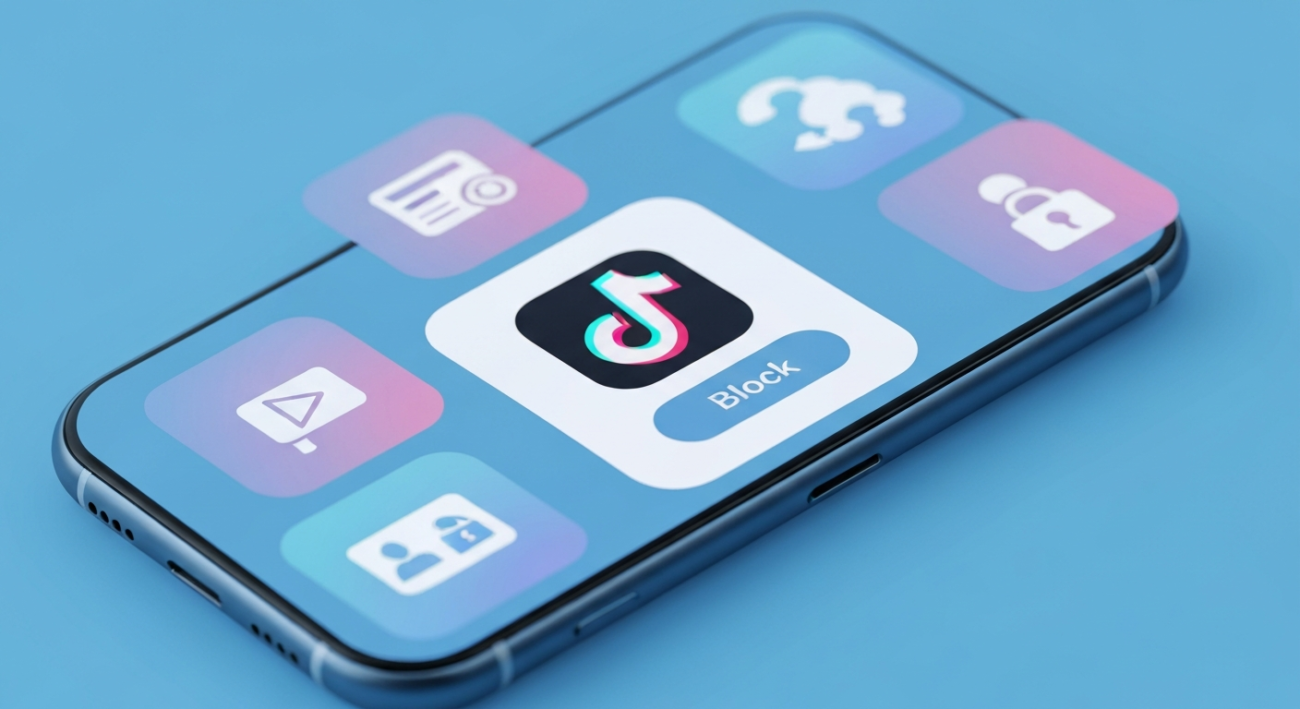
From the options menu that appears, tap on ‘Block’. TikTok will then ask you to confirm your decision with a pop-up message. This confirmation prompt explains what will happen once you block the user – they won’t be able to view your profile, watch your videos, send you messages, or find you on TikTok. Read this message to understand the full implications. If you are sure, tap the ‘Block’ button within the confirmation pop-up. The user is now successfully blocked. You can always unblock them later if you change your mind.
Step 5: Manage Your Blocked List (Optional)
To review or unblock users in the future, navigate to your own profile in the TikTok app. Tap the three horizontal lines (hamburger menu) in the top right corner to open your settings. Select ‘Settings and privacy’, then scroll down and tap ‘Privacy’. Under ‘Interactions’, you’ll find ‘Blocked accounts’. Here, you can see a list of all the users you have blocked. If you wish to unblock someone, simply tap the ‘Unblock’ button next to their name. This gives you complete control over who can and cannot interact with you on the platform.
Troubleshooting Common Issues
I can’t find the ‘Block’ option on the user’s profile.
Ensure you are on the user’s actual profile page, not just seeing their video in your feed. You need to tap their username or profile picture to reach their dedicated profile. Also, make sure your TikTok app is updated to the latest version, as menu layouts can sometimes change with updates.
I accidentally blocked someone and want to unblock them.
Don’t worry! You can easily undo a block. Go to your own TikTok profile, tap the three lines in the top right, select ‘Settings and privacy’, then ‘Privacy’, and finally ‘Blocked accounts’. Find the user in the list and tap the ‘Unblock’ button next to their name. They will immediately be able to view your content and interact with you again.
Common Mistakes to Avoid
- Confusing ‘blocking’ with ‘restricting’ or ‘muting’: Blocking is the most severe action, completely cutting off all interaction. Restricting limits comments and messages but still allows them to see your content. Muting only affects your own feed. Make sure you choose ‘block’ for full disengagement.
- Not confirming the block action: After tapping ‘Block’ from the options menu, TikTok presents a confirmation pop-up. If you don’t tap ‘Block’ again on this pop-up, the user will not be blocked. Always ensure you complete the final confirmation step.
Pro Tips
- Understand the impact: When you block a user, they are not notified. However, if they try to view your profile or send you a message, they will see an error message or simply not be able to find you.
- Blocking isn’t always enough for harassment: If you’re experiencing harassment or inappropriate content, consider reporting the user in addition to blocking them. The ‘Report’ option is usually in the same ‘…’ menu as ‘Block’.
- Regularly review your blocked list: It’s a good practice to periodically check your ‘Blocked accounts’ list under ‘Settings and privacy’ to ensure it’s up-to-date and manage any accidental blocks or changes of heart.
Final Result
After completing these steps, the unwanted user will no longer be able to view your profile or videos, send you direct messages, or find you through TikTok search. Your feed will become a more controlled and comfortable space, free from their interactions. You’ve successfully taken a step towards a better, more private TikTok experience.
Summary
Learning how to block on TikTok is a fundamental skill for managing your online privacy and creating a positive social media environment. By following these simple steps – finding the user, navigating to their profile, accessing the options menu, and confirming the block – you can quickly prevent unwanted interactions. Remember, blocking is an effective way to control who sees and engages with your content, giving you peace of mind and a more enjoyable TikTok experience. Embrace these tools to curate your digital world.
