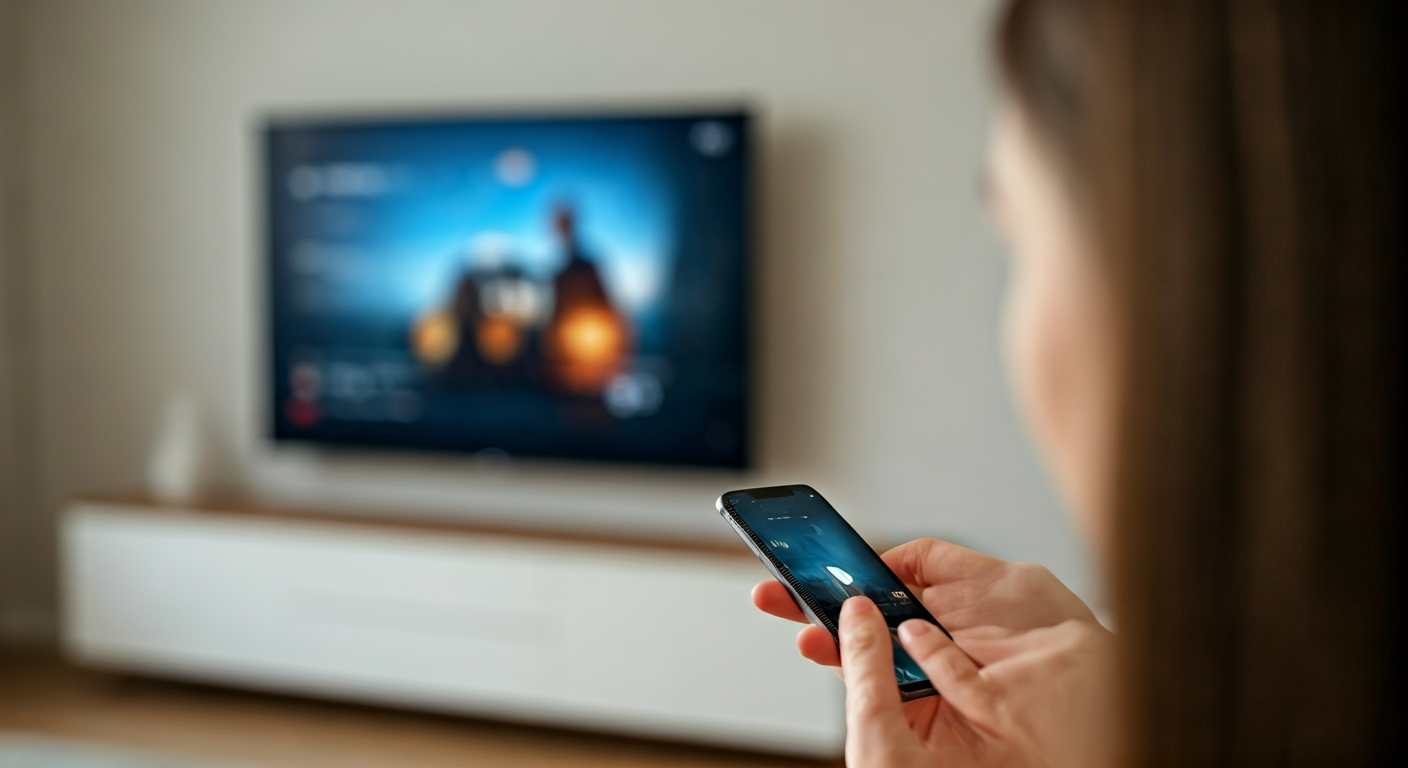
A hand holding a smartphone casting a video to a modern flat-screen television in a living room, illustrating wireless connectivity.

How to connect your phone to a TV without cables

Ali Hassan
Ali Hassan
Writer
Connecting your smartphone to your television wirelessly transforms your viewing experience, moving content from a small screen to a large one effortlessly. This method is perfect for sharing photos, watching videos, or even presenting work without fumbling with cables. Popular wireless technologies like Google Chromecast and Apple AirPlay, along with various Smart TV built-in features, make this process accessible for almost any modern device. This guide empowers you to leverage these convenient options, ensuring a seamless connection every time. We help you understand the nuances of each method, enabling you to confidently choose and implement the best solution for your setup.
Practical Solution
Connect your phone to a TV wirelessly using casting devices like Google Chromecast or Apple TV, or by utilizing your Smart TV's built-in screen mirroring (e.g., Miracast) or casting features. Ensure both your phone and TV are on the same Wi-Fi network. Open a compatible app or your phone's screen mirroring settings, then select your TV or casting device from the available options to begin sharing content.

Unlock Wireless Phone to TV Viewing

This guide covers the most popular and effective methods for wirelessly connecting your smartphone to a television. You will learn about setting up and using dedicated casting devices like Google Chromecast and Apple TV, as well as utilizing the built-in screen mirroring and casting capabilities of modern Smart TVs. We detail step-by-step instructions for both Android and iOS devices, helping you confidently share videos, photos, and apps on the big screen without any physical cables.

Essential Wireless Connection Devices

Google Chromecast
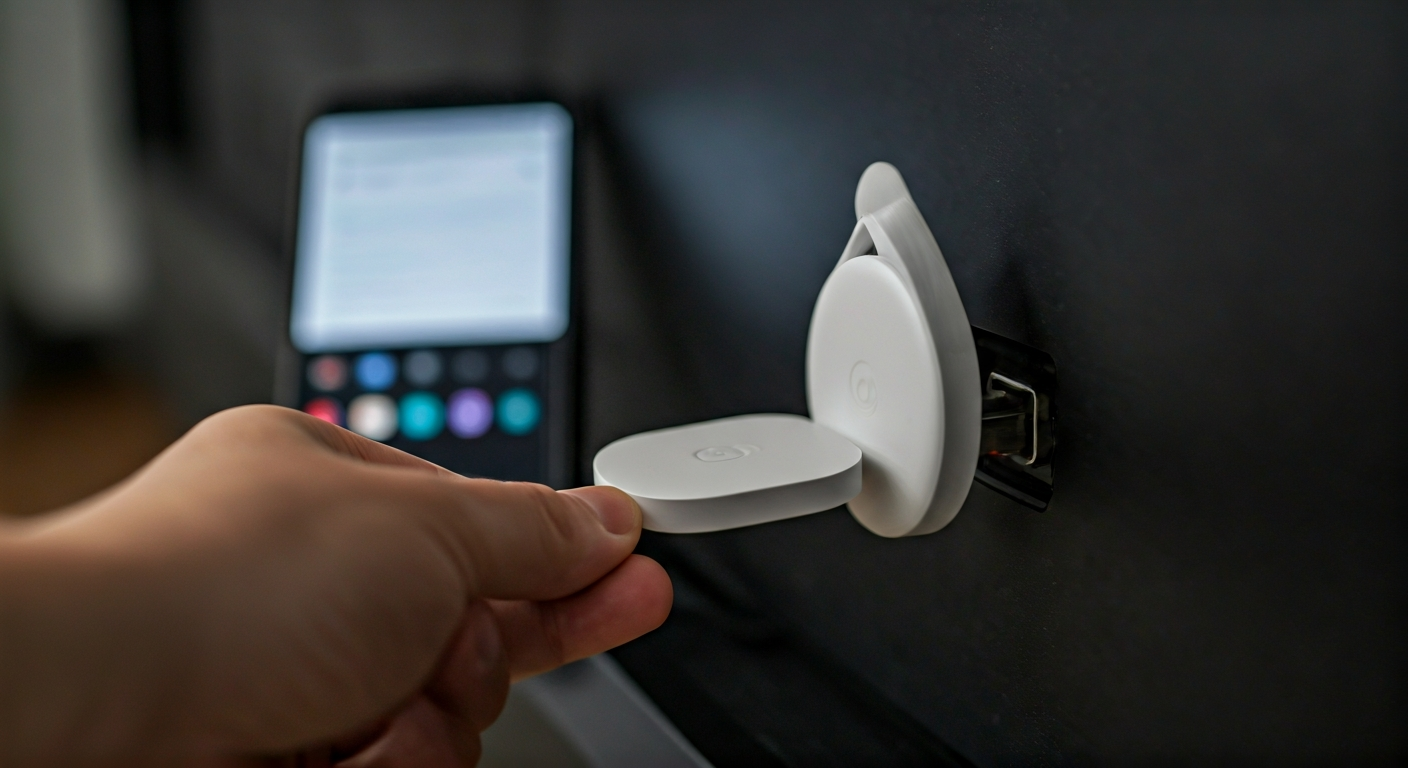
A device that plugs into your TV's HDMI port, allowing you to cast content from various apps on your phone.
Apple TV (or AirPlay 2 compatible Smart TV)
Apple's digital media player, or a Smart TV with AirPlay 2 built-in, enables seamless streaming from iOS devices.
Smart TV with Built-in Casting/Mirroring
Many modern TVs feature integrated technologies like Miracast, DLNA, or proprietary apps for direct wireless connections.

What You Need for Wireless Casting

Smartphone
An Android or iOS device capable of casting or mirroring content.
Television
A TV with an available HDMI port (for casting devices) or built-in wireless capabilities.
Stable Wi-Fi Network
Both your phone and TV/casting device must be connected to the same wireless network.

Prepare for Seamless Wireless Display

Check Device Compatibility

Before attempting to connect, confirm that your smartphone and television are compatible with wireless casting or mirroring technologies. Ensure your phone runs a recent operating system version, as older versions might lack necessary features. For Smart TVs, verify if they support AirPlay 2, Miracast, or have a dedicated casting app. If using a dedicated casting device like Chromecast or Apple TV, ensure your TV has an available HDMI port and a power outlet nearby. Checking compatibility prevents frustration and ensures you choose the correct method from the start.

Ensure Network Stability

A stable and robust Wi-Fi network is crucial for a smooth wireless connection. Confirm that both your smartphone and your television or casting device are connected to the same Wi-Fi network. If your router supports dual bands (2.4 GHz and 5 GHz), try connecting both devices to the 5 GHz band for potentially faster speeds and reduced interference, which improves streaming quality and reduces latency. A strong Wi-Fi signal prevents buffering and disconnections, offering a better viewing experience.

Connect Your Phone Wirelessly: Step-by-Step

1

Understand Wireless Options

Distinguish between 'casting' and 'screen mirroring.' Casting sends specific media (like a YouTube video) to your TV, allowing your phone to perform other tasks. Screen mirroring duplicates your phone's entire screen onto the TV. Choose the method based on what you want to display. Most modern Smart TVs and casting devices support both.
2

Set Up Google Chromecast

Plug your Chromecast into an HDMI port on your TV and connect it to power. Switch your TV's input to the correct HDMI port. Download the Google Home app on your smartphone, open it, and follow the on-screen instructions to set up your Chromecast and connect it to your Wi-Fi network. For detailed setup, consult Google Chromecast Support.
3

Cast Using Chromecast

Open a compatible app on your phone (e.g., YouTube, Netflix, Spotify). Look for the 'Cast' icon (a rectangle with a Wi-Fi symbol in the bottom-left corner). Tap the icon and select your Chromecast device from the list. The content will start playing on your TV. To mirror your Android screen, open the Google Home app, select your Chromecast, and tap 'Cast my screen'.
4

Use Apple AirPlay

Ensure your Apple TV or AirPlay 2 compatible Smart TV is on the same Wi-Fi network as your iPhone or iPad. Open the content you want to share. For videos, tap the AirPlay icon (a rectangle with an upward-pointing arrow) within the app. For photos, tap the share icon, then AirPlay. Select your Apple TV or AirPlay-enabled TV from the list. For comprehensive instructions, refer to Apple AirPlay Support.
5

Mirror Your iOS Screen

On your iPhone or iPad, swipe down from the top-right corner (or up from the bottom for older models) to open Control Center. Tap 'Screen Mirroring' (two overlapping rectangles). Select your Apple TV or AirPlay 2 compatible TV from the list. Your entire phone screen will now appear on your television. To stop mirroring, return to Control Center and tap 'Stop Mirroring'.
6

Utilize Smart TV Features

Many Smart TVs have built-in screen mirroring or casting. For Android phones, go to your phone's 'Smart View,' 'Screen Cast,' 'Wireless Display,' or 'Mirror Share' settings (names vary by manufacturer). On your TV, navigate to the 'Source' or 'Input' menu and look for 'Screen Mirroring,' 'Miracast,' or a similar option. Select your TV from your phone's list to connect. Some TVs also have proprietary apps (e.g., LG ThinQ, Samsung SmartThings) that allow casting.
7

Disconnect When Finished

To stop casting or mirroring, simply tap the 'Cast' or 'Screen Mirroring' icon on your phone again and select 'Disconnect' or 'Stop Mirroring.' This conserves your phone's battery and prevents accidental sharing.

Pro Tips for Optimal Display

Keep your Wi-Fi router close to both your phone and TV for the strongest signal.
Always update your phone apps and TV firmware to ensure compatibility and performance.
Minimize other network activities (e.g., large downloads) during casting to reduce buffering.
Restart your router, TV, and phone if you encounter persistent connection issues.
Adjust your TV's picture settings (e.g., aspect ratio) for the best viewing experience after connecting.

Avoid Common Wireless Connection Errors

Incorrect Wi-Fi Network
Both your phone and the TV/casting device must be connected to the exact same Wi-Fi network (e.g., 'MyHomeWi-Fi' not 'MyHomeWi-Fi_Guest').
Outdated Software/Firmware
Failing to update your phone's operating system, app versions, or your TV's firmware can lead to compatibility issues and connection failures.
Incompatible Devices
Attempting to use AirPlay with a non-AirPlay TV or trying to Miracast from an iPhone will not work; always verify device compatibility.
Wi-Fi Interference
Other devices operating on the same frequency (e.g., microwaves, cordless phones) can disrupt your Wi-Fi signal, causing connection drops or poor quality.

When to Seek Professional Guidance

While wireless connections are generally straightforward, some complex issues may warrant professional assistance. If you consistently experience severe network latency, dropped connections despite trying all troubleshooting steps, or if your devices frequently fail to detect each other, your home Wi-Fi network might require optimization or an upgrade. A network specialist can diagnose router configurations, signal strength, and potential interference problems. Similarly, if your Smart TV exhibits persistent software glitches or hardware failures preventing wireless functions, a certified technician from the manufacturer or a reputable electronics repair service can provide necessary diagnostics and repairs. Before investing in new hardware, professional advice can confirm if the issue lies with your existing setup or requires new equipment.

Quick Answers to Common Questions

Was this article helpful?

Vetted by 3 professional readers

About the Author

Ali Hassan
Ali Hassan
Verified Author
Writer

Professional contributor.

Related Articles

See All Topics
A hand connects a white Chromecast into a TV's HDMI port, with the power cable also attached. A smartphone nearby shows the Google Home app.

Connect your Chromecast device to an HDMI port and a power source on your TV. Download the Google Home app on your mobile device. Open the app, follow the on-screen prompts to find and set up your new device, connect it to your home Wi-Fi network, and link it to your Google account. Confirm the code displayed on your TV matches the app to complete the pairing process.

18 Helpful
Insight
A person with closed eyes lies peacefully in a dim, cozy bedroom, a journal and pen on the nightstand, symbolizing a clear and calm mind before sleep.

To clear your head before sleeping, establish a consistent pre-sleep routine focusing on mental offloading and relaxation. Journal your thoughts, practice deep breathing or guided meditation, and engage in calming activities like reading or gentle stretching. This intentional wind-down signals to your brain that it is time to disengage from daily stressors and prepare for restorative sleep.

13 Helpful
Insight
Roach bait station strategically placed in a clean kitchen corner, with subtle lighting, representing effective home pest control.

Eliminate roaches by first identifying their hiding spots and entry points. Deploy bait stations and sticky traps strategically in these areas. Maintain rigorous sanitation, seal cracks and crevices, and remove all food and water sources. Consistent application of these methods, combined with vigilant monitoring, effectively eradicates infestations and prevents their return.

14 Helpful
Insight