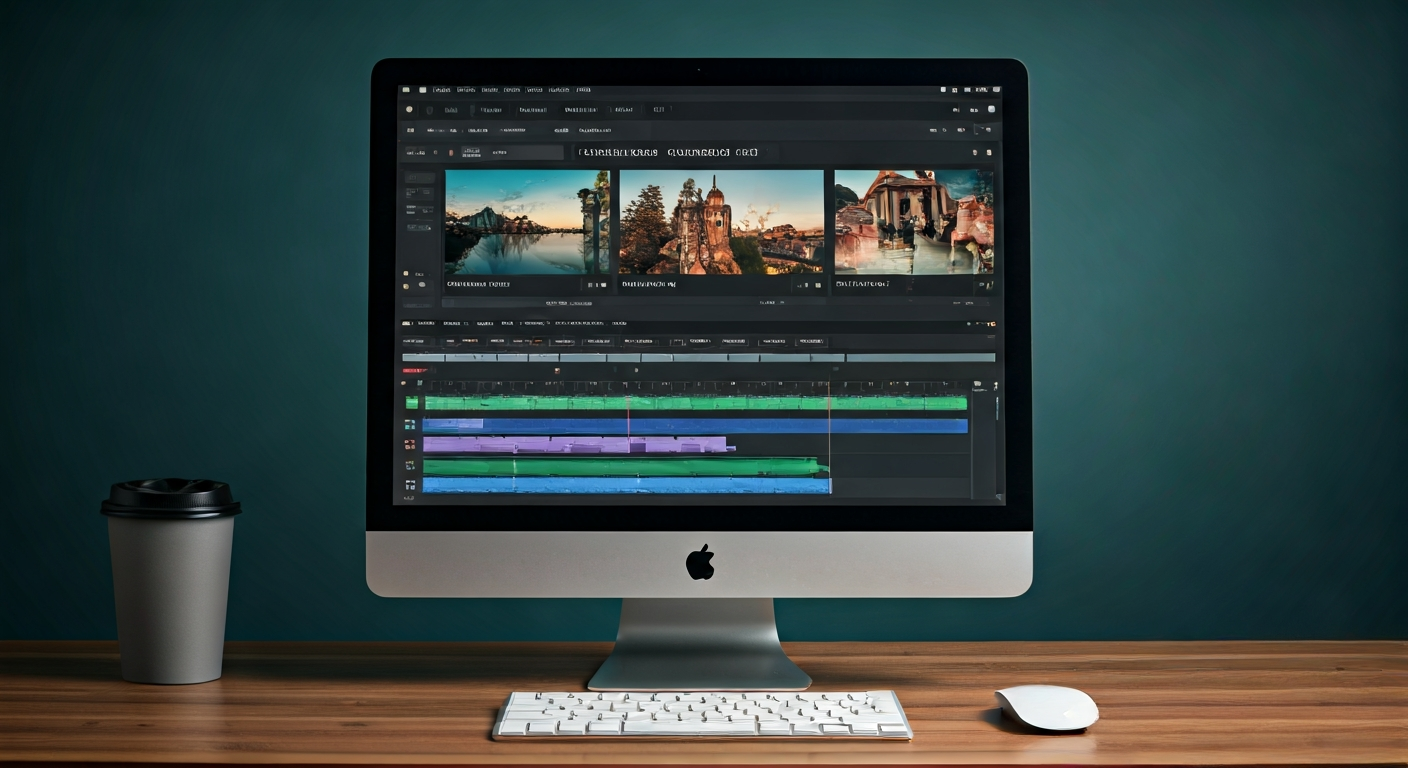
Advanced Mac Screen Recording Techniques: Annotations, Editing, and More
Trimming and Basic Editing with QuickTime Player
Open Your Recording in QuickTime Player
Access the Trim Tool
Adjust Trim Handles
Preview and Confirm Trim
Split Clips for More Control
Rearrange and Delete Clips
Save Your Edited Recording
Enhancing Mac Recordings with Annotations and Overlays
Optimizing Recording Quality for Post-Production
Beyond QuickTime: Exploring Advanced Editing Workflows
Feature Comparison: Built-in vs. Advanced Tools
| Feature | QuickTime Player (Built-in) | iMovie (Apple, Free) | Professional NLE (e.g., FCP/Premiere Pro) |
|---|---|---|---|
| Screen Recording | Yes (via File > New Screen Recording) | No (requires external capture) | No (requires external capture) |
| Basic Trimming/Splitting | Yes | Yes | Yes |
| Adding Text Overlays | No | Yes (limited fonts/styles) | Yes (extensive customization) |
| Shape/Arrow Annotations | No | Limited (via titles) | Yes (customizable graphics, motion tracking) |
| Multiple Video Tracks | No | Yes (up to 2 for picture-in-picture) | Yes (unlimited) |
| Audio Editing | Basic volume adjust | Yes (noise reduction, EQ, ducking) | Yes (advanced mixing, effects) |
| Transitions & Effects | No | Yes (standard library) | Yes (extensive, customizable, plugins) |
| Export Options | MOV (H.264), M4A (audio) | MP4, MOV (various resolutions) | MP4, MOV, ProRes, customized codecs |
Choosing Your Mac Screen Recording & Editing Tools
Pros
- QuickTime Player: Free, built-in, easy for basic capture and trimming.
- iMovie: Free for Mac users, good balance of ease-of-use and advanced features for beginners.
- Professional NLEs (e.g., FCP, Premiere Pro): Full suite of editing, annotation, effects, and audio tools for broadcast quality.
- Third-Party Screen Recorders (e.g., OBS, Camtasia): Often include built-in annotation tools and more flexible recording options.
Cons
- QuickTime Player: Lacks advanced editing, annotation, and effects features.
- iMovie: Limited in professional features, fewer customizability options than pro tools.
- Professional NLEs (e.g., FCP, Premiere Pro): Significant cost, steep learning curve, requires powerful hardware.
- Third-Party Screen Recorders (e.g., OBS, Camtasia): Can add complexity, may have subscription costs, or resource heavy.
Key Takeaways for Professional Mac Screen Recording
Key Takeaways
- Start with Quality: Always record at the highest possible resolution and use a quality microphone for audio.
- Master QuickTime Basics: Utilize QuickTime Player for fundamental trimming and splitting to refine your raw footage.
- Leverage Markup for Stills: Use macOS Markup tools on screenshots to create static annotations for key moments.
- Embrace Video Editors for Dynamics: For dynamic annotations, text overlays, and visual effects, transition to iMovie or professional NLEs.
- Explore Advanced Workflows: Integrate intros, outros, background music, and picture-in-picture effects using multi-track editing software.
- Optimize for Sharing: Understand file formats and compression settings to balance quality and file size for easy sharing.
Common Questions on Advanced Mac Screen Recording
Was this guide helpful?
Your feedback helps our writers improve this help center.
About the Author
Related Guides
See All Topics
For basic screen recording on Mac, the built-in QuickTime Player is excellent and free. For advanced features like editing, annotations, and multi-source recording, OBS Studio is the best free option, while paid tools like Camtasia and ScreenFlow offer comprehensive suites for professional-grade video creation with robust editing and advanced effects.
macOS offers two primary built-in tools for screen recording: the Screenshot Toolbar (Command + Shift + 5) and QuickTime Player. The Screenshot Toolbar is ideal for quick captures and basic recordings with options for full screen, selected window, or custom selection. QuickTime Player provides more robust features like audio input selection, movie trimming, and the ability to record iOS device screens, making it suitable for more advanced needs.
To optimize Mac screen recording, balance resolution, frame rate, and video codec. For high quality, use native resolution (1920x1080 or higher), 30-60 frames per second (fps), and the HEVC (H.265) codec. Reduce file size by selecting a lower resolution, 15-24 fps, or the more efficient HEVC codec over H.264, while choosing 'High' or 'Medium' quality settings in QuickTime Player or third-party software.